



Imagine you have a directory with these files:

And you want to add the .old extension at the end of every .log file. Maybe run some mv commands?
mv date.log date.log.old
mv server1.log server1.log.old
mv server2.log server2.log.old
mv server3.log server3.log.old
mv update.log update.log.old
mv upgrade.log upgrade.log.old
That's a lot to write, and repetitive. But you can run all of those commands, with just one line:
for file_name in *.log; do mv "$file_name" "$file_name.old"; doneThat's a Bash for loop. Bash being the default shell on most Linux distributions.
Less to type, faster to execute, and it does the same job as that long list of mv commands:

Now let's break down how this works. Then see what kind of lists for loops can go through. And, at the end of the blog, see some examples of real Bash for loops.
What is a Bash for Loop?
A Bash for loop is like a to-do list. You give it a list of elements. And it executes one, or more commands, on each element.
For example, if you have a directory with these files:
date.log
server1.log
server2.log
server3.log
update.log
upgrade.log
A for loop like this:
for file_name in *.log; do mv "$file_name" "$file_name.old"; doneReceives *.log as the list of elements (every file, or directory name that ends with .log). And it will execute this mv command for the first element, date.log:
mv date.log date.log.oldThen another command for the second element, server1.log:
mv server1.log server1.log.oldAnd so on.
If you spot a situation where you need to run similar commands on a huge list of objects, a for loop can significantly speed things up.
Bash for Loop Syntax
The general syntax of a Bash for loop is this:
for ITEM in LIST; do COMMAND; doneIt consists of three parts, separated by the ; semicolon:
- The list of items to go through. The
forkeyword introduces it. - The command(s) to run. The
dokeyword introduces this part. - The end of the for loop definition. The
donekeyword signals the end of it.
Example of a real for loop that locks the passwords of three user accounts:
for user in alex john jane; do sudo passwd -l $user; doneNeed to run multiple commands? Just list them all in the do section, and separate each command with a ; semicolon:
for ITEM in LIST; do COMMAND1; COMMAND2; COMMAND3; doneBut these commands can get quite long. In that case, you can make your for loop more organized by writing it on multiple lines. Something like this:
for ITEM in LIST
  do
    COMMAND1
    COMMAND2
    COMMAND3
  done
The ; semicolon is not needed anymore since the new lines themselves act as separators now.
An example of a multi-line for loop that logs in to three servers and displays operating system information on each:
for server in server1 server2 server3
  do
    echo "*** Now running command on $server ***"
    ssh your_user_name@$server "cat /etc/os-release"
    echo
  done
How a Bash for Loop Works
Now let's go from the generic syntax:
for ITEM in LIST; do COMMAND; doneTo a real example, and see how it works:
for file_name in *.log; do echo "What is the file_name at this point? It's: $file_name"; doneThese are the important parts of this for loop:
ITEMisfile_namehere. It's a variable name, and you can pick any name you want.LISTis*.log. This will be fully explained in a later section, and you'll also find examples on what other types of lists you can use.COMMANDisecho "What is the file_name at this point? It's: $file_name.
The ITEM in the for Loop Explained
Let's analyze this part:
# Generic syntax:
for ITEM in LIST;

# Real example:
for file_name in *.log;
The ITEM is called file_name in this example. Just a random variable name you can freely choose. But what does it do?
Well, at each step of the for loop this variable gets assigned a value from that LIST.
Otherwise said:
file_name"becomes" the first element in the list. And some commands run whilefile_namehas this value.- Then it "becomes" the next element in the list. And some commands run.
- And so on, for each element from the list.
Remember the command?
echo "What is the file_name at this point? It's:$file_name"
That $file_name is the magic part. The $ in the front tells the Bash shell (command interpreter):
Replace this $file_name text here with the actual value this variable currently holds.As a helpful visualizer, here's what this for loop would output:

You can literally see how the value that file_name holds at each step is inserted in that spot. Where you placed $file_name in your command(s).
So, wherever you want to use each element from your list, in a command, just place $YOUR_ITEM_NAME in that spot.
The LIST in the for Loop Explained
In the earlier example:
# Generic syntax:
for ITEM in LIST;

# Real example:
for file_name in *.log;
The LIST is *.log. How does that work? Well, that's again some Bash shell (command interpreter) magic.
Bash automatically expands *.log to a list of file names and directories that end in .log.
And with these files in the current directory:
This part of the for loop:
for file_name in *.log;Becomes this (behind the scenes):
for file_name in date.log server1.log server2.log server3.log update.log upgrade.log;Yes, just a list of file names. Just some words in that for loop, at the end of the day.

See? It makes no difference if you write the list as .log or enumerate the file names yourself. But *.log is faster to write.
How the for Loop Iterates Through the List and Executes Different Commands
With this example in mind, let's recap:
# Generic syntax:
for ITEM in LIST; do COMMAND $ITEM; done

# Real example:
for name in alex john jane; do echo Username in for loop is now: $name; done- You give the
forloop aLIST. - You pick an
ITEMname to represent each item in your list. - Then you type one, or more commands. And write
$ITEMwherever you want to include elements from your list in those commands.
And then the for loop goes through that list, step-by-step.

ITEM"becomes" the first element in the list.- Then one, or more commands run. And wherever you placed
$ITEM, that's where the current element from the list will be included in those commands. - Then
ITEMbecomes the second element. And the process repeats for every item from your list.
Because of how $ITEM becomes a new element at each step, your commands "adjust on the fly," so to speak.
That's how something like:
for user in alex john jane; do sudo passwd -l $user; doneMakes the for loop execute three commands, but with a different $user name at each step:
sudo passwd -l alex
sudo passwd -l john
sudo passwd -l jane
Here's a multi-liner where the $ITEM trick is used multiple times to exemplify this "dynamic replacement" in two commands:
for file_name in *
  do
    echo
    echo -n "The md5 checksum of $file_name is: "
    md5sum "$file_name" | cut -f1 -d " "
  done
Output:
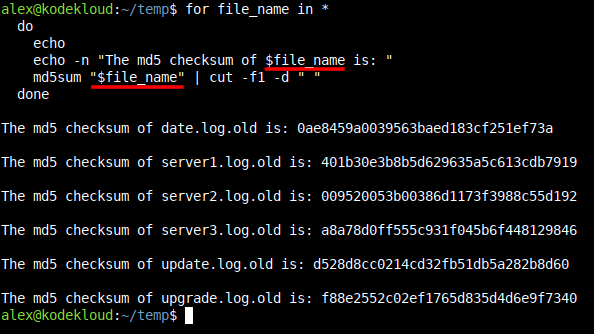
$file_name (the $ITEM) from the echo command gets expanded to the current value it holds, at each step, and gets placed here:
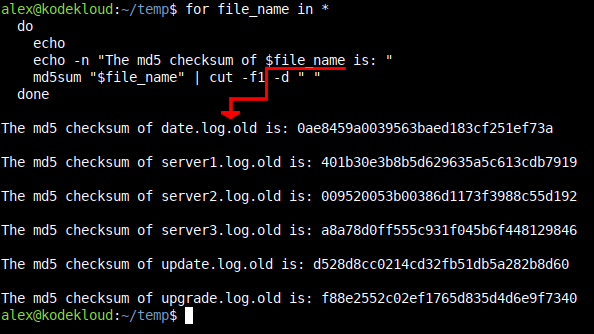
Then, the md5sum command is run on the current value that $file_name points to, at each step. And the whole output of the md5sum "$file_name" | cut -f1 -d " " command is placed here:
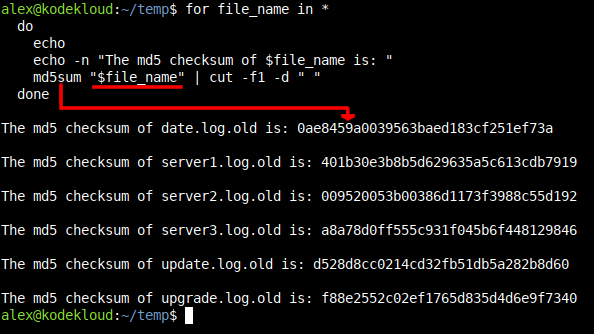
As you can see, the commands can get as complex as you want; with command-line switches, pipes to other commands (like cut -f1 -d " " in this case), and so on.
The lists you'll use can include file names, directory names, server names, software package names, whatever you want.
Generate a list, pick whatever ITEM name you want, then insert $ITEM where you want to use them in the commands executed by the for loop.
Bash for Loop Misbehaving When File or Directory Names Contain Spaces (And How to Solve It)
Maybe you have a keen eye and noticed something throughout this tutorial, wondering why it's written this way:
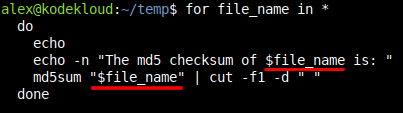
- Why is it that the first time
$file_nameis written plainly. - But the second time it's written as
"$file_name", wrapped between" "quotation marks?
Well, it's all about what the commands expect. Whenever you place $ITEM in a command, you have to think about the replacement that will go on, behind the scenes.
For example, assume file_name currently holds the value My File. Which means that this:
echo -n "The md5 checksum of $file_name is: "
Will be replaced with this:
echo -n "The md5 checksum of My File is: "
The echo command just got some text, My File, in that spot where $file_name used to sit before. That plain text creates no problems for echo, in this situation.
But then, let's say you have this:
md5sum $file_nameAnd now, it's a problem!
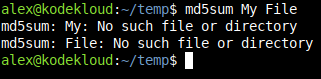
No such file or directory error. That's because md5sum thinks you passed 2 file names here.
For example, you could write a command like this:
md5sum server1.log server2.logAnd it would say, "Ok, here are the MD5 sums of the two file names you provided:

So when you use this in a for loop:
md5sum $file_nameAnd $file_name is equal to My File, the command that will actually run is:
md5sum My Filemd5sum thinks you want the MD5 sums of two files:
My- And
File
When what you want is the MD5 sum of a single file called My File. The problem is the space character in the middle.
That space character acts as a separator. Wherever md5sum sees a space it thinks that's where the name of another file begins.
So that's why it's confused here, and looking for two files:
To get rid of this confusion, the Bash shell itself has a solution: The " " quotation marks. You can tell any command:
Hey, these are NOT two objects, separated by a space character. This is actually a single object.
And you do that by wrapping that single object name between " " quotation marks:
md5sum "My File"This tells the md5sum command that My File is a single file, not two files. Just one file that contains a space character in its name:

And now it works correctly, instead of throwing this error:
So that's why the variable $file_name was wrapped between quotation marks, when passed to md5sum here:
To deal with the possibility that some files might contain spaces in their names.
So keep this in mind for whatever commands you include in your for loops.
If the command considers the space character an object separator, then wrap $ITEM between quotation marks. Make it "$ITEM".
What Can Be Used as a List in a Bash for Loop?
Remember the general syntax of a for loop?
for ITEM in LIST; do COMMAND; doneThe first interesting question is what can you actually use as a LIST of objects? Elements to iterate through, and run commands on.
Explicit Values
The simplest one: You just type a plain list of elements, with a space character between them.
Say you want your for loop to execute some commands for three names, alex jack jane. That's your list and you write it directly, like this:
for person in alex jack jane; do echo Name of current person is $person; done
Replace the echo command with something that creates, or modifies user accounts, and you can quickly make changes to multiple users.
Or list some server names, add some ssh commands in the do section, and you can quickly run commands on multiple Linux servers. Examples of this will be found in a later section of this article.
Files and Directories (* Glob Patterns)
To match all files and directories in your current directory, use *:
for file in *; do echo "Name of file/directory is: $file"; done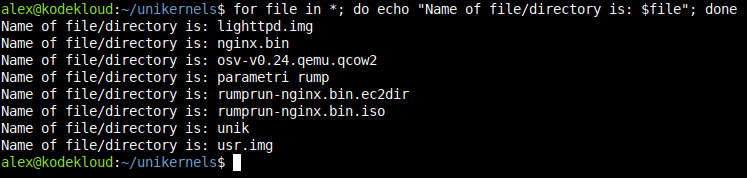
* in any way can match not only files, but also directories. Even *.log can match a directory if any of them happens to have a name that ends with .log.To match files that end with a certain extension, like .sh (shell scripts), write your list as *.sh:
for file in *.sh; do echo "Name of file is: $file"; doneHere, you can read more about Bash globbing.
Ranges
Next, you can have a range. You just specify the start, and end of your range.
Want a for loop that uses a range from 1 to 10? Wrap it between { } curly brackets. And write something like this:
for number in {1..10}; do echo Current number is $number; done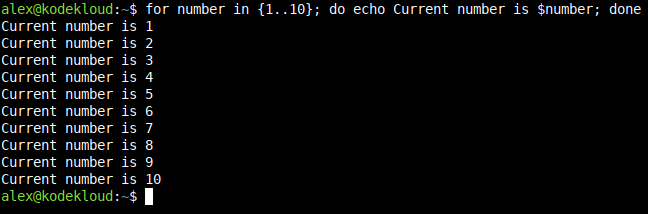
It also works for letters. To go from a to z:
for letter in {a..z}; do echo Current letter is $letter; done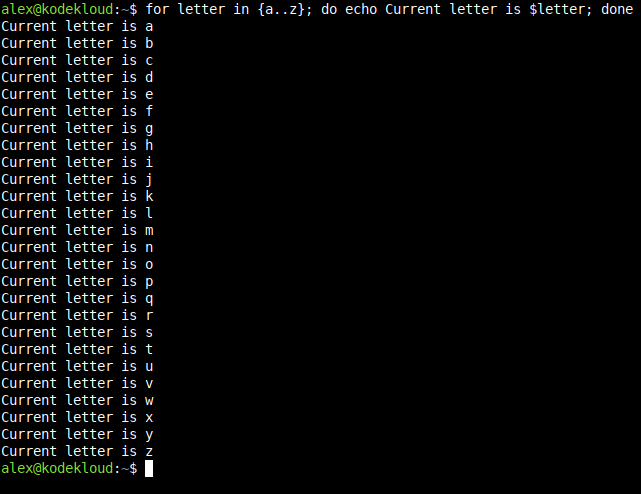
Fixed Word + Variable Range
You can combine a fixed word with a variable range.
Think of something like server1, server2, server3, all the way to server10. The "server" word is fixed. The only thing that varies is the number at the end. To iterate through all such values, you would write server{1..10} in this part of the for loop:
for servername in server{1..10}; do echo Current server is $servername; done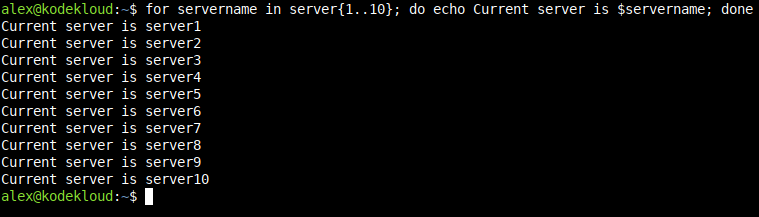
Combination of Fixed Word, Range, and Set
Imagine you have servers from Europe, and the US. And they have names like this:
eu-server1
eu-server2
...
us-server1
us-server2
...
What you notice is:
- The beginning of their name is a set (a collection of possible values), either
eu-orus-. And this set can be written as{eu-,us-}. - Then there's a fixed name in the middle,
server. - And a range of numbers at the end, that goes from 1 to 10. Which, as described in the previous, section can be written as
{1..10}.
Combine all of these, and you get: {eu-,us-}server{1..10}. Which you can use this way in your for loop:
for servername in {eu-,us-}server{1..10}; do echo Current server is $servername; done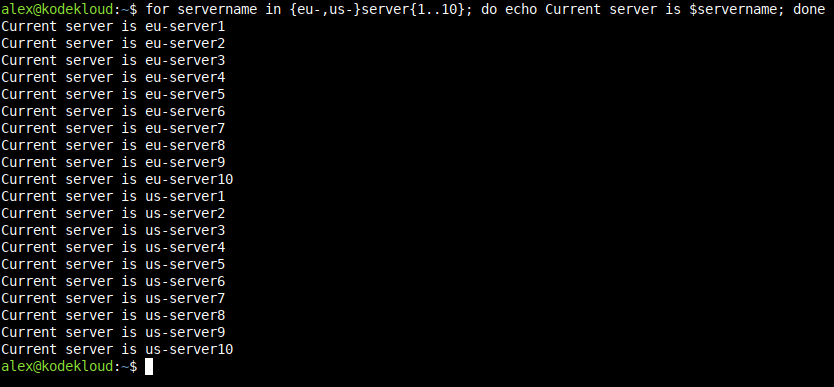
The Output of a Command
Imagine you run a command like this:
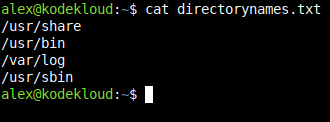
What you get is essentially a list in itself: A bunch of directory paths.
You can take output generated by a command, and use it as a list in your for loop.
Let's imagine you get a thousand directory names here. And you want to filter out just the ones that begin with /usr:
grep "^/usr" directorynames.txt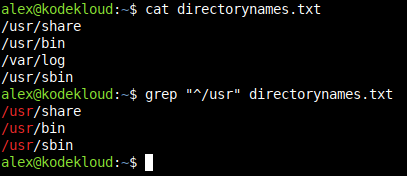
Now that you filtered them out, and you think the output looks good, you can feed this output into a for loop. Use it as a list of elements that the for loop can iterate through.
To do that, wrap your command between the parentheses here: $().
Visualize it like this: $(PLACE COMMAND HERE).
For example, if you take the earlier command:
grep "^/usr" directorynames.txtYou first wrap it like this:
$(grep "^/usr" directorynames.txt)And then add it to the for loop in this spot (where the LIST should be):
for directory in $(grep "^/usr" directorynames.txt); do du -sh "$directory"; doneThe du -sh command will run on each directory, and show you its size:

Note how much happened in just one line:
- You made a search with
grepin yourdirectorynames.txtfile. - You filtered out just the results that start with
/usr. So/var/logwas excluded, in this case. - You took this list of filtered results and passed it to the
forloop. - You ran a
du -shcommand on every item from that list.
Pretty cool thing to do with a rather short line.
Real Examples of Bash For Loops
What are some of the things you can do with a for loop?
Batch Rename Files
To change the file extension of all .log files, from .log to .old run:
for file in *.log; do mv "$file" "${file%.log}.old"; done
This might look complex: ${file%.log}. But all it does is remove the .log part from the file name returned by the file variable.
Imagine it like this: $file = server1.log. Then this runs:
mv "$file" "${file%.log}.old$file is replaced with server1.log, and that weird %.log part removes this:
mv "server1.log" "server1.log.old"
So after that is removed, you end up with this command running:
mv "server1.log" "server1.old"Replacing the file extension.
SSH Into Multiple Servers and Run Commands
To run the same command(s) on multiple servers:
for server in server1 server2 server3; do echo "*** Now running command on $server ***"; ssh your_user_name@$server "cat /etc/os-release"; echo; doneOf course, it looks better when written on multiple lines:
for server in server1 server2 server3
  do
    echo "*** Now running command on $server ***"
    ssh your_user_name@$server "cat /etc/os-release"
    echo
  done
This would use ssh to connect to every server, and then run cat /etc/os-release on each one.
for loop.Run Commands on Each Active Docker Container
You use Docker? Here's how you can run commands for multiple Docker containers.
In this example:
docker ps --format '{{.Names}}'returns the names of all active containers.- You feed it as a list of elements that the
forloop can iterate through. The$()trick discussed in an earlier section. - And the commands in the
forloop will display the last 5 log lines from each container.
for container in $(docker ps --format '{{.Names}}')
  do
    echo
    echo "*** Container: $container ***"
    docker logs --tail 5 "$container"
  done
Need to do something else with your active containers? Just replace the commands in the do section of the for loop.
Check Host Availability
Imagine you're going back and forth on some code / app. And you constantly power on, and power off some servers / virtual machines. Sick of manually verifying if these are online? Check them all at once with a for loop.
To check if multiple hosts are online you could use something like this:
for site in google.com 192.168.0.16 github.com api.local
  do
    if ping -c 1 "$site" &> /dev/null; then
      echo "$site is UP"
    else
      echo "$site is DOWN"
    fi
done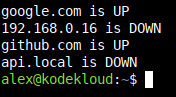
Put this in a Bash script, call it check.sh, and you can quickly verify host status with a simple command like:
./check.shUse these as inspiration to build your own for loops.
Conclusion
The Bash shell is extremely powerful. And for loops are just a part of that power, and flexibility (a for loop is called a Bash builtin functionality).
Combine for loops with other builtins like if, and you can do even smarter stuff; like execute some commands only if certain conditions are true / false. Which means you can adjust your for loops to do different things, in different scenarios (not just blindly run the same commands for every item in your list).
We hope this was an interesting read, and will see you in the next one!





Discussion