


Need to check your Python version and you have access to the command line? Just run this command:
python3 --version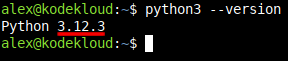
In this example, 3.12.3 is the Python version.
Don't have access to a command line? Maybe because you are using Python on a website?
Or you're getting a "command not found" type of error? Then read the additional instructions below.
How to Check Python Version on the Command Line
Depending on your operating system, here's what you can try.
Windows
If you're on a Windows machine, open PowerShell. Then run this command to check your Python version:
python --versionOn the rare occasion that doesn't work, try:
python3 --versionAnd:
py -3 --versionIt's a bit confusing because Python could have been installed in different ways: through the Microsoft Store, by downloading an installer from the official Python website, or other types of installers.
And it also depends on what settings you selected during the install process.
If you used the installer from the Python website, then the shorter py command should work.
When in doubt, just try all of the above 3 commands.
It's also possible to have multiple Python versions installed. To list them all, try this command on Windows:
py --listmacOS and Linux
On macOS, or Linux, open a Terminal.
Then run this command to check what version of Python you have installed:
python3 --versionOr, if you want to type less, this command does the same thing:
python3 -VNote that it's an uppercase V, not lowercase v.
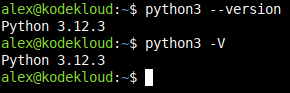
That series of numbers you see is the version, 3.12.3 in this case.
If you accidentally type lowercase -v instead of uppercase -V you'll end up in something similar to this:
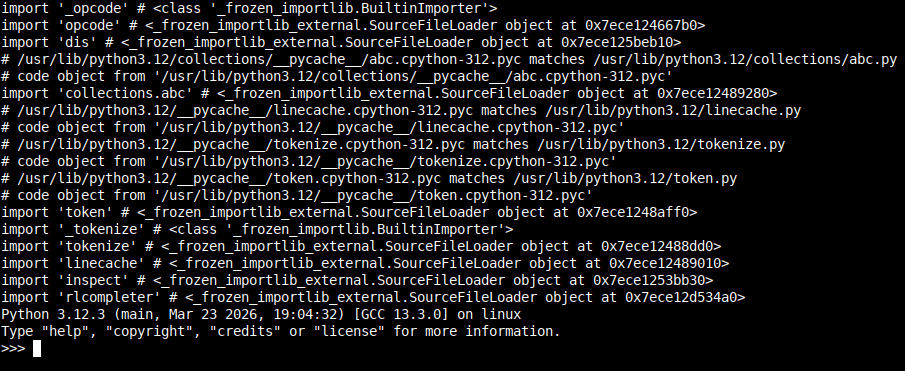
You're essentially "stuck" in the interactive Python shell. To exit from Python just type:
exit()And press Enter.
Python Command Not Found? Find it with Autocomplete
You might have noticed that this command:
python3 --versionHas a 3 at the end, signaling the system runs something like Python 3.x.y. But on very rare occasions, you might end up on a system running the much older Python 2 version. Or, in the future, maybe Python 4.x.y.
If you suspect the system you logged into uses Python 2, then use this to check for that version:
python2 --versionAlso check with:
python --versionIf you still get a "command not found" type of error, then do this.
PowerShell on Windows and the command-line shells on macOS, and Linux, support a feature called autocompletion. Use that to your advantage. Type:
pythAnd then press TAB. On Windows, you might already get a suggestion for the right command.
On Linux, it might autocomplete and go from pyth to python. Press TAB 2 more times, and you will get suggestions for valid commands that start with the word python. You might see something like this:

In this example, you can spot that what you're looking for is python3. So start with that command, then add a space, and --version at the end. You'll end up with the valid command for your system:
# Usually:
python3 --version

# On some systems:
python --version

# Maybe in the future?
python4 --versionHow to Check Python Version with Code (No Command Line Available)
You might find yourself in situations where you are in a Python environment, but with no command line available.
For example, you're running some web-based playground. Like KodeKloud's Python Programming Labs. Just learning how to code with Python directly on a website.
As long as you can run Python code, the solution to check the version is quite simple. This will work on platforms like Jupyter Notebook / JupyterLab, Google Colab, and similar environments. You just need to type two lines of code to check for the Python version:
import sys
print(sys.version)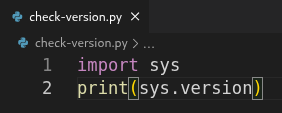
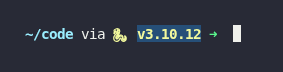
And that's it. You click the button to run this, and you get the current Python version:
python3 -V is faster. Just look for it somewhere on the web interface.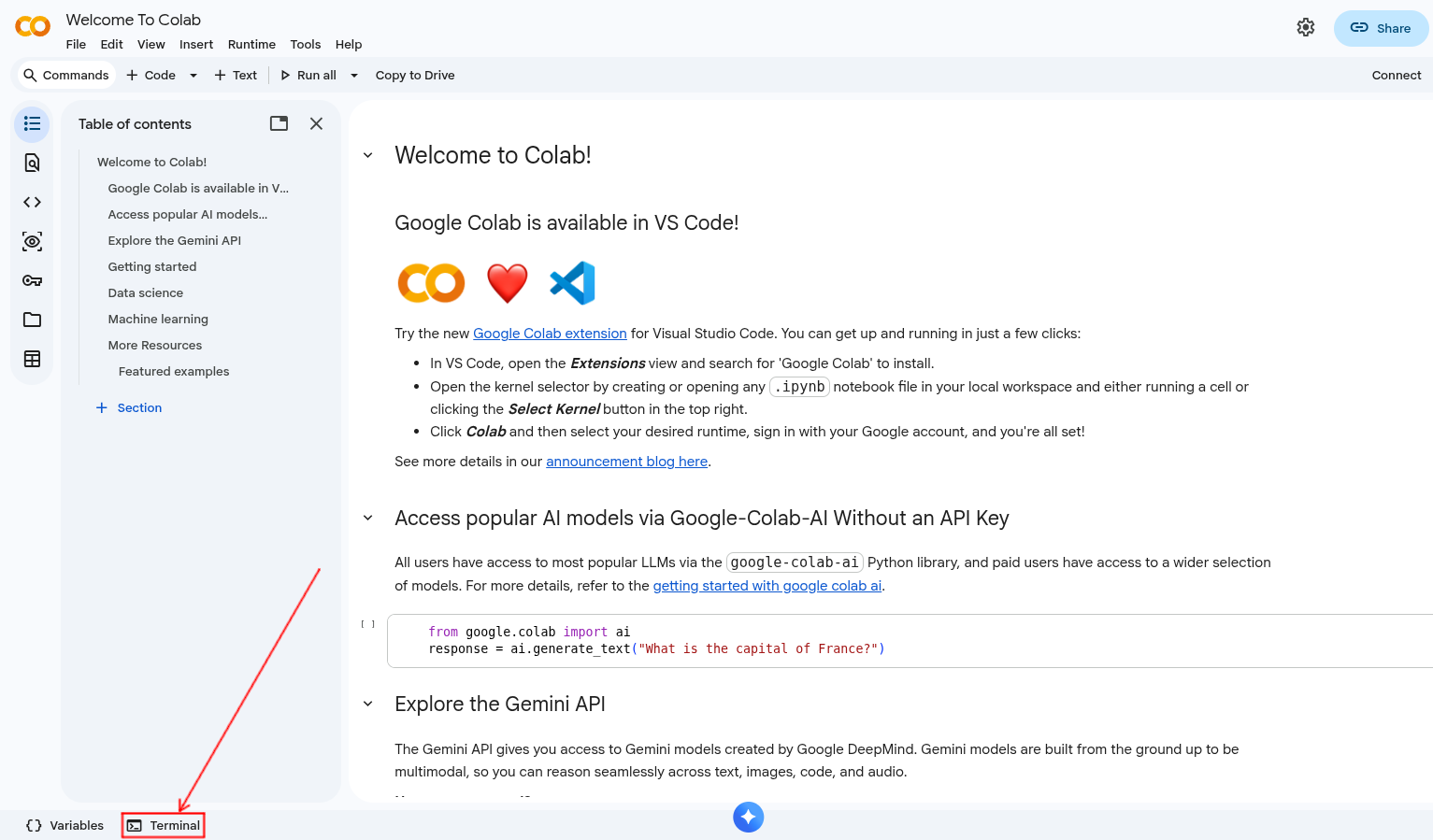
How to Check Python Package Version
Now what if you're not looking for the version of the Python interpreter itself? But, rather, the version of an additional Python package you installed (or is pre-installed in your environment). Something you maybe brought in with the pip command that manages Python packages.
Think of it as checking the version of an "add-on" that you use in your code. Something that gives you quick access to some advanced functionality. Like the requests package that helps you easily make HTTP requests in your Python code.
Check Python Package Version on the Command Line
If you have access to the command line, you can check Python package information with the pip command. To list all installed Python packages and their version information run:
pip list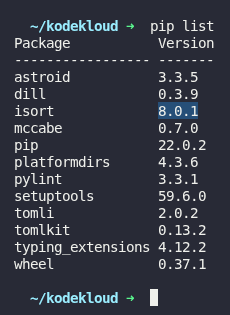
To display detailed information for a single package (including version info) run:
pip show package_nameFor example, to check information for the isort package:
pip show isort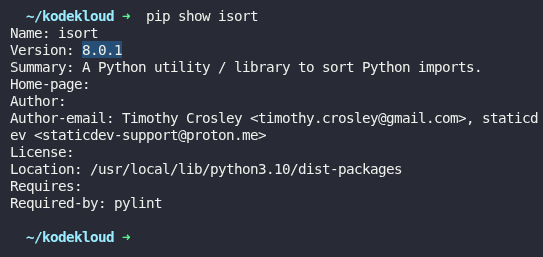
Check Python Package Version with Code (No Command Line Available)
Say you're in an environment where you cannot run commands. But you can run Python code.
To check the version of a package called isort, you would run this code (just replace isort with the package name you need):
import importlib.metadata
print(importlib.metadata.version("isort"))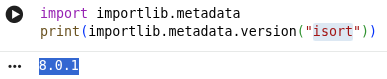
And you'll see the version number in the output. Sometimes this output appears right below your code (Google Colab). Other times you'll need to look for a separate window / panel that says Output.
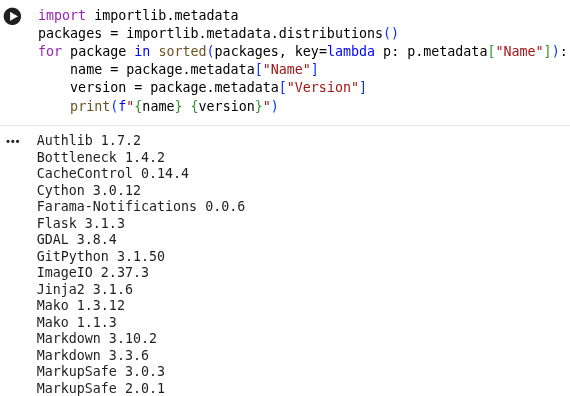
Need to list all Python packages, along with their version numbers? Then run this instead:
import importlib.metadata
packages = importlib.metadata.distributions()
for package in sorted(packages, key=lambda p: p.metadata["Name"]):
    name = package.metadata["Name"]
    version = package.metadata["Version"]
    print(f"{name} {version}")
And you'll see output like this right below your code (or in a dedicated Output panel / window):
Conclusion
Even though this article might seem complex, the gist of it is this. In most cases you will be able to get your Python version with a simple command like python3 --version. And you will get package information with a pip show package_name command.
All the rest are just edge cases when you don't have a command line available, or when python3 isn't recognized as a valid command. But you won't encounter those situations often. And even when you do, the solutions are straightforward. A few lines of simple Python code, or a simple adjustment to the python command, and you're good to go.
Thanks for reading, and see you in the next one!





Discussion