



The Linux command line is great. But it has a few pain points.
For example, there are some very long commands that you have to repeat hundreds of times.
Like this one, that upgrades Debian / Ubuntu systems:
sudo apt update && sudo apt upgradeInstead of repeating this long command, you can create a Bash alias:
alias upgrade='sudo apt update && sudo apt upgrade'This basically tells Bash (your command interpreter):
Hey, whenever I typeupgrade, runsudo apt update && sudo apt upgradefor me.
Now, instead of running that long command, you just run your new, short alias, upgrade:
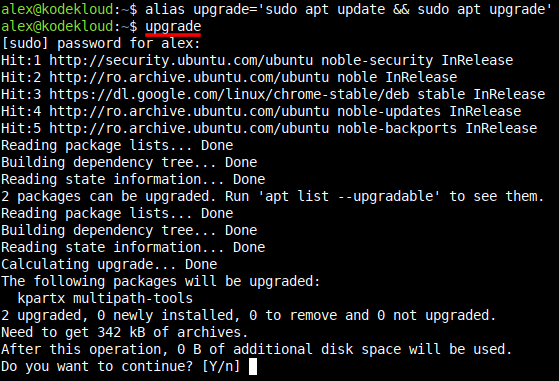
And it executes the same sudo apt update && sudo apt upgrade that you needed. But you had much less to type.
What Is a Bash Alias?
Think of it as a "shortcut" that helps you type less, but run the same long commands that you need often.
As you saw earlier, you can alias the word upgrade to the sudo apt update && sudo apt upgrade command:
alias upgrade='sudo apt update && sudo apt upgrade'Which creates a temporary alias (current session only). Now, when you type this:
upgradeIt runs the same sudo apt update && sudo apt upgrade command.
Syntax of a Bash Alias
The generic syntax of a Bash alias is simple:
alias name_of_alias='command, or commands to run added here'So to alias the word restart to a command like sudo systemctl restart, you would run:
alias restart='sudo systemctl restart'And to alias upgrade to two chained commands like:
sudo apt updatesudo apt upgrade
You would run:
alias upgrade='sudo apt update && sudo apt upgrade'The && between them is an interesting Bash feature. It runs the second command only if the first command succeeded. It won't run otherwise. Useful when command 2 depends on command 1 running correctly. Will skip 2 if 1 fails.
Run Long Commands Faster with Bash Alias
Since an alias basically replaces a short word with a longer command (or commands) you can do some pretty interesting things with it; besides just running a static long command.
You can make it dynamic. You can speed up running long commands that start out the same way, but have different arguments / options at the end.
An example will clarify.
Think about commands like these, that show you the last 10 log lines for different services like Nginx, or MariaDB:
sudo journalctl -n 10 -u nginx
sudo journalctl -n 10 -u mariadb
They begin the same way, with sudo journalctl -n 10 -u. Only the service name at the end changes, nginx, mariadb.
So you want to get rid of typing that long part at the beginning. You can alias just the beginning of a command.
In this case, you would alias a word like logs to sudo journalctl -n 10 -u.
alias logs='sudo journalctl -n 10 -u'Now, instead of this:
sudo journalctl -n 10 -u nginx
sudo journalctl -n 10 -u mariadb
You can use your new logs alias to run the same commands:
logs nginx
logs mariadb
How to Create a Bash Alias
There are two kinds of aliases you can create: temporary, or permanent. So, first, ask yourself:
Do I need the alias for this session only?
- If yes, create a temporary one.
- But if the answer is no, you need this alias forever, then create a permanent one.
How to Create a Temporary Bash Alias
Throughout the tutorial you have seen examples of how to create temporary aliases. Just type:
alias name_of_alias='type command(s) here'Example:
alias upgrade='sudo apt update && sudo apt upgrade'Now, every time you run:
upgradeThe aliased command will run instead:
sudo apt update && sudo apt upgradeHow to Create a Permanent Bash Alias
The Bash shell (command interpreter) has some files it loads automatically. Whenever you start a command-line session, one of the files it loads is .bashrc. Which is located in your home user's directory:
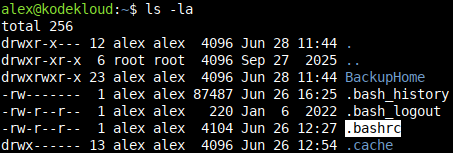
This has instructions for your Bash sessions. Think of it as "user preferences" and things to run at command-line startup.
On most Debian / Ubuntu systems, there is an instruction inserted there, to look for a file called .bash_aliases. You can check if that's the case on your system, with this command:
grep .bash_aliases ~/.bashrc~ is a "shortcut" that leads to your home directory, so that you don't have to type the full path like /home/alex/.bashrc.If you see something like this:
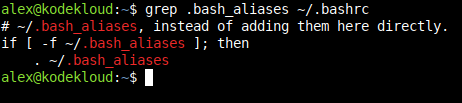
Then you can add your permanent Bash aliases in that .bash_aliases file.
If you don't see that, then your operating system doesn't configure Bash to use that separate file. But you can still add the aliases in the .bashrc file instead of .bash_aliases.
Option 1: If Your System Uses a .bash_aliases File
Open .bash_aliases in an editor (this process will create it, even if the file doesn't exist yet):
nano ~/.bash_aliasesnano editor is not available, and you're on a Red Hat, Rocky Linux system, or similar, install it with:sudo dnf install nano -yNow, just add your Bash aliases with the same syntax shown earlier:
alias name_of_alias='type command(s) you want to alias here'Example of how to add two aliases, upgrade, and restart:
alias upgrade='sudo apt update && sudo apt upgrade'
alias restart='sudo systemctl restart'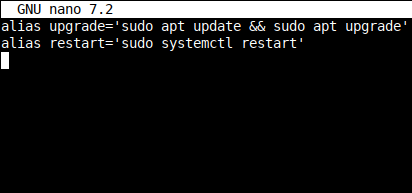
Now, to save this file:
- Press
CTRL+X. - Then type
y. - And then press
Enter.
And tell Bash to reload that .bashrc file:
source ~/.bashrcThis will also reload aliases, so they become active in this session. For future sessions you don't have to run this source command again, as Bash will automatically load it every time you start a new session.
Option 2: If Your System Does NOT Use a .bash_aliases File
Open the .bashrc file:
nano ~/.bashrcPress Page Down until you get to the end:
Press Enter to add an empty line, and then write something like this:
# My aliases

alias upgrade='sudo apt update && sudo apt upgrade'
alias restart='sudo systemctl restart'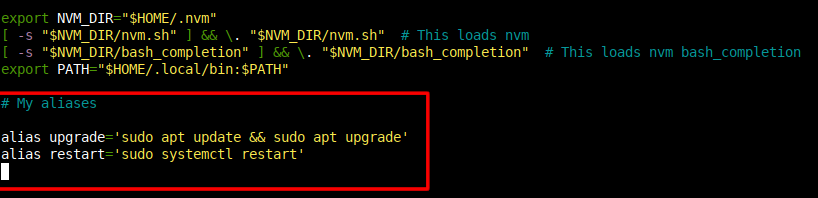
The first line, # My aliases, is just a comment. This file can be modified automatically by some programs that add their own stuff. That line will help you more easily find your own section, versus stuff added by other programs.
Whenever you need to add or remove aliases, just edit that section.
To save this file:
- Press
CTRL+X. - Then type
y. - And then press
Enter.
Tell Bash to reload the .bashrc file:
source ~/.bashrcAnd your aliases will now become active for this session.
Future sessions will automatically load the file. So you don't need to run this source command again the next time you log in to your server, or open a terminal on your own Linux computer.
How to List All Bash Aliases
After you configure your new aliases, you can check if they're active. Run this command to list all Bash aliases:
alias
The ones you added will usually pop up at the end of this list.
List a Specific Bash Alias
If you only want to look at what a specific alias does, just type its name at the end of this command:
alias name_of_aliasExample:
alias restart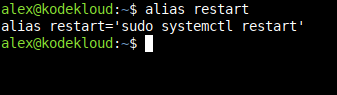
How to Remove an Alias
If it's a temporary alias, active only for your current session, you can remove it with:
unalias name_of_aliasFor example, let's say you want to delete the restart alias. Then you would run a command like this:
unalias restartNow it's gone:
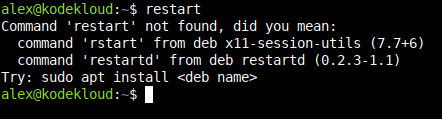
But if it's a permanent alias, then the previous command will only remove it for this current session. If you log out, and log back in (or you reopen a new terminal on your computer), it will reactivate in your alias list:

Which is expected when it's configured in the .bash_aliases or .bashrc file.
To remove a permanent alias, you just need to delete the corresponding line. First, search for that alias name in those files:
grep name_of_alias ~/.bash_aliases ~/.bashrcFor example, to look for the alias called restart:
grep restart ~/.bash_aliases ~/.bashrc
You can see this one is configured in the .bash_aliases file. So just edit that one, and remove the line:
nano ~/.bash_aliasesIf you find that it's in the other file, .bashrc, then run:
nano ~/.bashrcsudo dnf install nano -yAn example of how the .bash_aliases file would look like before editing that line out:
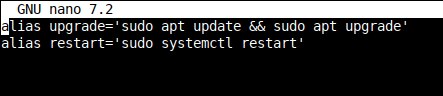
And after editing, and removing the restart alias:

To save the file:
- Press
CTRL+X. - Then type
y. - And then press
Enter.
Next time you log in, or open a terminal window, that alias will be gone. But for your current session, it is still active.
To remove it from the current session as well, follow up with:
unalias name_of_aliasIn this example, where the name of the alias is restart, you would run this command:
unalias restartWarning: Don't Overwrite an Existing Command with a Bash Alias
You might have a Bash alias in mind. An example: Maybe you think it would be useful to alias the word enable to the sudo systemctl enable command.
But enable is already a Bash builtin function. If you would create an alias called enable, it would "overwrite" the pre-existing builtin. Which can lead to unexpected behavior.
So, first, check to see if that alias is "free" with the help of the type command. General syntax:
type name_of_alias_you_intend_to_useTo check if something like enable is already serving as a Bash builtin, or pre-existing command, you would run:
type enableHere's an example where you check three names like enable, ls, and poweroff.
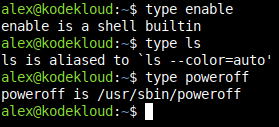
It tells you that one is a Bash shell builtin. One is a pre-existing alias. And one is a program located at /usr/sbin/poweroff.
What you want to see is this:
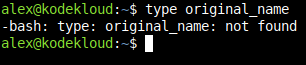
If it says that word / name is not found then you can use that name as an alias.
Conclusion
Bash aliases are a small feature with a big payoff. Once you start replacing your longest, most repeated commands, with short, memorable words, you'll save a few seconds for each one. But since you use these thousands of times in a year, those seconds will add up to countless hours saved.
Also, remember to always check with type before creating a new alias, so you don't accidentally overwrite an existing command or builtin.
Thank you for reading, and see you in the next one!





Discussion