



Your web app works fine on http://localhost, right up until you test the parts that care what the address bar says. Cookies scoped to a domain, authentication callbacks, redirects between subdomains: these can all behave differently against localhost than they will in production, because they expect a real domain name. You do not need to deploy anywhere to test them. You can point a domain to localhost with one line in your hosts file, and your browser will treat your local app as if it were live on that domain.
The hosts file overrides DNS
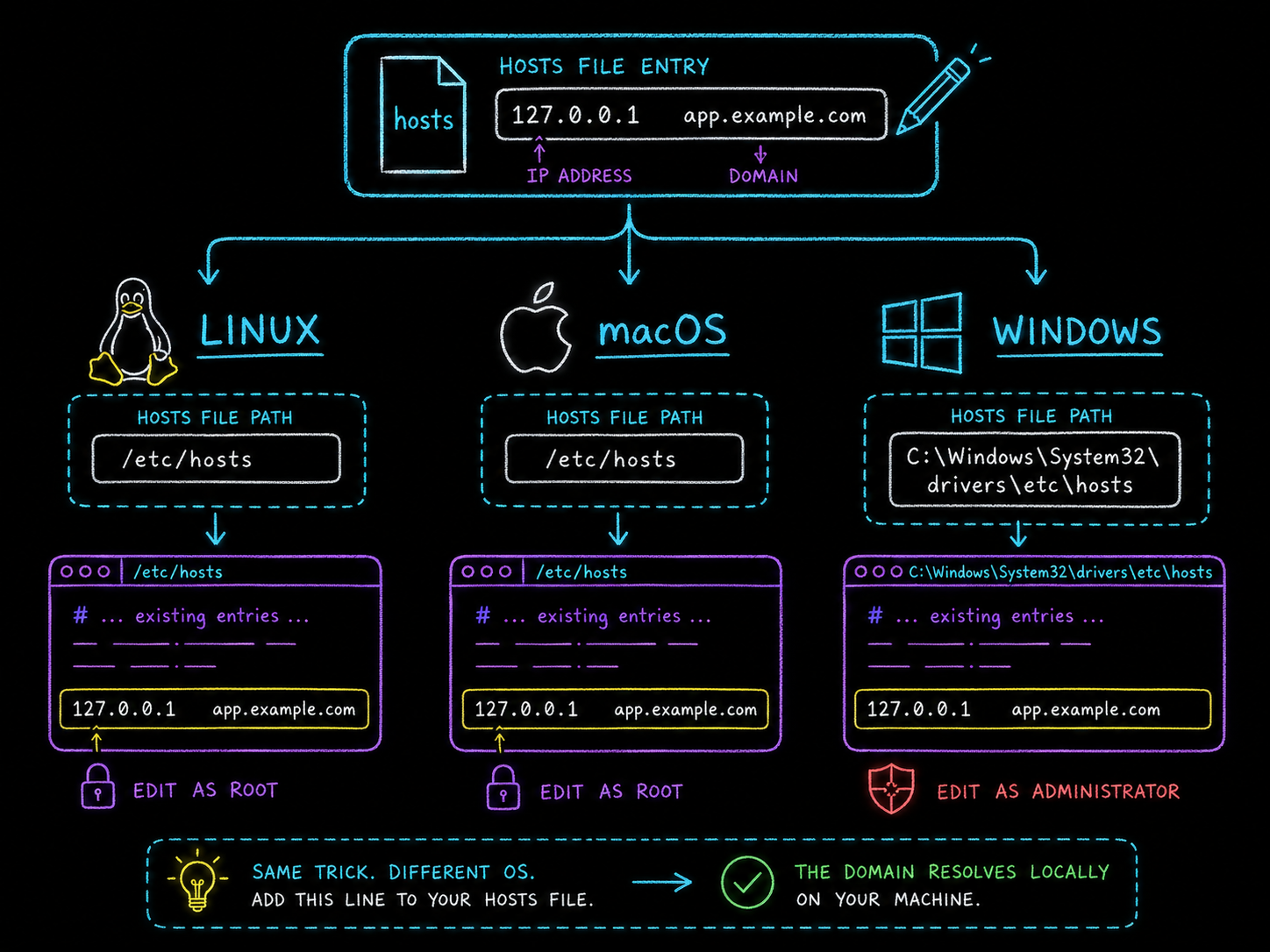
Before your system asks a DNS server where a domain lives, it checks a local file. On Linux and macOS that file is /etc/hosts; on Windows it is C:\Windows\System32\drivers\etc\hosts. Any entry it finds there wins, DNS is never consulted for that name, and the override applies only to your machine. The format is an IP address, whitespace, then the domain name, one mapping per line.
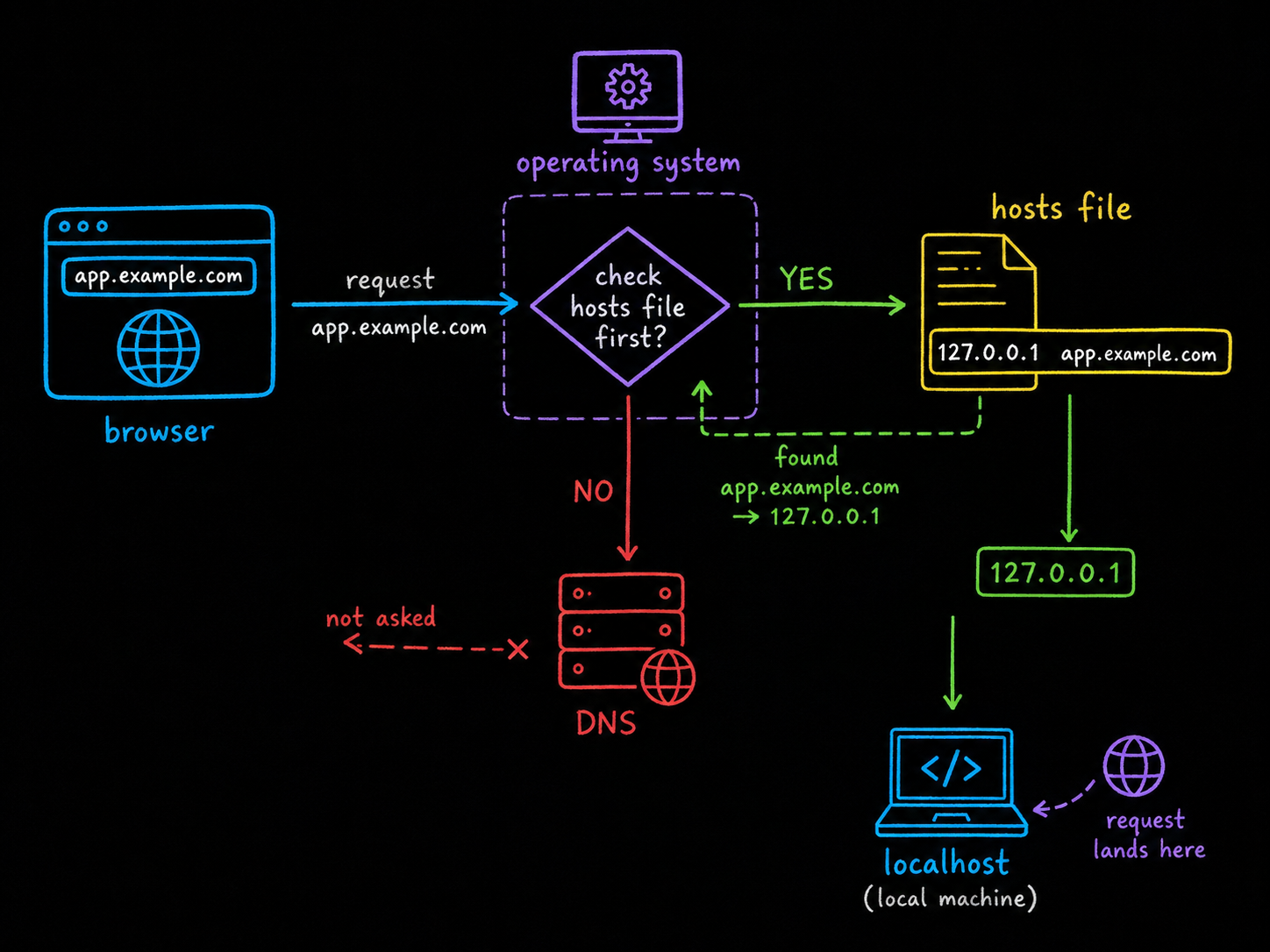
That gives you a clean trick for local development: map a domain to 127.0.0.1, and every request your browser makes to that domain lands on your own machine instead of the internet.
Point the domain at your local server
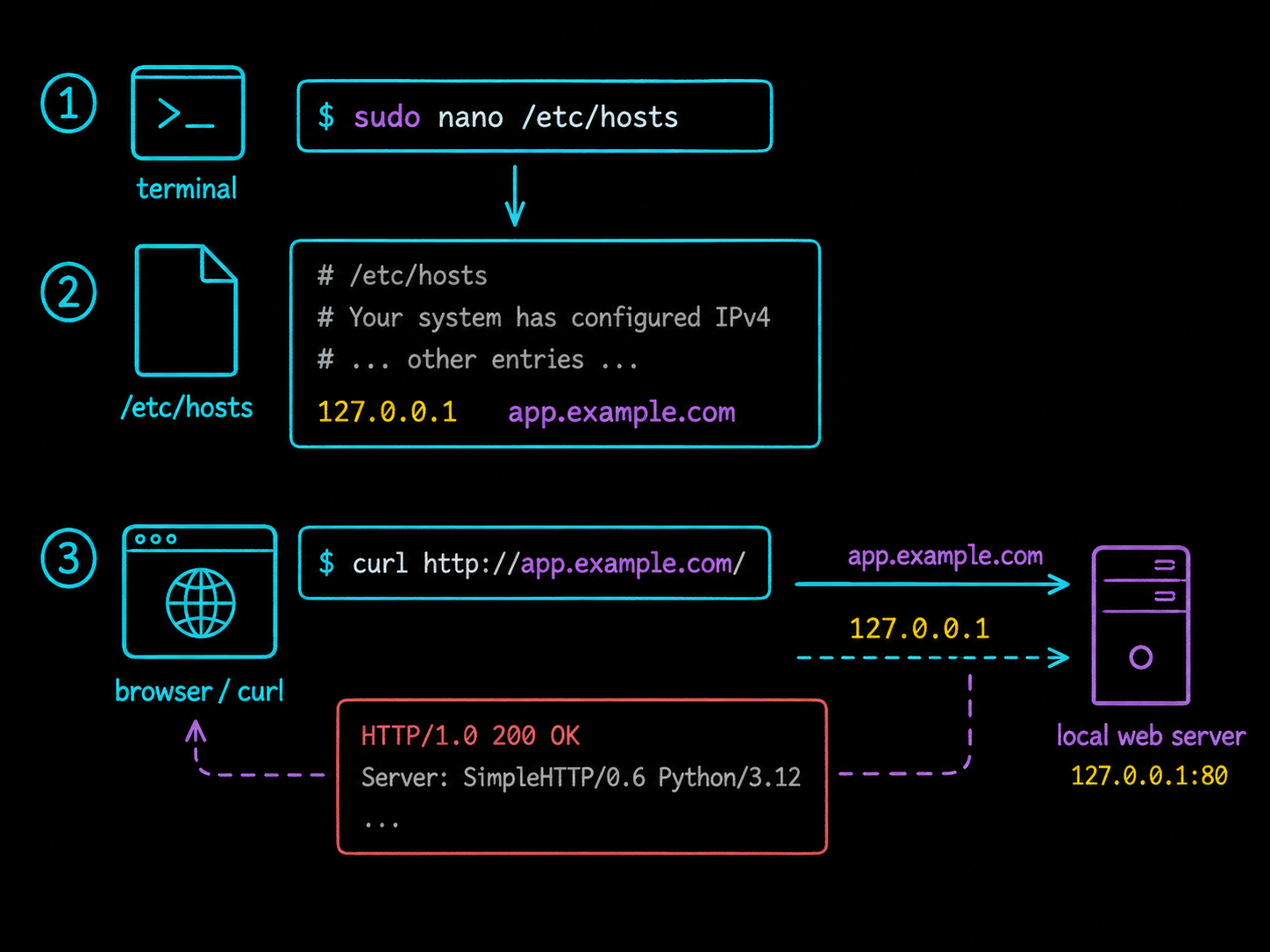
On Linux, open the file with root privileges:
sudo nano /etc/hosts
Add one line at the end and save:
127.0.0.1 app.example.com
The system resolver picks it up immediately, which you can confirm without a browser:
getent hosts app.example.com
127.0.0.1 app.example.com
With a local web server running on port 80, the domain now serves your app:
curl -i http://app.example.com/
HTTP/1.0 200 OK
Server: SimpleHTTP/0.6 Python/3.12.3
Date: Fri, 14 Aug 2026 09:22:53 GMT
Content-type: text/html
Content-Length: 25
...
That response came from a local Python test server, reached through the domain name. As far as the browser or curl can tell, app.example.com exists and lives on this machine. This post uses app.example.com on purpose: the example.com domain is reserved for exactly this kind of use, so the entry can never hijack a site you actually visit. Avoid mapping real domains you rely on, because while the entry exists, the real site is unreachable from your machine.
The same trick on Windows and macOS
On Windows, open Notepad as administrator (search for Notepad in the Start menu, then choose "Run as administrator"), open C:\Windows\System32\drivers\etc\hosts, and add the same line. On macOS, edit /etc/hosts with sudo nano /etc/hosts, exactly as on Linux.
If the browser still reaches the old address after your edit, a cached lookup is in the way. Flush it instead of rebooting: on macOS run sudo dscacheutil -flushcache; sudo killall -HUP mDNSResponder, on Windows run ipconfig /flushdns, and on Linux with systemd-resolved run resolvectl flush-caches (most other Linux setups do not cache DNS at all). Browsers keep their own small DNS cache too, so restart the browser if a flush alone does not do it.
Your app is not always on 127.0.0.1
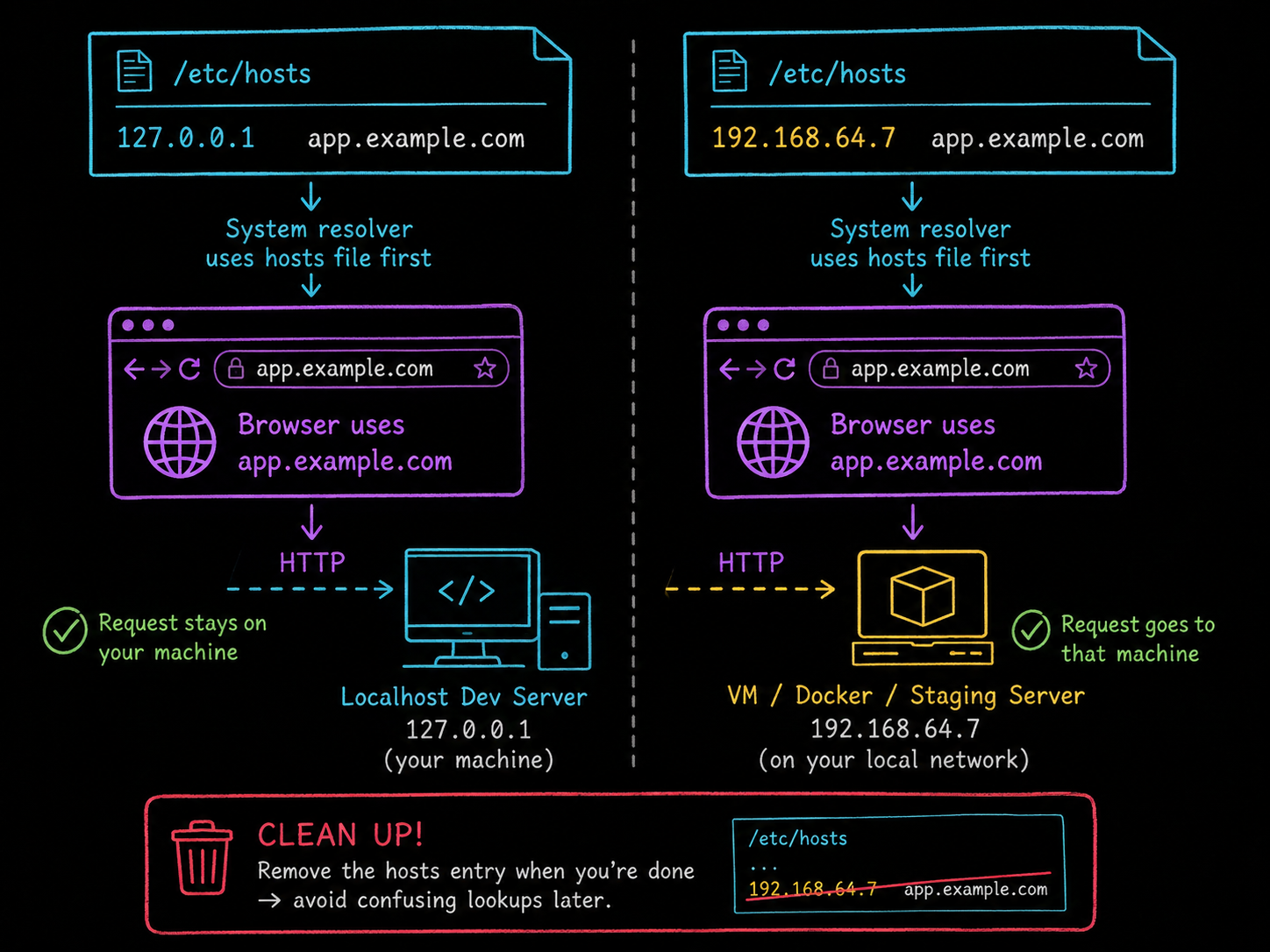
The address in the hosts entry can be anything. If the app under test runs in a virtual machine, a Docker container with a published port, or a staging server across the network, point the domain at that address instead:
192.168.64.7 app.example.com
This is also the classic way to test a site on a new server before changing public DNS: point the domain at the new machine in your own hosts file, click through the whole site, and the rest of the world keeps seeing the old server until you flip the real record.
Clean up when you are done
The entry stays until you remove it, and a forgotten hosts line is a confusing bug months later ("why does this domain resolve to nothing on my laptop?"). When you finish testing, open the file again, delete the line, and save. Normal DNS resolution takes over immediately.
The takeaway
localhost is fine for most development, but the moment cookies, auth, or redirects need a real domain name, give them one: a single 127.0.0.1 app.example.com line in your hosts file makes your local app answer to a real-looking domain, on your machine only, with the live internet untouched. Test what you need, then delete the line.
FAQs
Q1: Can I use a domain I do not own in my hosts file?
Yes. The hosts file only affects your own machine, so no ownership, registration, or DNS record is required. Prefer reserved names like example.com (or the .test top-level domain) over real sites you use, because your override blocks your own access to the real site while it exists.
Q2: Does this work for HTTPS?
The hosts file only controls where the name points; it does not create certificates. Your local server still needs a certificate the browser trusts to serve https://app.example.com without warnings. A tool like mkcert generates locally-trusted certificates for exactly this setup.
Q3: Why do websites stop loading if I mistype an entry?
A hosts entry beats DNS unconditionally, so a typo like mapping a real domain to a dead address makes that site unreachable from your machine and nothing else. If a site mysteriously fails only for you, checking your hosts file is a good first move.





Discussion