



Your Linux server just ran out of storage, or close enough: the deploy failed, the database refused to write, and df says the disk is at 98%. The tempting first move is to start deleting things that look expendable, but that is how backups die. The right first move is to find out exactly what is using the space, and Linux ships everything you need to answer that in two commands and a pipe.
Find the largest directories with the du command
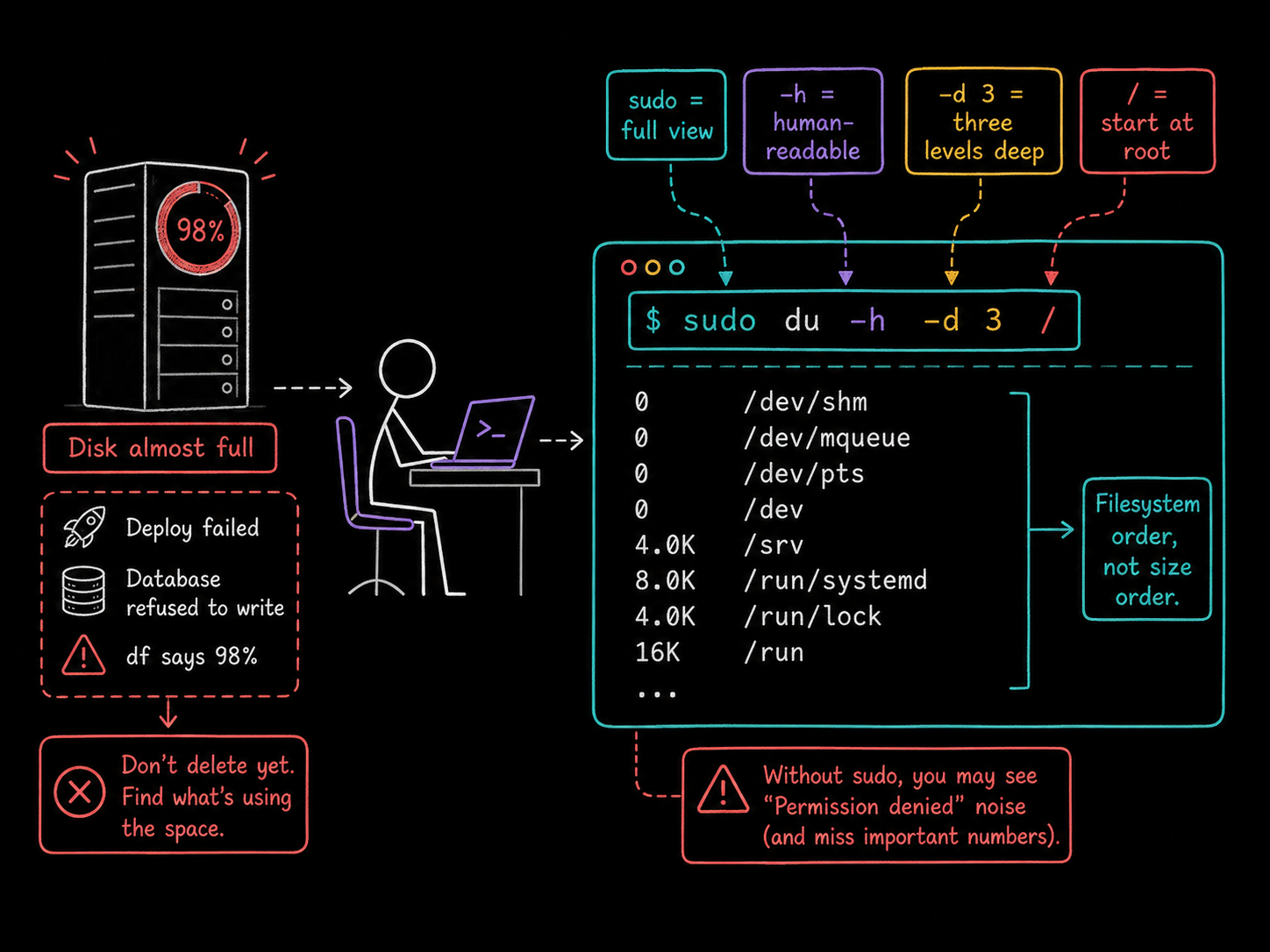
du (disk usage) measures how much space directories take up. Three flags turn its raw output into something you can act on:
sudo du -h -d 3 /
sudolets it read directories your user cannot enter. Without it, the useful numbers are missing and the screen fills withPermission deniednoise (which you can silence with 2>/dev/null, but for disk hunting you want root's full view).-hprints human-readable sizes, so you see2.6Ginstead of a raw byte count.-d 3stops it three directory levels deep. By defaultdureports every subdirectory of every subdirectory, which is far more detail than you can scan./is the starting point: measure the whole filesystem.
Run it and you will immediately spot the remaining problem. The output arrives in filesystem order, not size order:
0       /dev/shm
0       /dev/mqueue
0       /dev/pts
0       /dev
4.0K    /srv
8.0K    /run/systemd
4.0K    /run/lock
16K     /run
...
Small directories sit next to huge ones, and the answer you want is scattered across hundreds of lines.
Sort the output by size
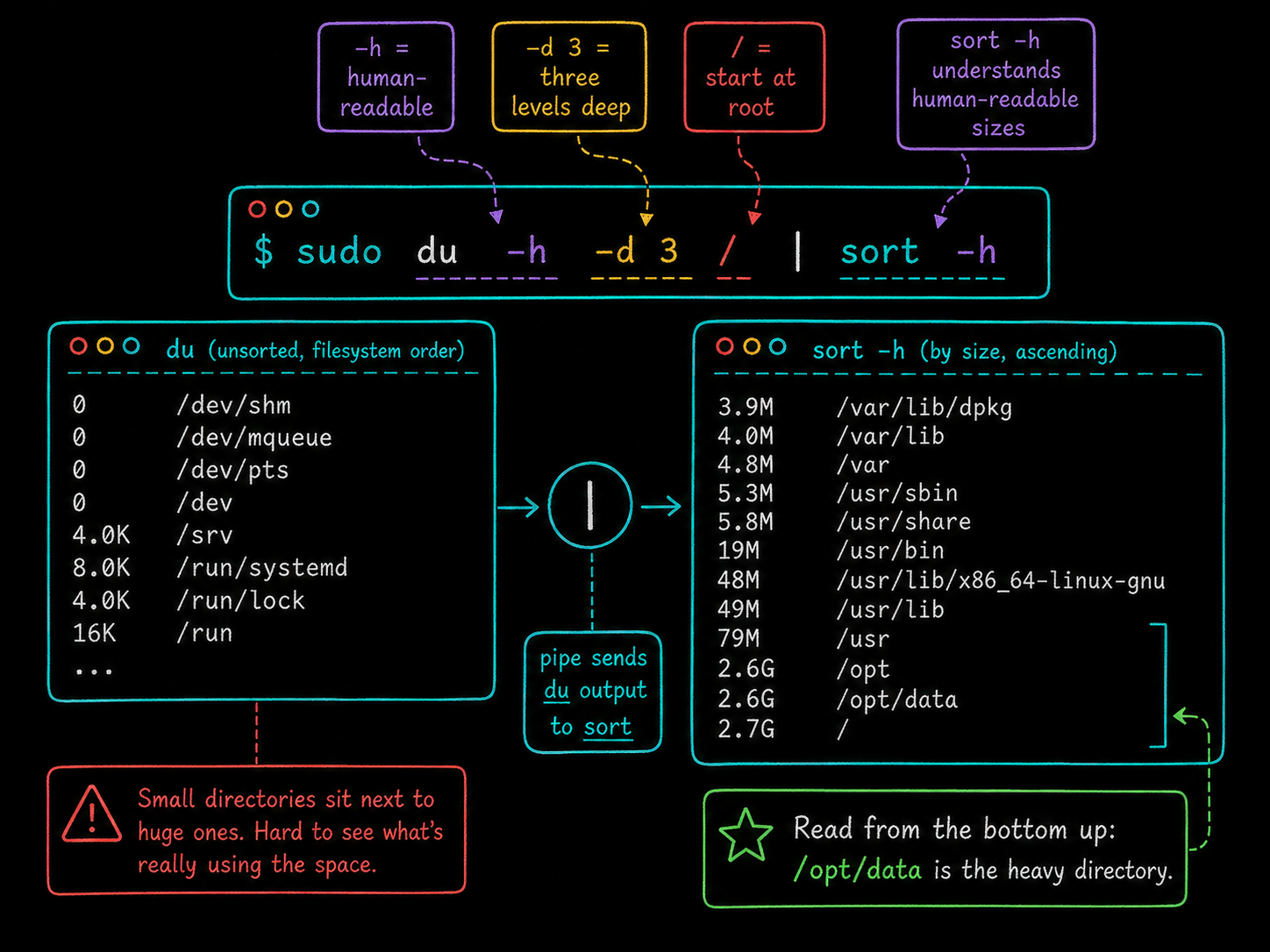
du cannot sort its own output, and it does not need to. The shell's pipe (|) hands one command's output to another, and sort does the rest:
sudo du -h -d 3 / | sort -h
The -h on sort matches the -h on du: it tells sort to understand human-readable sizes, so 16K sorts below 4.0M and 2.6G lands at the bottom where it belongs. Plain sort would compare the sizes as text, character by character, and place 8.0K below 48M (as if 8 kilobytes were the larger of the two) simply because the character 8 comes after 4. The ranking would be meaningless.
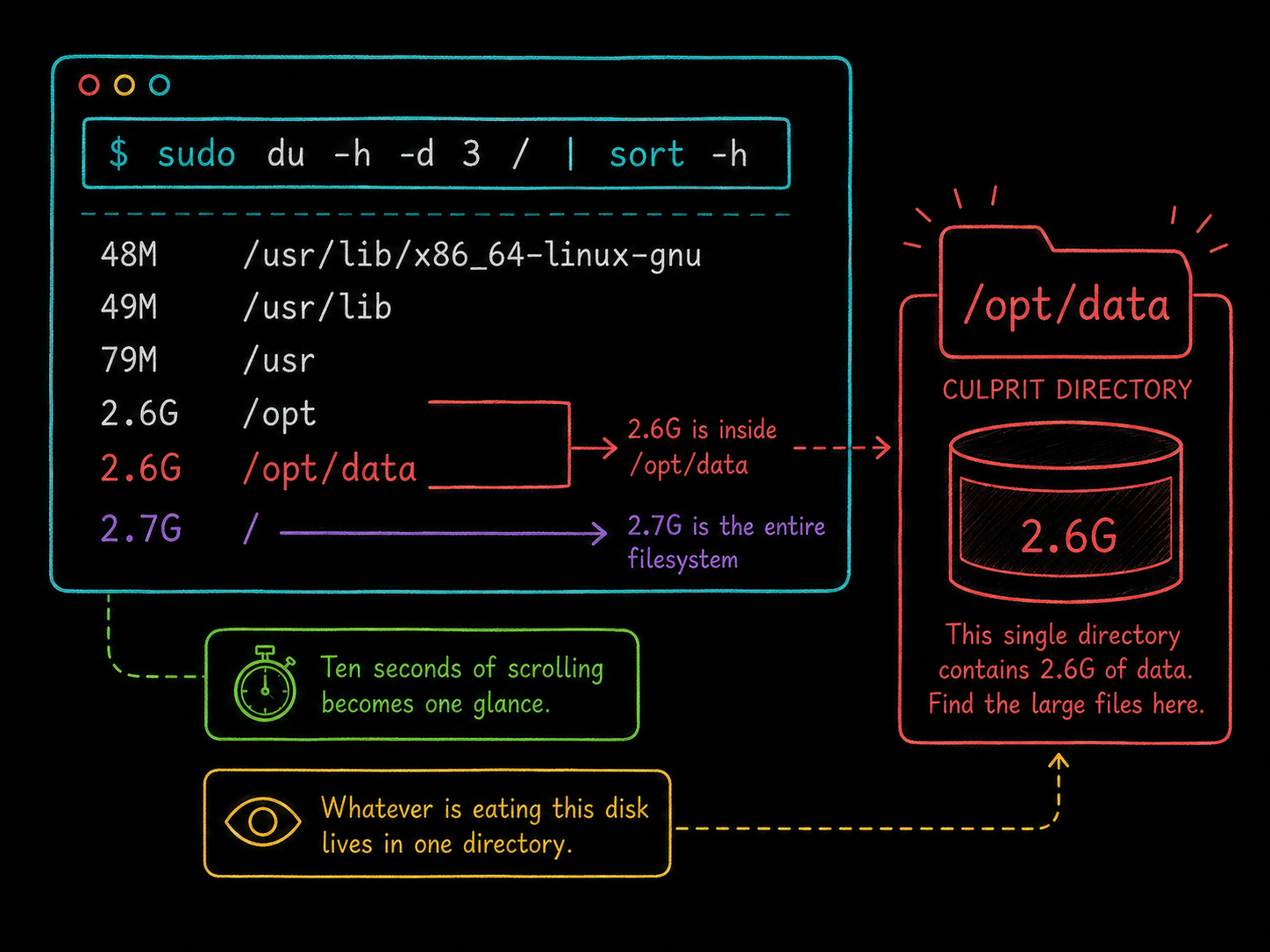
Here is the tail of a real run on a clean Ubuntu system:
3.9M    /var/lib/dpkg
4.0M    /var/lib
4.8M    /var
5.3M    /usr/sbin
5.8M    /usr/share
19M     /usr/bin
48M     /usr/lib/x86_64-linux-gnu
49M     /usr/lib
79M     /usr
2.6G    /opt
2.6G    /opt/data
2.7G    /
Read it from the bottom up. The whole filesystem holds 2.7G, and 2.6G of that is inside /opt/data. Ten seconds of scrolling has become one glance: whatever is eating this disk lives in one directory.
Find files larger than 100MB
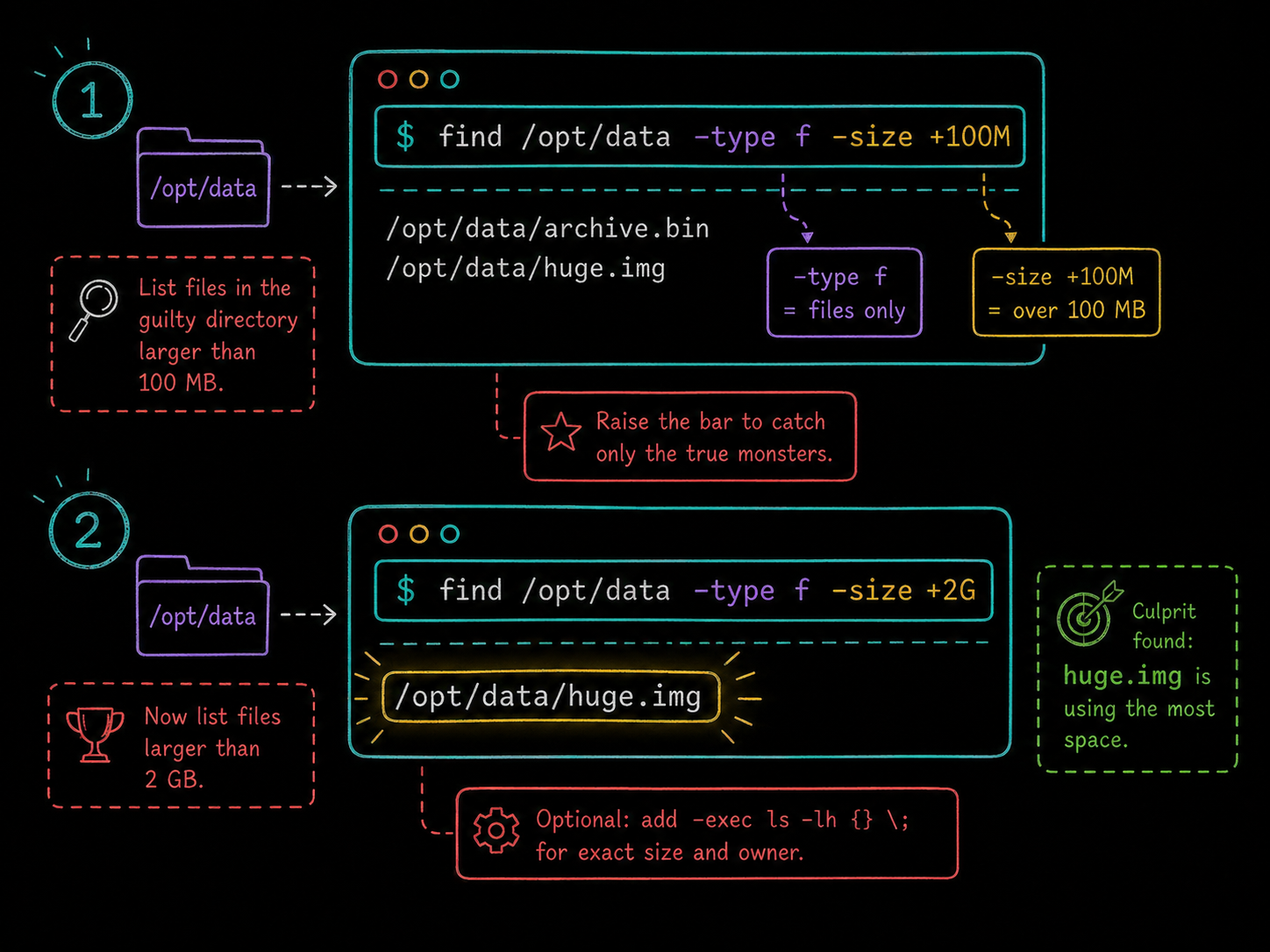
Knowing the guilty directory is half the answer. To see which files inside it are responsible, switch to find with a size filter:
find /opt/data -type f -size +100M
/opt/data/archive.bin
/opt/data/huge.img
-type f restricts the search to files, and -size +100M keeps only those over 100 MB. Raise the bar to catch only the true monsters:
find /opt/data -type f -size +2G
/opt/data/huge.img
There is the culprit, by name. Add -exec ls -lh {} \; to the command if you want each file's exact size and owner in the same pass.
The takeaway
When a Linux machine runs out of space, resist the urge to guess. sudo du -h -d 3 / | sort -h ranks every directory by weight and points you at the heavy ones, then find <dir> -type f -size +100M names the individual files responsible. Two commands, one pipe, and you know precisely where the disk went before you delete a single byte.
FAQs
Q1: Why does df say the disk is full when du cannot find the space?
Usually because a process is still holding a deleted file open. The name is gone, so du and find cannot see it, but the blocks stay allocated until the process closes it. Run sudo lsof +L1 to list deleted-but-open files, then restart the service that owns them to release the space.
Q2: Is there an easier way than piping du into sort?
If you can install packages, ncdu gives you an interactive, size-sorted view you can navigate with arrow keys (sudo ncdu /). It is the comfortable option on machines you manage; the du | sort pipe wins on servers where you cannot install anything, which is often exactly the server that just filled up.
Q3: Is it safe to delete the large files these commands find?
Not automatically. Package caches, journal logs, and old kernels have proper cleanup commands (apt clean, journalctl --vacuum-size=200M) that remove them safely, and anything that looks like a database file or a backup belongs to an application that expects it to exist. Identify the owner first; delete by hand only when you know what the file is.





Discussion