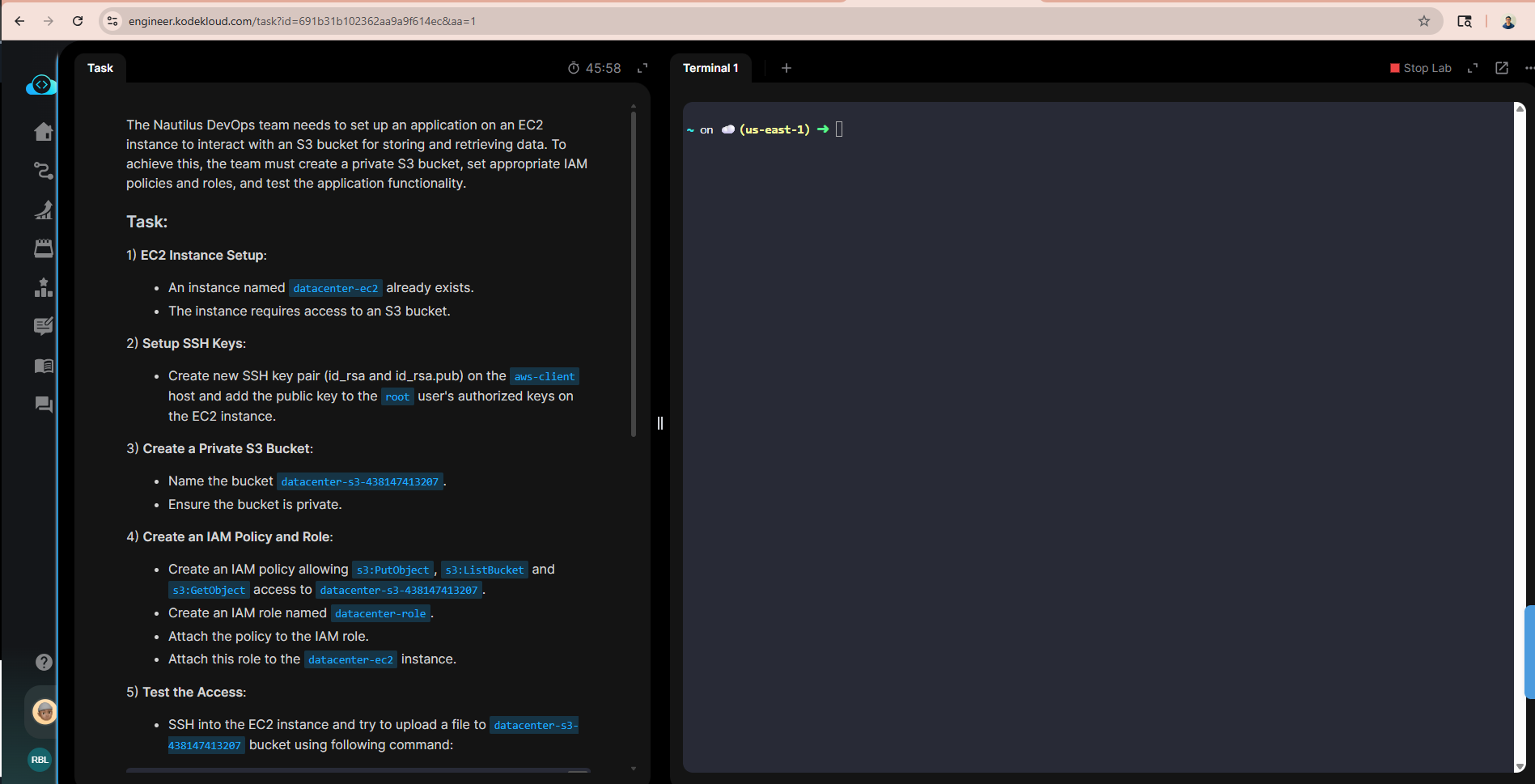
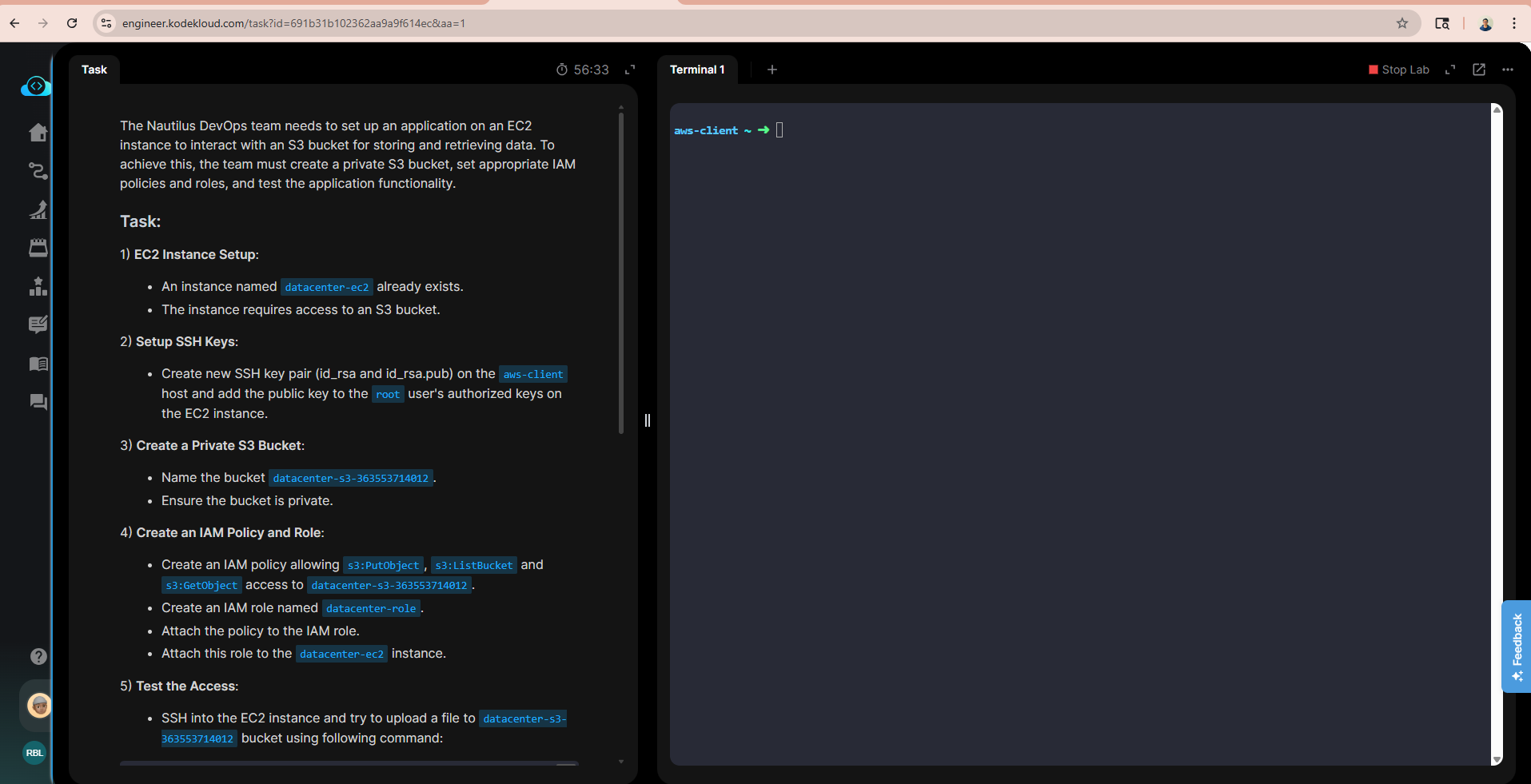
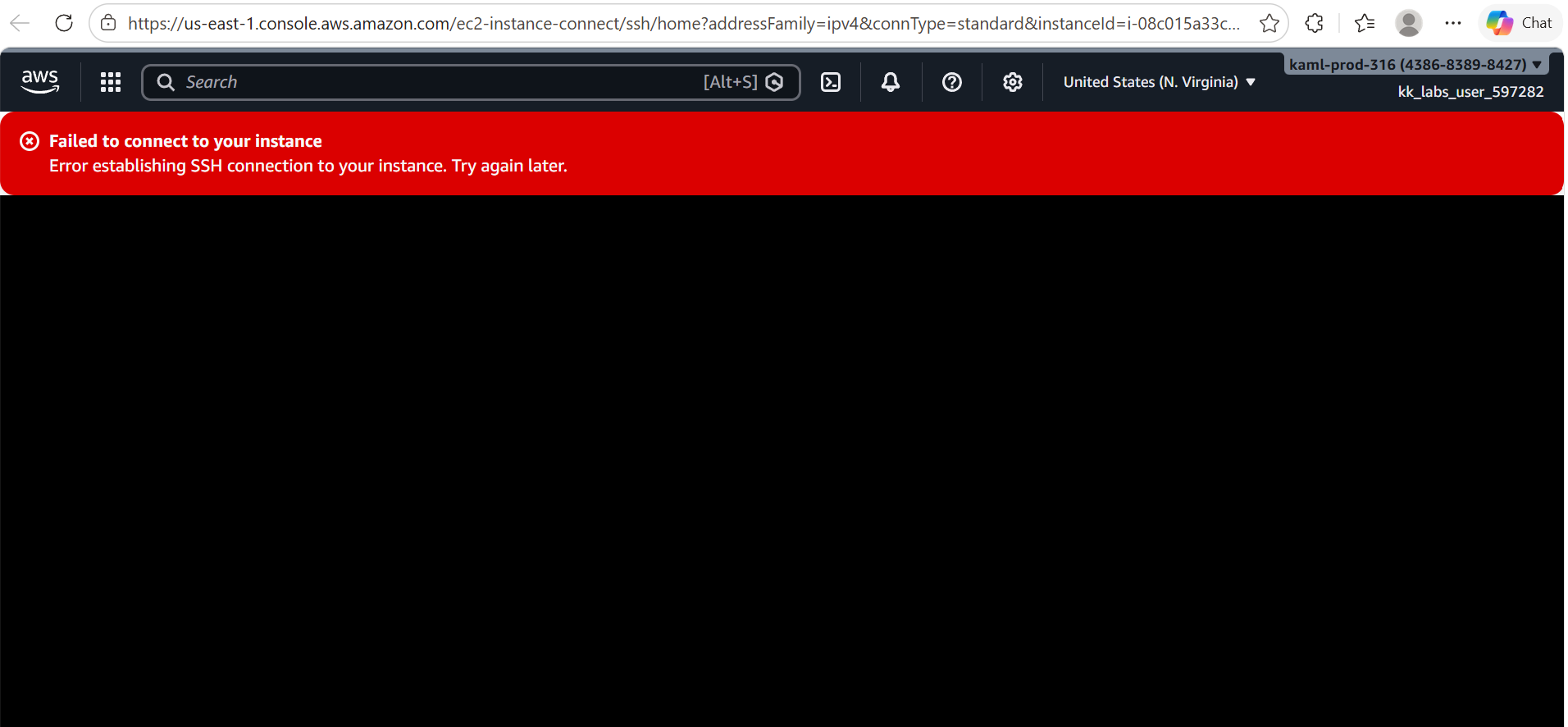
Hi team,
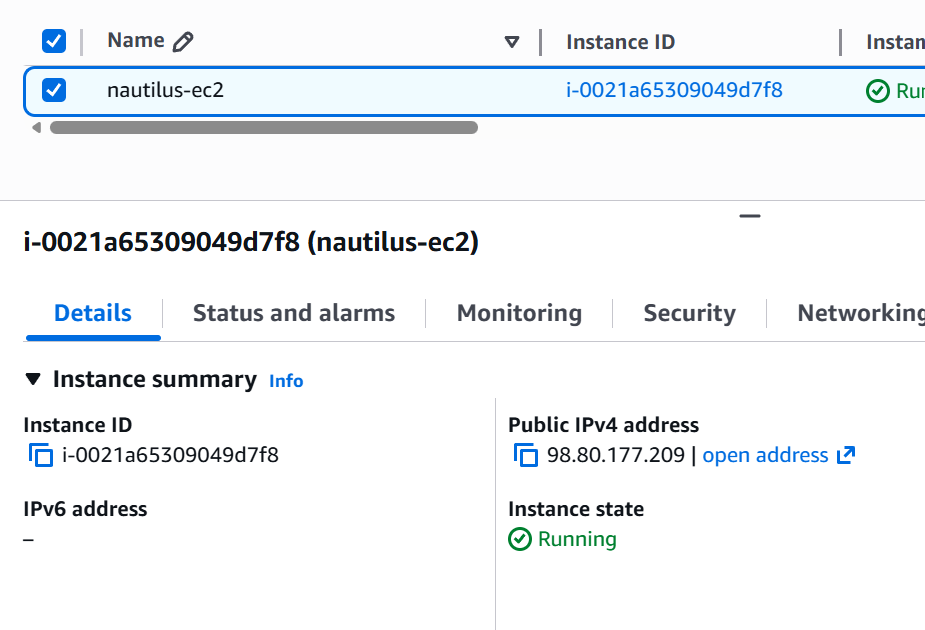
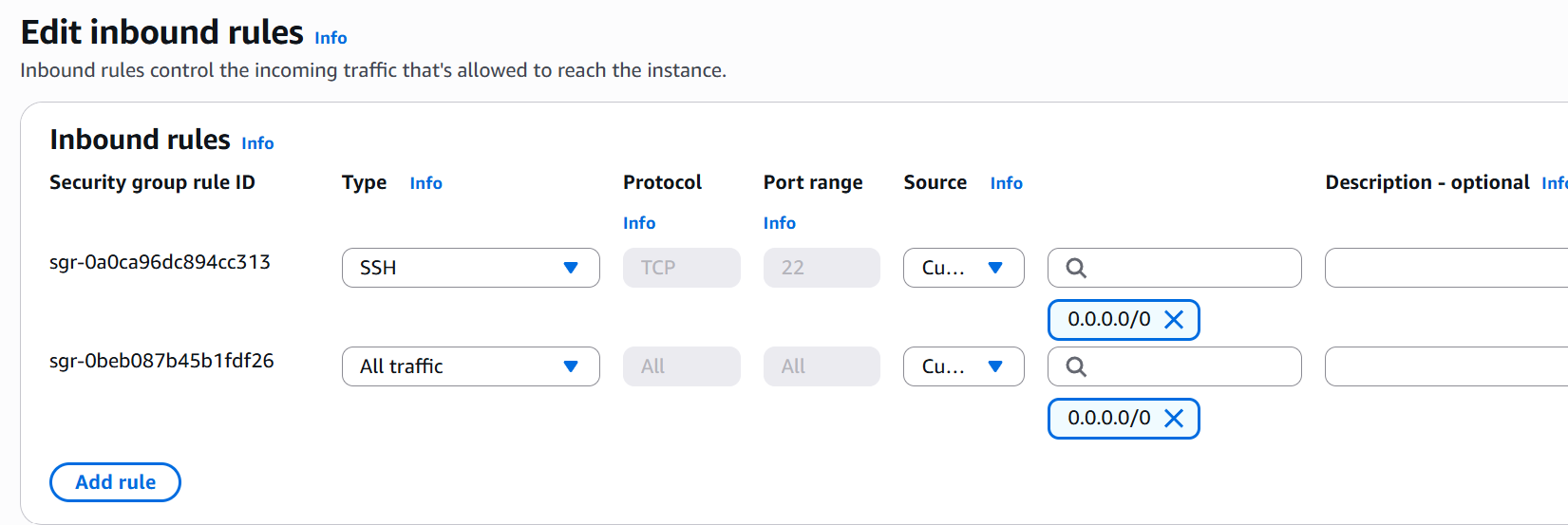
I am facing an issue with this task when I am trying to connect ec2 instance. Its not connected even after allowing ssh port 22 on inbound rule. This happen with me on other tasks as well. Can you please check why we are not able to connect EC2 instance?
Hi @sandeepchoudhary04
There are several reasons for this:
- A public IP is assigned to the EC2 instance
- The Security Group allows SSH (port 22) from your IP
Please share the exact error message you get when connecting, or a screenshot—it would be very helpful.
Hi @sandeepchoudhary04
I’ve just started the task and able to ssh to the datacenter-ec2 without doing anything, could you please try it again and let me know if it persists?
Still I am facing the same issue. Why its happening can you please troubleshoot if I share you my screen. Please let me know once you free.
Can anyone help me on this?
Raymond’s doing something a bit different than what you’re doing – he’s setting up a security group to allow ssh from arbitrary addresses, which works. You’re using “EC2 Instance Connect” – which should work for the existing instance, since I tried using that and it worked. You need to use the “Connect using public IP address” setting, which is the default for that connect type. If you changed any of the settings for the existing EC2 instance, that might explain the problem.
Not working through EC2 Instance Connect or if I tried to connect through SSH client. Instance xfusion-ec2 which is already created for this task has no key pair associated with it. Please let me know how to complete this task.
as i tried to create with creating instance from my side also with same name and associate with key pair. The task steps completed by still it shows error like unable to get details of an instance while submitting the task. please help me regarding the same.
No key pair is required for EC2 Instance Connect, and when I did it, the default settings allowed it to work. How are you invoking it? Again, the default settings simply worked for me when I did it. Certain SG and routing settings do have to be set, but again, they are already set for you.
I did nothing change. whenever I tried to connect through EC2 Instance Connect. It shows error to me everytime,
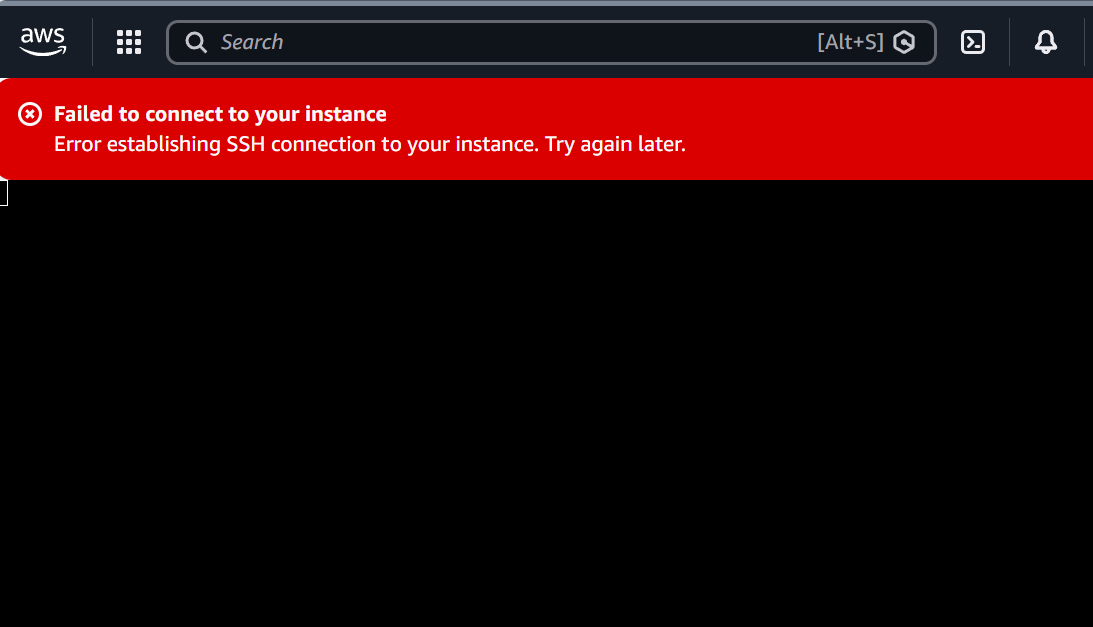
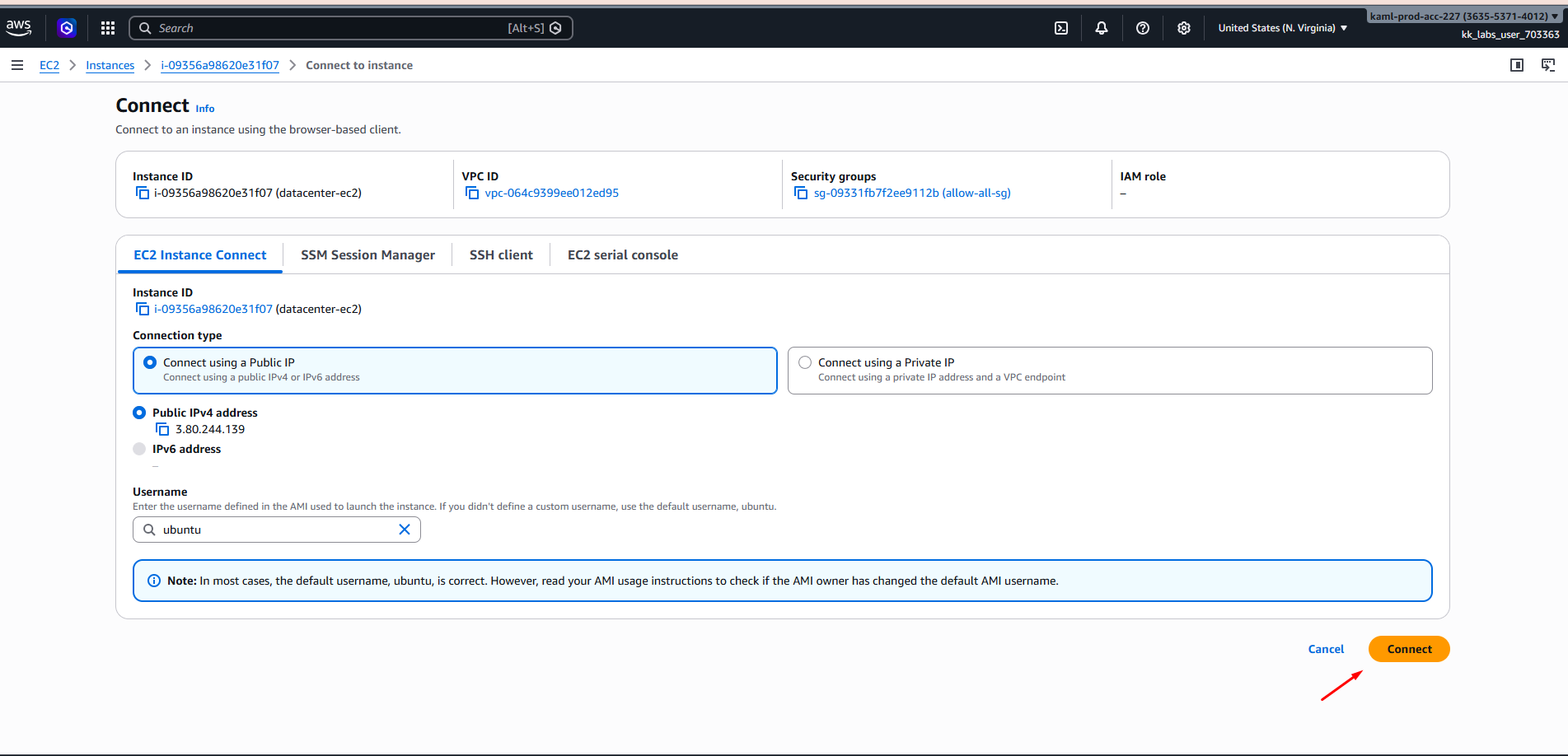
Failed to connect to your instance
Error establishing SSH connection to your instance. Try again later.
Please help me regarding the same as I stuck in this lab from last 5 days and unable to proceed with next lab.
TBH, I just don’t know why you’re failing here. I just did the following:
- Created a public key pair (
ssh-keygen with no arguments) in the terminal.
- Logged into the AWS console.
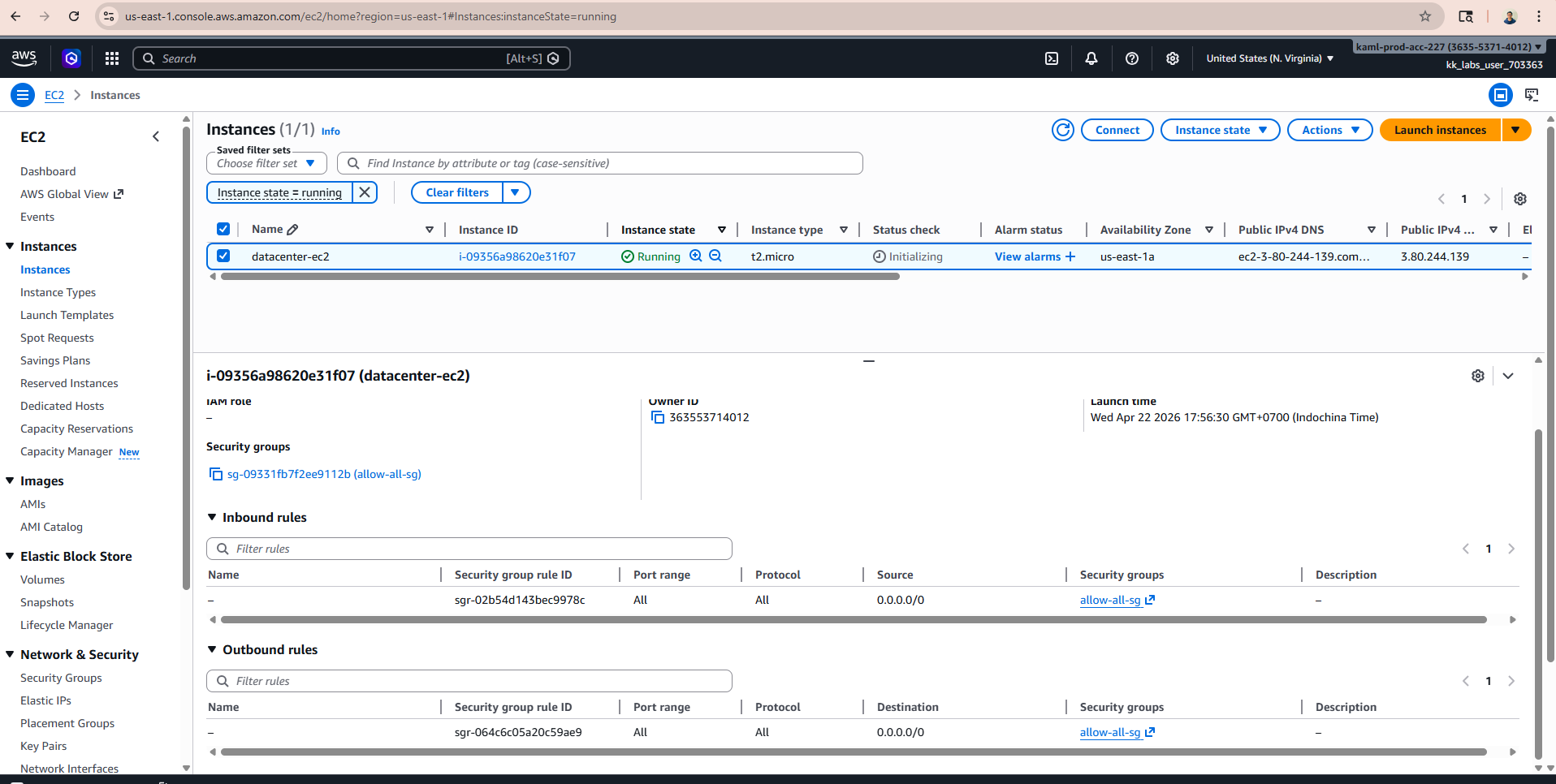
- Opened the EC2 “instances” list, and chose “Connect” for the existing instance.
- Chose “EC2 Connect” with straight out defaults; EC2 connect worked.
- Using the open “ec2-connect” terminal, edited ~/.ssh/authorized_keys to contain the id_rsa.pub file from the lab terminal.
- Chose the security tab from the instance display for the EC2 instance, and chose the security group of the instance.
- Edited incoming, and added ssh for 0.0.0.0.
- Went back to the Connect screen, choose “ssh client”
- Copied the ssh connect string.
- Edited the string so the -i argument points to ~/.ssh/id_rsa.
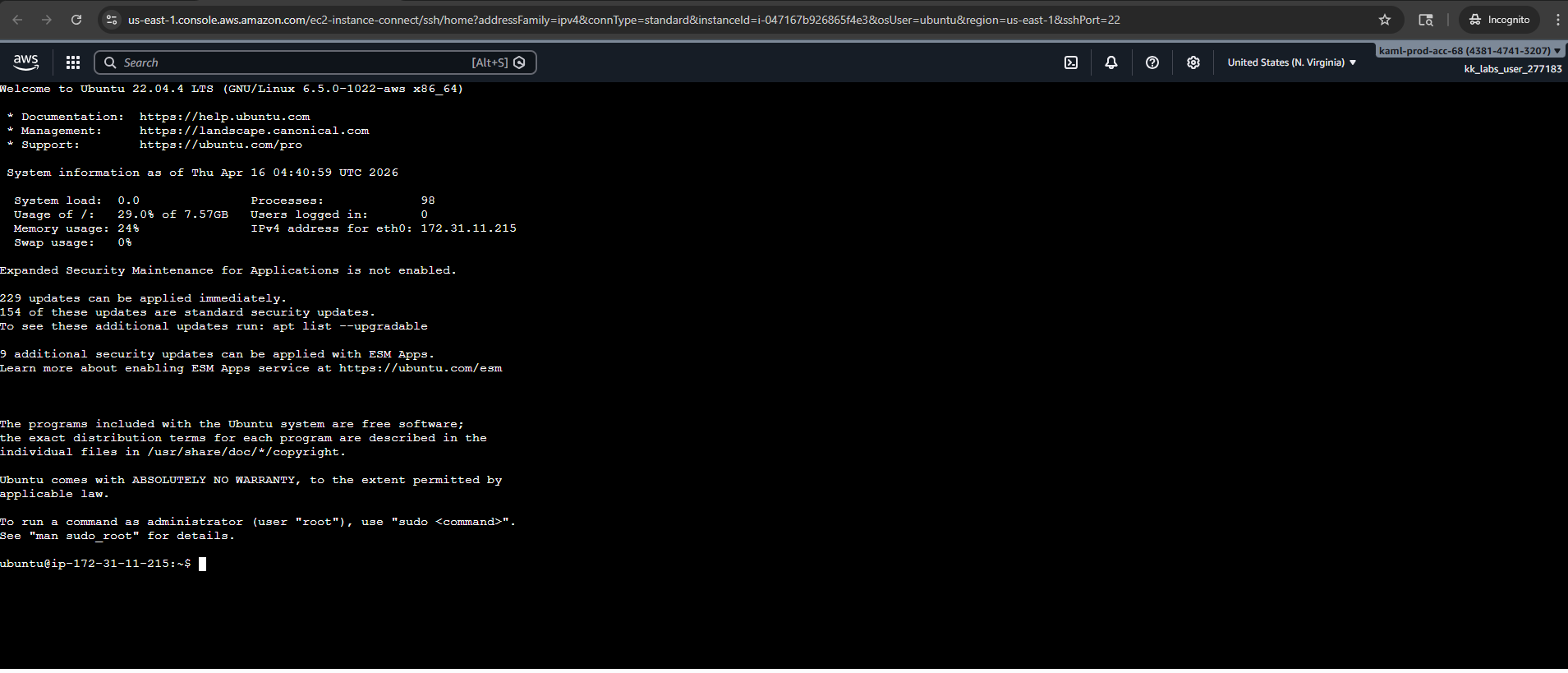
- Executed the command, got the ubuntu account for the instance.
Please read this AWS doc page, to make sure you’re doing what I suggest above.
I already followed the same steps which you have mentioned multiple times but I don’t know why it’s not working for me. Not able to connect through EC2 Connect. Is there any other way to complete this task?
Hi @sandeepchoudhary04
It is really weird. Could you please record a screenshot and share it? I couldn’t reproduce your case on my end.
I have checked this issue it occurs in all labs of 100 days of cloud(AWS). Those labs which I already completed. Got same error to connect through EC2 Connect.
Failed to connect to your instance
Error establishing SSH connection to your instance. Try again later. Not able to attach the recording of screenshot as I am authorized to upload only screenshot which I already shared.
Can anyone help me regarding the same as I am unable to reach the support team. I cross checked in my AWS Lab EC2 Connect is not working for me in any of the AWS lab. I am only able to connect the instance through only SSH Client due to this I am not able to complete the task as in task EC2 instance is already created without key so I have to complete the task through EC2 Connect only. Please help me regarding the same as I faced this issue from last couple of days also please let me know how to connect with support team regarding the same.
Thankyou.
Hi @sandeepchoudhary04
Please provide screenshots for each step, similar to the example below:
Access the task → Log in to AWS and go to EC2 → Click the Connect button → Connect to the EC2 instance → Successfully connect via SSH.
Note: In this task, you do not need to change the security group to access the EC2 instance through the AWS console.
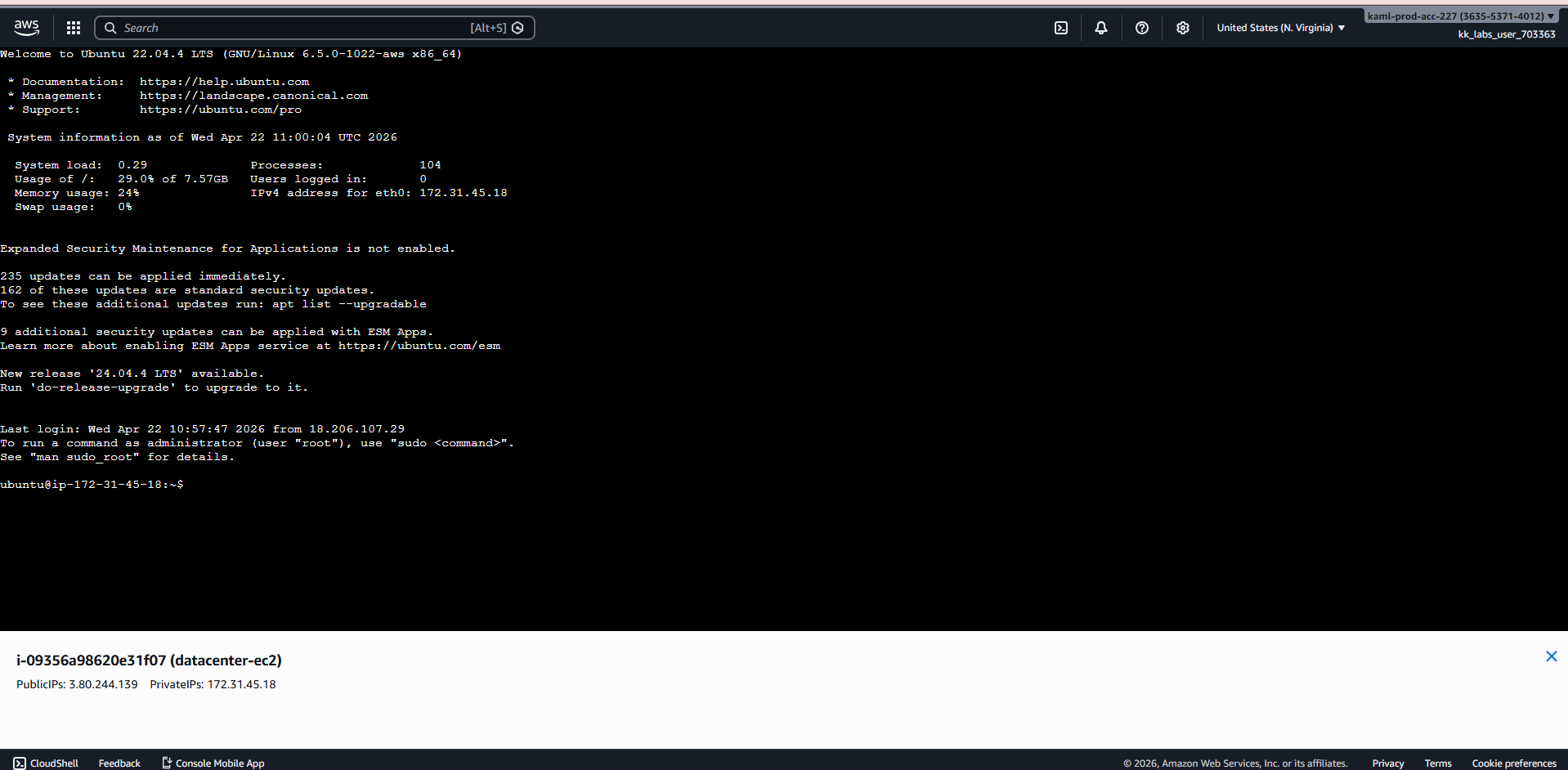
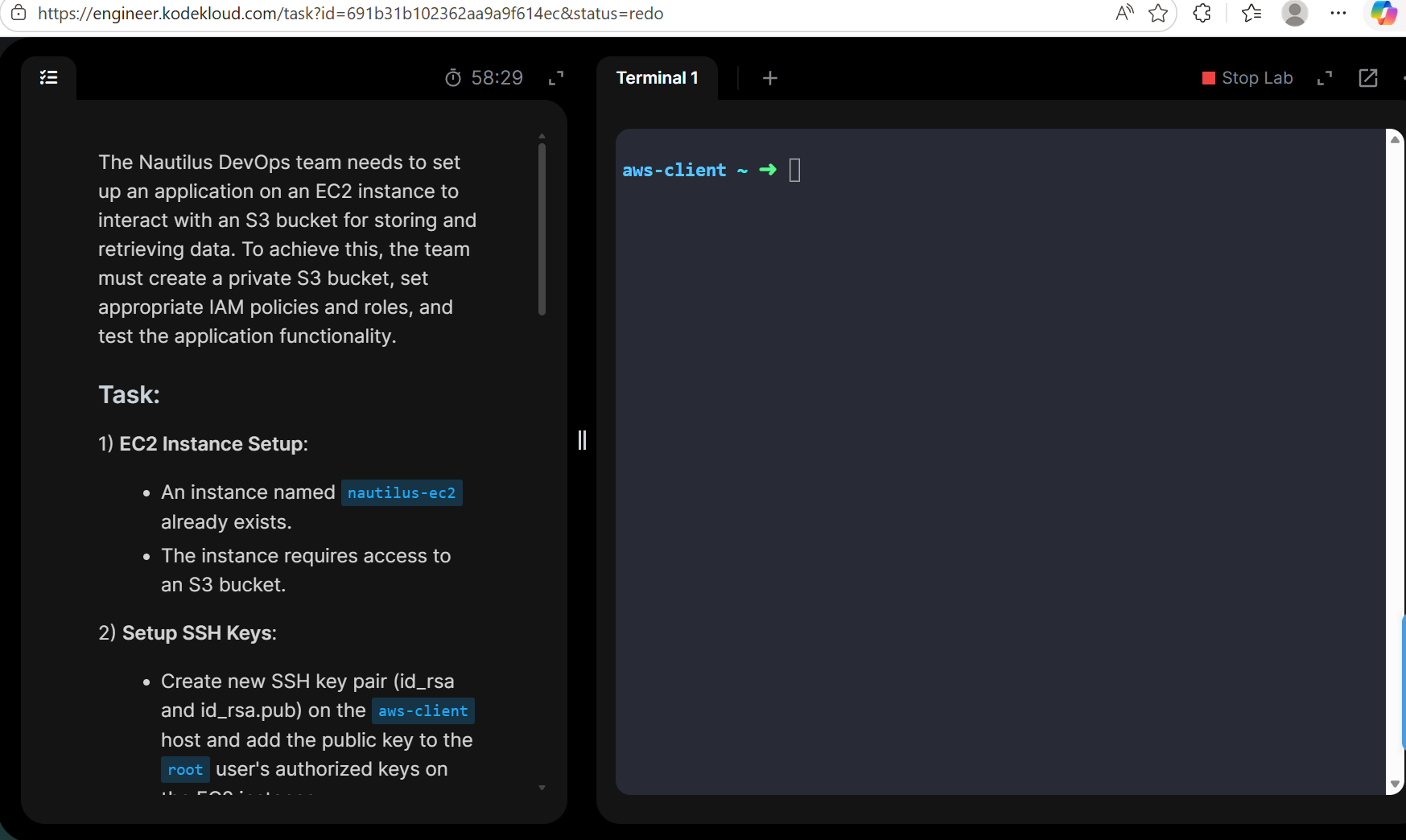
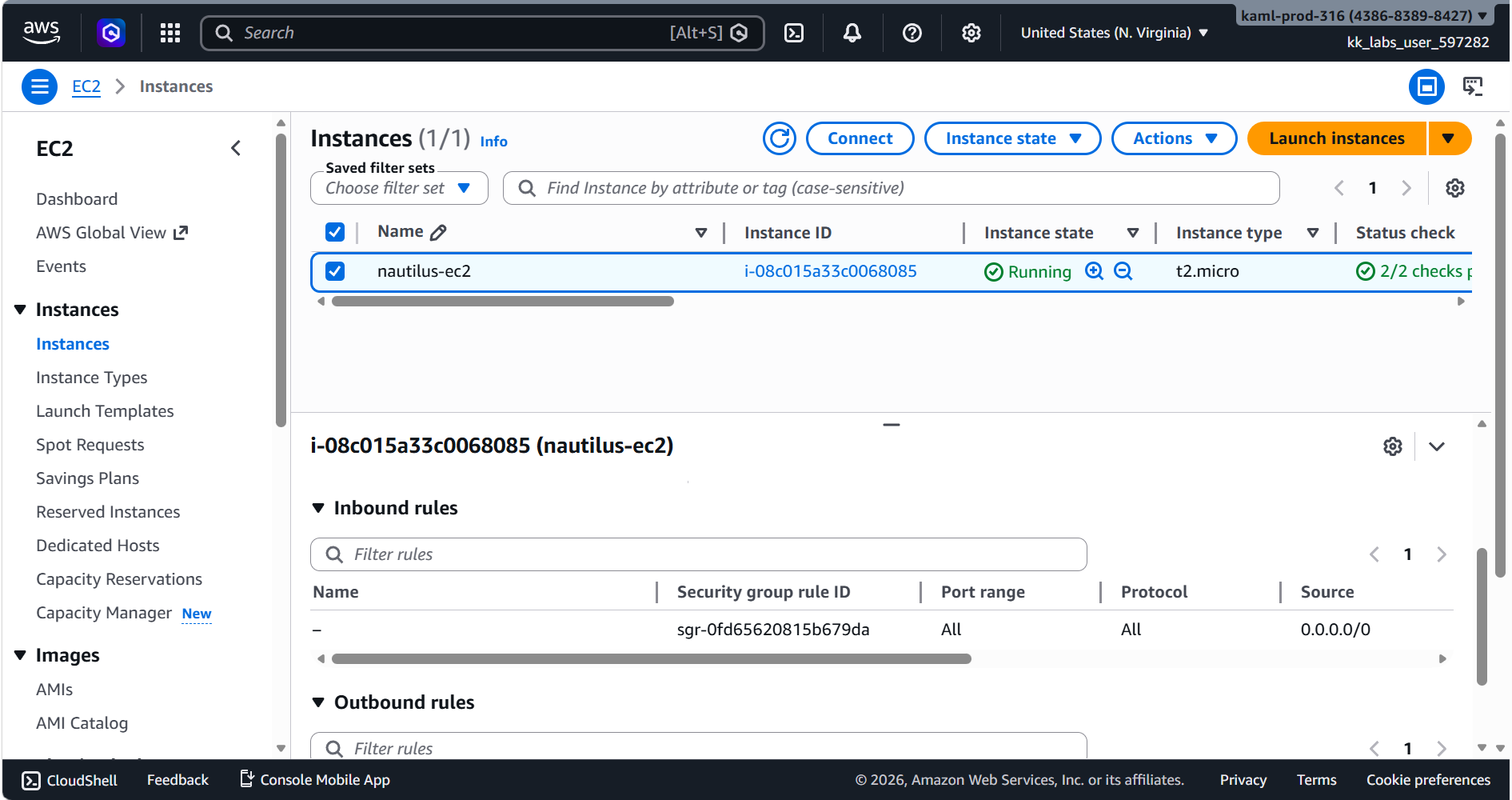
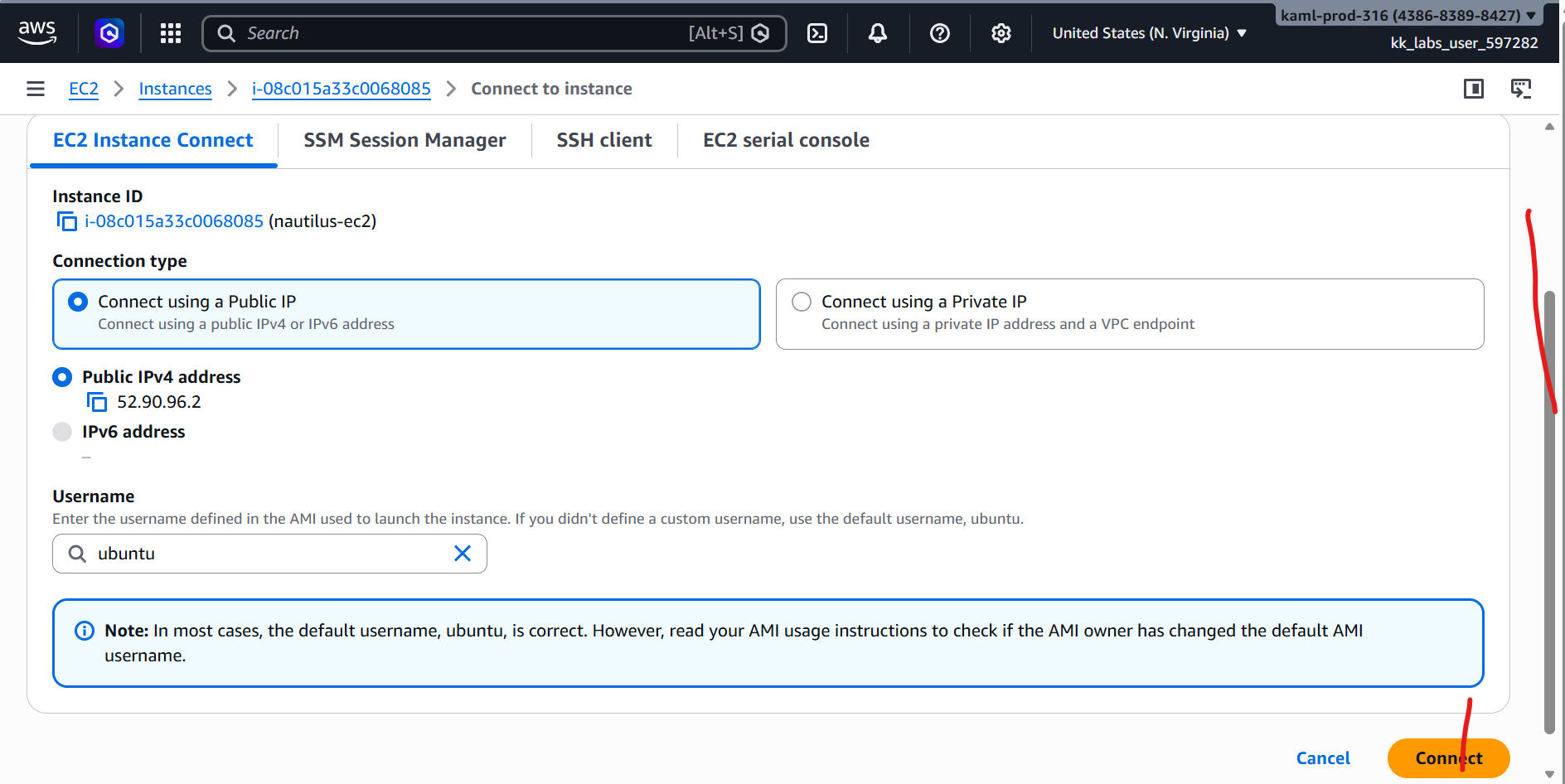
Hi Please find the attached screenshot for your reference.
Thanks @sandeepchoudhary04
Let me forward it to the team so they can check it.
Thankyou. Please let me know once it fix.
Hi @sandeepchoudhary04
Could you please provide the email address you used to log in to KodeKloud Engineer?