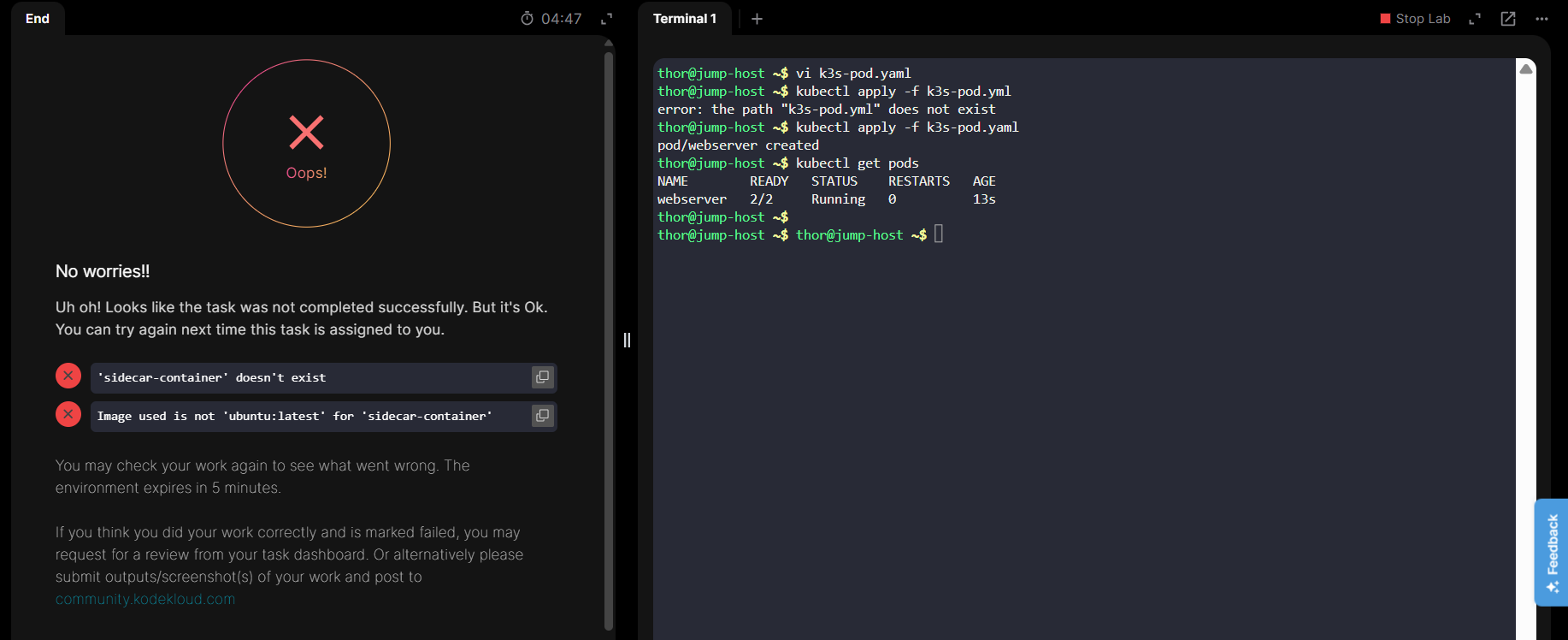
any solution to follow?
i have applied below solutions:-
Day 55: Kubernetes Sidecar Containers
100 Days of DevOps
We have a web server container running the nginx image. The access and error logs generated by the web server are not critical enough to be placed on a persistent volume. However, Nautilus developers need access to the last 24 hours of logs so that they can trace issues and bugs. Therefore, we need to ship the access and error logs for the web server to a log-aggregation service. Following the separation of concerns principle, we implement the Sidecar pattern by deploying a second container that ships the error and access logs from nginx. Nginx does one thing, and it does it well — serving web pages. The second container also specializes in its task — shipping logs. Since containers are running on the same Pod, we can use a shared emptyDir volume to read and write logs.
- Create a pod named
webserver. - Create an
emptyDirvolume namedshared-logs. - Create a regular container in the
webserverpod from thenginx:latestimage namednginx-container, and an init container from theubuntu:latestimage namedsidecar-container. - Add the following command to the
sidecar-container"sh","-c","while true; do cat /var/log/nginx/access.log /var/log/nginx/error.log; sleep 30; done" - Mount the
shared-logsvolume in both containers at/var/log/nginx. Ensure all containers are in a running state.
Note: The kubectl utility on the jump-host has been configured to work with the Kubernetes cluster.
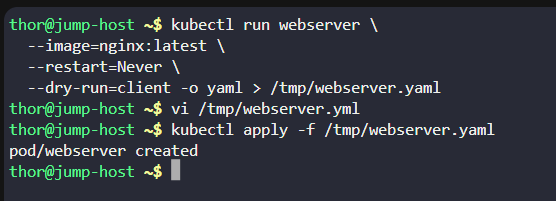
Run these commands on the jump-host:
kubectl run webserver
–image=nginx:latest
–restart=Never
–dry-run=client -o yaml > /tmp/webserver.yaml
Then replace the YAML with:
apiVersion: v1
kind: Pod
metadata:
name: webserver
spec:
initContainers:
- name: sidecar-container
image: ubuntu:latest
command: - sh
- -c
- while true; do cat /var/log/nginx/access.log /var/log/nginx/error.log; sleep 30; done
volumeMounts: - name: shared-logs
mountPath: /var/log/nginx
containers:
- name: nginx-container
image: nginx:latest
volumeMounts: - name: shared-logs
mountPath: /var/log/nginx
volumes:
- name: shared-logs
emptyDir: {}
Apply it:
kubectl apply -f /tmp/webserver.yaml
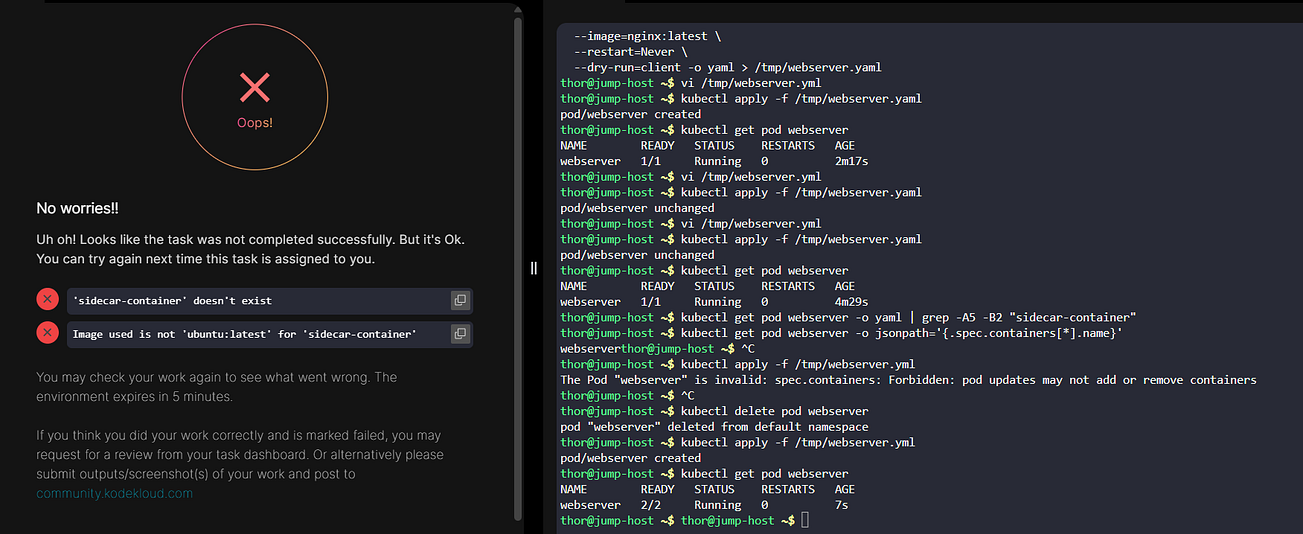
Important 
The task says sidecar-container is an init container, but an init container cannot run continuously. Kubernetes waits for every init container to finish before starting the regular nginx-container.
Because the supplied command contains while true, the pod will remain stuck in:
Init:0/1
So the requirements as written are technically contradictory.
If the KodeKloud task expects both containers to be running, sidecar-container needs to be a regular container, not an initContainer.
Use this corrected structure:
apiVersion: v1
kind: Pod
metadata:
name: webserver
spec:
containers:
-
name: nginx-container
image: nginx:latest
volumeMounts: -
name: shared-logs
mountPath: /var/log/nginx -
name: sidecar-container
image: ubuntu:latest
command: -
sh
-
-c
-
while true; do cat /var/log/nginx/access.log /var/log/nginx/error.log; sleep 30; done
volumeMounts: -
name: shared-logs
mountPath: /var/log/nginx
volumes:
- name: shared-logs
emptyDir: {}
Then:
kubectl delete pod webserver
kubectl apply -f /tmp/webserver.yml
kubectl get pod webserver
Expected:
webserver 2/2 Running
For the stated requirement “Ensure all containers are in a running state,” use the second YAML.
Day 55: Kubernetes Sidecar Containers — Practical Guide
Introduction
In Kubernetes, a Pod can contain multiple containers that work together to provide a complete application.
A common pattern for this is the Sidecar Pattern.
The idea is simple:
One container handles the main application, while another container handles a supporting task.
In this task:
- Nginx serves web pages.
- Ubuntu sidecar reads Nginx access and error logs.
- Both containers share the same
emptyDirvolume. - The sidecar continuously reads the logs every 30 seconds.
This follows the separation of concerns principle.
1. Understand the Architecture
The Pod will look like this:
Kubernetes Pod
┌──────────────────────┐
│ webserver │
│ │
│ ┌────────────────┐ │
│ │ nginx-container│ │
│ │ nginx:latest │ │
│ │ │ │
│ │ Web Server │ │
│ └───────┬────────┘ │
│ │ │
│ │ logs │
│ ▼ │
│ ┌────────────────┐ │
│ │ shared-logs │ │
│ │ emptyDir │ │
│ └───────┬────────┘ │
│ │ │
│ ▼ │
│ ┌────────────────┐ │
│ │sidecar-container│ │
│ │ ubuntu:latest │ │
│ │ │ │
│ │ Log Collector │ │
│ └────────────────┘ │
│ │
└──────────────────────┘
Both containers mount:
/var/log/nginx
The important point is that the volume is shared between the containers.
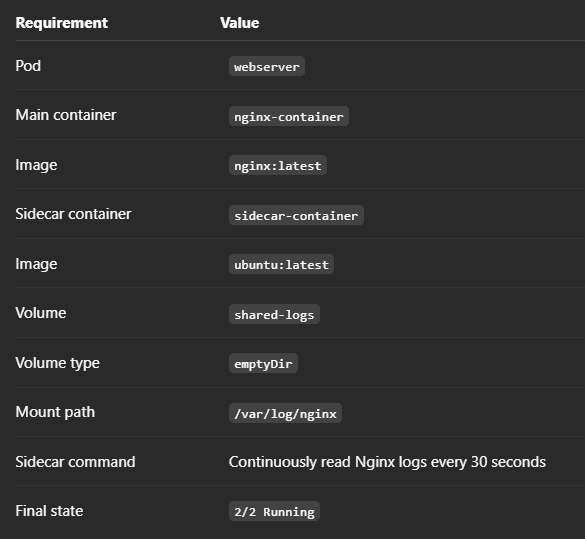
2. Requirements
The task requires:
3. Create the YAML File
On the jump-host:
vi webserver-pod.yaml
Add the following configuration:
apiVersion: v1
kind: Pod
metadata:
name: webserver
spec:
containers:
- name: nginx-container
image: nginx:latest
volumeMounts: - name: shared-logs
mountPath: /var/log/nginx - name: sidecar-container
image: ubuntu:latest
command: [“sh”, “-c”, “while true; do cat /var/log/nginx/access.log /var/log/nginx/error.log; sleep 30; done”]
volumeMounts: - name: shared-logs
mountPath: /var/log/nginx
volumes: - name: shared-logs
emptyDir: {}
4. Understand the YAML
Pod
apiVersion: v1
kind: Pod
metadata:
name: webserver
This creates a Pod named:
webserver
Nginx Container
- name: nginx-container
image: nginx:latest
This is the primary application container.
It runs Nginx using the explicitly specified:
nginx:latest
The task specifically requires the latest tag, so don’t use only:
nginx
5. Configure the Sidecar Container
The second container is:
- name: sidecar-container
image: ubuntu:latest
This is the sidecar.
Its job is not to serve web traffic.
Its job is to read the Nginx logs.
The command is:
command:
- sh
- -c
- while true; do cat /var/log/nginx/access.log /var/log/nginx/error.log; sleep 30; done
This effectively executes:
while true
do
cat /var/log/nginx/access.log /var/log/nginx/error.log
sleep 30
done
So the sidecar:
- Reads the access log.
- Reads the error log.
- Outputs the contents.
- Waits 30 seconds.
- Repeats forever.
6. Create the Shared Volume
The volume is:
volumes:
- name: shared-logs
emptyDir: {}
emptyDir creates temporary storage associated with the Pod.
It exists as long as the Pod exists.
It is not persistent storage.
That makes it suitable for this requirement because these logs do not need to survive Pod deletion.
7. Mount the Volume in Nginx
Nginx mounts the volume here:
volumeMounts:
- name: shared-logs
mountPath: /var/log/nginx
Nginx therefore writes its logs into:
/var/log/nginx
8. Mount the Same Volume in the Sidecar
The sidecar uses:
volumeMounts:
- name: shared-logs
mountPath: /var/log/nginx
Because both containers use the same volume, the sidecar can access the logs produced by Nginx.
This is the key concept behind the Sidecar pattern.
9. Deploy the Pod
Save the file and run:
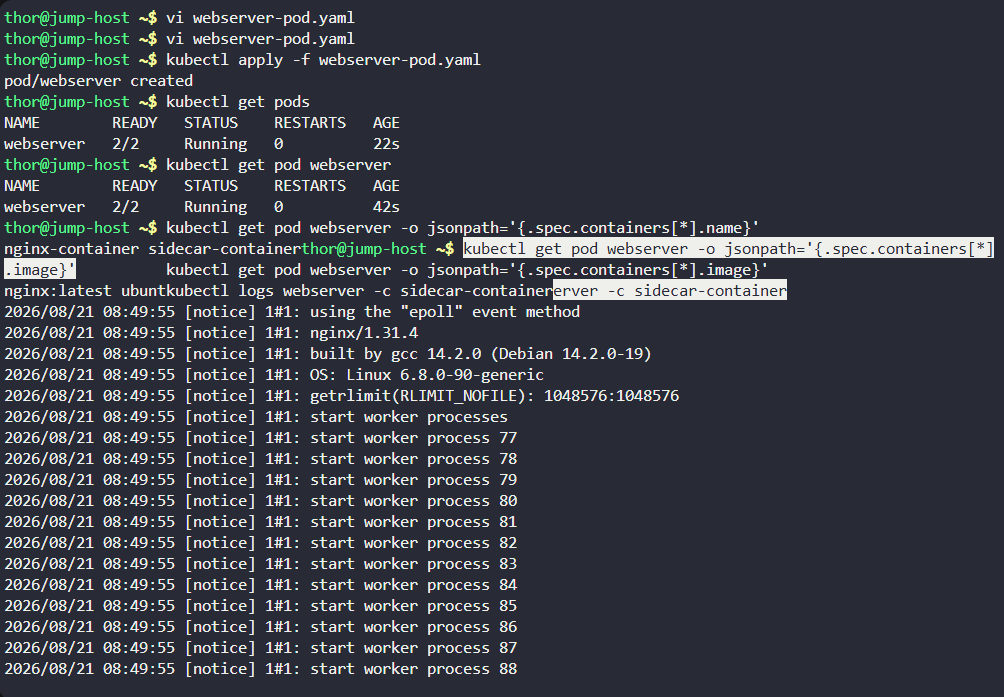
kubectl apply -f webserver-pod.yaml
Expected:
pod/webserver created
10. Check the Pod
Run:
kubectl get pods
Expected:
NAME READY STATUS RESTARTS AGE
webserver 2/2 Running 0 20s
The important part is:
2/2 Running
This confirms both containers are running.
You can also check specifically:
kubectl get pod webserver
Expected:
NAME READY STATUS RESTARTS AGE
webserver 2/2 Running 0 40s
11. Verify the Containers
Run:
kubectl get pod webserver -o jsonpath=‘{.spec.containers[*].name}’
Expected:
nginx-container sidecar-container
Verify the images:
kubectl get pod webserver -o jsonpath=‘{.spec.containers[*].image}’
Expected:
nginx:latest ubuntu:latest
This is useful when the grader specifically checks container names and image tags.
12. Check Sidecar Logs
Because the Pod contains two containers, specify which container’s logs you want:
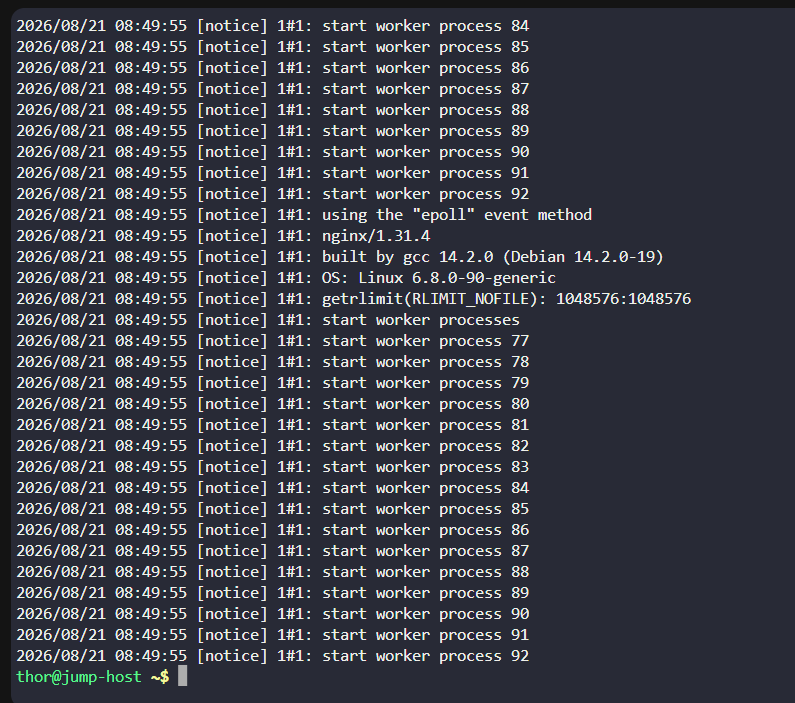
kubectl logs webserver -c sidecar-container
The sidecar reads the Nginx logs and prints them to its own stdout.
You may see output such as:
2025/09/15 05:22:58 [notice] 1#1: using the “epoll” event method
2025/09/15 05:22:58 [notice] 1#1: nginx/1.29.1
2025/09/15 05:22:58 [notice] 1#1: start worker processes
The exact output depends on what Nginx has written to its log files.
13. Verify the Shared Volume
You can inspect the Pod:
kubectl describe pod webserver
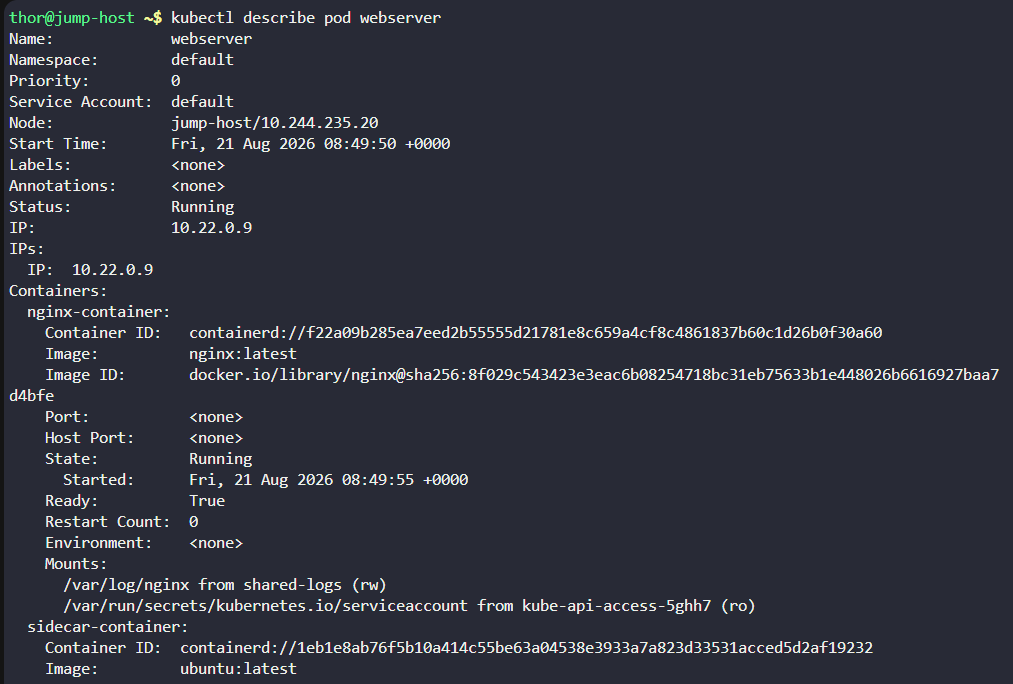
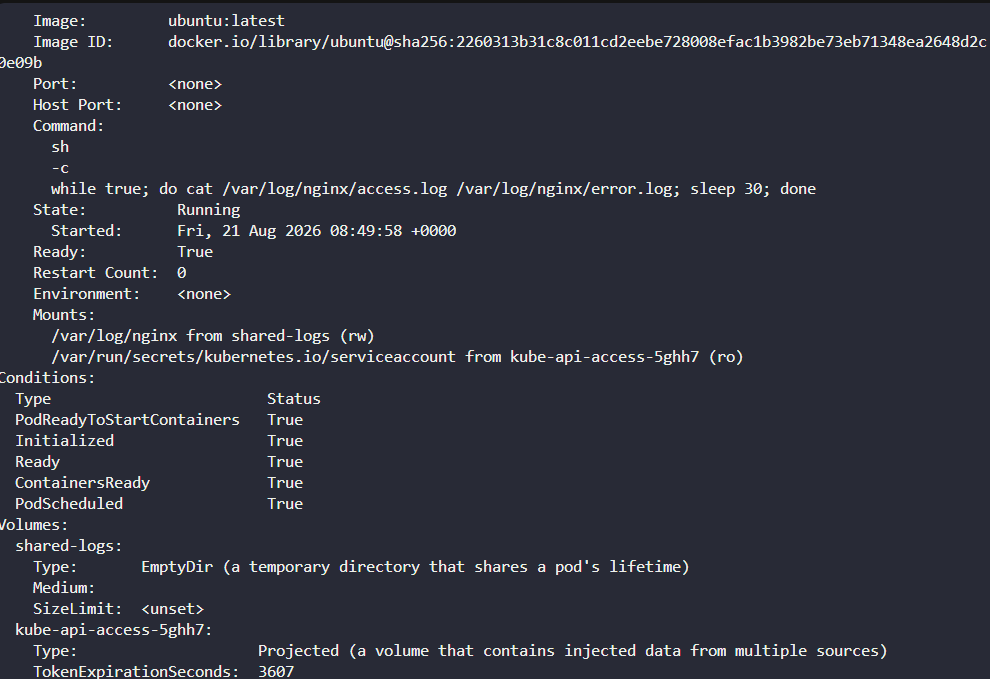
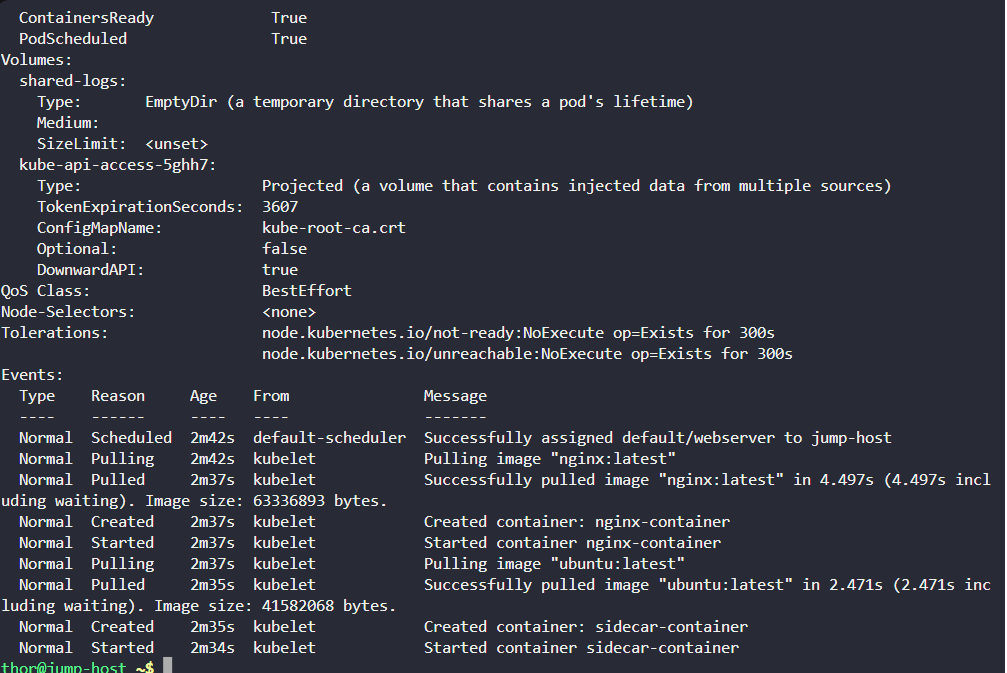
Look for:
Volumes:
shared-logs:
Type: EmptyDir
And under the container mounts, you should see:
/var/log/nginx
for both containers.
14. Verify the Sidecar from Inside the Container
You can enter the sidecar:
kubectl exec -it webserver -c sidecar-container – sh
Then:
ls -l /var/log/nginx
You should see the Nginx log files:
access.log
error.log
Exit:
exit
15. Verify Nginx
You can also enter the Nginx container:
kubectl exec -it webserver -c nginx-container – sh
Check:
ls -l /var/log/nginx
You should see:
access.log
error.log
Exit:
exit
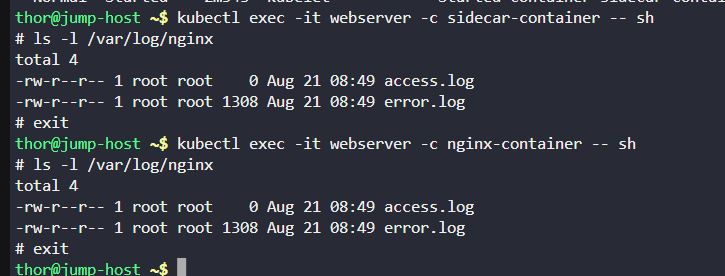
Both containers are seeing the same directory because they share:
shared-logs
16. The Complete Practical Workflow
For this KodeKloud task, the complete workflow is:
pwd
vi webserver-pod.yaml
kubectl apply -f webserver-pod.yaml
kubectl get po
kubectl get pod webserver
kubectl get pod webserver -o jsonpath=‘{.spec.containers[*].name}’
kubectl get pod webserver -o jsonpath=‘{.spec.containers[*].image}’
kubectl logs webserver -c sidecar-container
Expected final state:
webserver 2/2 Running
17. Common Mistake: Init Container vs Sidecar Container
One important lesson from this task is the difference between an init container and a sidecar container.
An init container is designed to run initialization work and then exit successfully.
This task’s sidecar command is:
while true; do
…
done
It is intentionally designed to run continuously.
Therefore, sidecar-container belongs under:
spec:
containers:
and not under:
spec:
initContainers:
If you put this infinite loop into an init container, Kubernetes will wait forever for the init container to finish and the application container will not start.
18. Why Use emptyDir?
The requirement says the logs aren’t important enough to require persistent storage.
That’s exactly where emptyDir makes sense.
volumes:
- name: shared-logs
emptyDir: {}
The lifecycle is approximately:
Pod starts
↓
emptyDir created
↓
Nginx writes logs
↓
Sidecar reads logs
↓
Pod continues running
↓
Pod deleted
↓
emptyDir deleted
If the logs need to survive Pod deletion, emptyDir would not be sufficient. You would need persistent storage or an external logging system.
19. Why the Sidecar Pattern?
Without a sidecar, you could put log-processing logic directly into the Nginx container.
But that violates separation of concerns.
Instead:
Nginx
└── Serves web pages
Sidecar
└── Handles log processing/shipping
Each container has one focused responsibility.
This makes the architecture easier to maintain, troubleshoot, and modify.
20. Final YAML
Keep this as your reference solution:
apiVersion: v1
kind: Pod
metadata:
name: webserver
spec:
containers:
-
name: nginx-container
image: nginx:latest
volumeMounts: -
name: shared-logs
mountPath: /var/log/nginx -
name: sidecar-container
image: ubuntu:latest
command: -
sh
-
-c
-
while true; do cat /var/log/nginx/access.log /var/log/nginx/error.log; sleep 30; done
volumeMounts: -
name: shared-logs
mountPath: /var/log/nginx
volumes:
- name: shared-logs
emptyDir: {}
Key Takeaways
Remember these five points for interviews and future Kubernetes tasks:
- Sidecar = supporting container running alongside the main application container.
-
Containers in the same Pod can share an
emptyDirvolume. -
Both containers mount
shared-logsat/var/log/nginx. -
A continuously running sidecar belongs under
containers, notinitContainers. -
2/2 Runningconfirms both containers are running successfully.
The core idea is simple:
Nginx serves the application. The sidecar handles the logs. The shared
emptyDirconnects them.