Day 40: Managing Secrets with Azure Key Vault
Encrypt
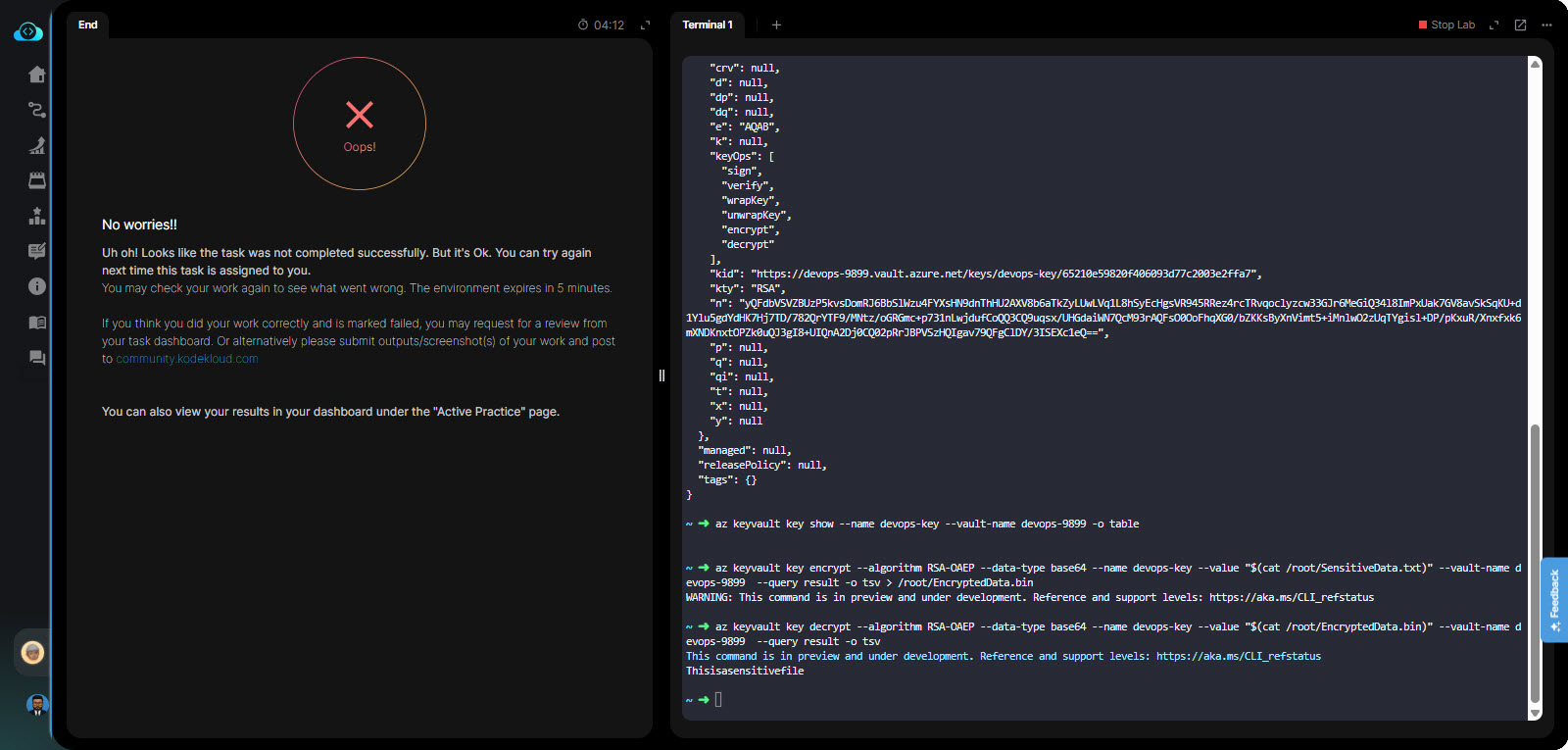
az keyvault key encrypt --algorithm RSA-OAEP --data-type base64 --name devops-key --value “$(cat /root/SensitiveData.txt)” --vault-name devops-9899 --query result -o tsv > /root/EncryptedData.bin
Decrypt
az keyvault key decrypt --algorithm RSA-OAEP --data-type base64 --name devops-key --value “$(cat /root/EncryptedData.bin)” --vault-name devops-9899 --query result -o tsv
Srikanth’s solution worked for me; please try it out. Step 4 is probably unnecessary.
Hi @GautamGohel
Thanks to @rob_kodekloud for giving us a pointer towards the solution but I was a bit frustrated as how do we know we want all of this via cmd line or azure portal? I was doing via azure portal using “–id https//keyvaultname.vault.azure.net/keyname/version”
I can tell you what you are doing wrong in your command as I replicated that issue to validate the issue:
Blockquote
az keyvault key encrypt --algorithm RSA-OAEP --data-type base64 --name devops-key --value “$(cat /root/SensitiveData.txt)” --vault-name devops-9899 --query result -o tsv > /root/EncryptedData.bin
az keyvault key expects a “.b64 file” in the path, not regular “.txt”. That was pointed out in the errors I got initially. that “–data-type base64” messes up the format and removes spaces, leading it to become different file.
I tried exact commands as you and got the same output but it is wrong because “This is a Sensitive file != Thisisasensitivefile” (note spaces are missing)
the hash/md5 of those files will be different as spaces are missing so definitely that’s the wrong approach.
I followed that guide but instead of keys/resource group locally I gave it URL endpoint of my secret key and it worked.
-
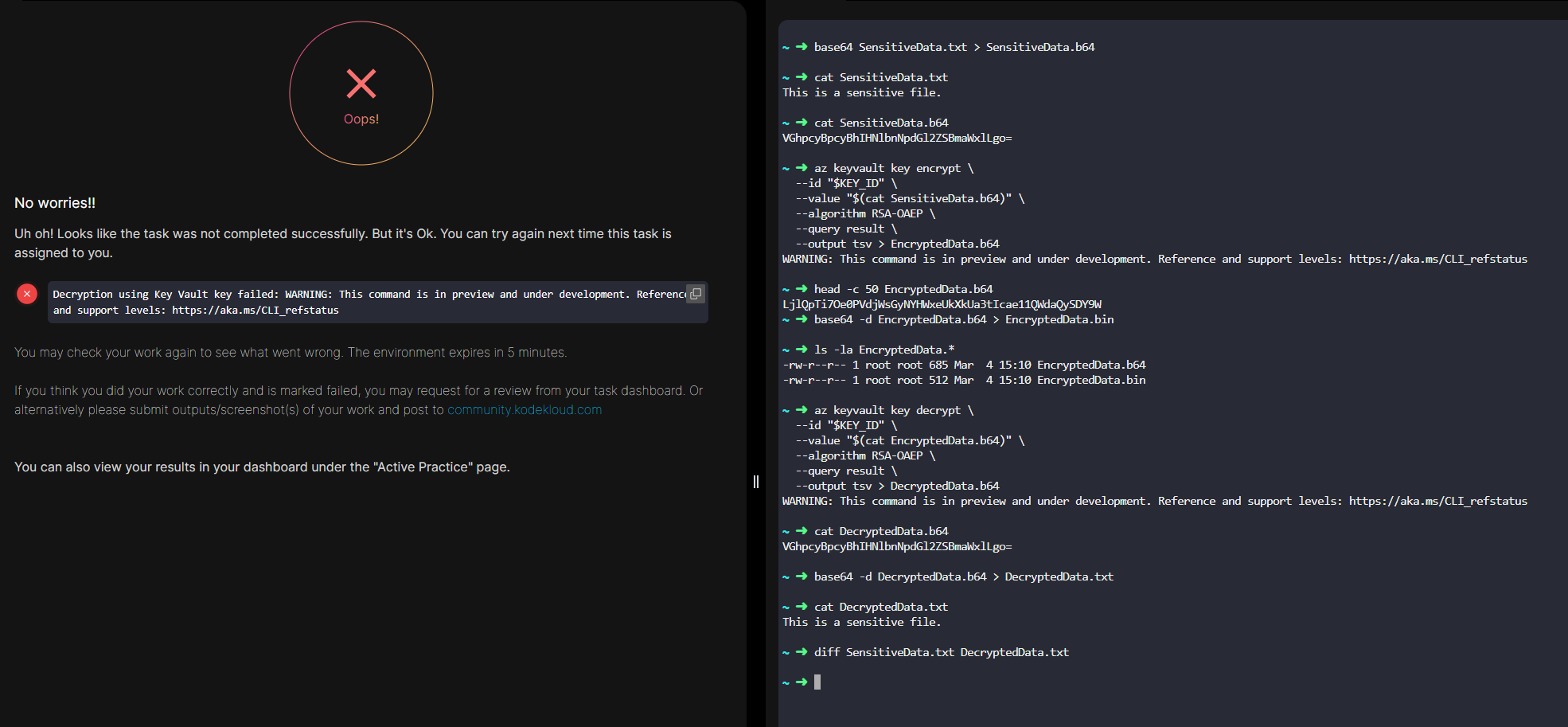
Convert txt file to base64 before doing anything else. (az keyvault key expects base64 file, dont convert during that command, that didn’t work for me) so run:
base64 SensitiveData.txt > SensitiveData.b64
-
I did the ‘unpopular way’ but it worked.
az keyvault key encrypt --id “https://xfusion-9109.vault.azure.net/keys/xfusion-key/f74sssssssssssssssssdc10f7” --value “$(cat SensitiveData.b64)” --algorithm RSA-OAEP --query result --output tsv > EncryptedData.b64
-
You will get this error so in keys, access policies, add a rule to allow that application. search for appid “8795 etc” and use that as service principal
-
rerun the command in step 2 it will work this time
az keyvault key encrypt --id “https://xfusion-9109.vault.azure.net/keys/xfusion-key/f74sssssssssssssssssdc10f7” --value “$(cat SensitiveData.b64)” --algorithm RSA-OAEP --query result --output tsv > EncryptedData.b64
-
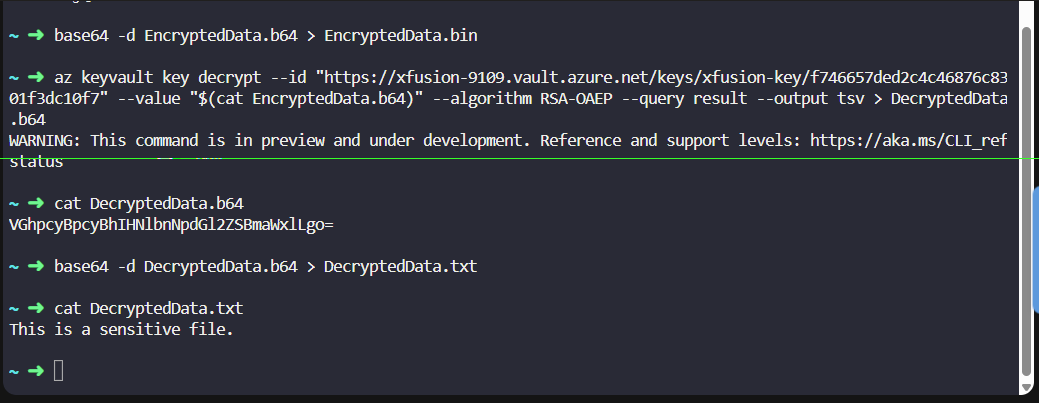
now convert that base64 decode option to save it as ‘.bin’ so KK script can validate
base64 -d EncryptedData.b64 > EncryptedData.bin
-
now run decrypt command on Base64 file! (remember that command expects base64 file) and save it as “Decrypted.b64” to ensure you see “This is a sensitive file”
az keyvault key decrypt --id “https://xfusion-9109.vault.azure.net/keys/xfusion-key/f74sssssssssssssssssdc10f7” --value “$(cat EncryptedData.b64)” --algorithm RSA-OAEP --query result --output tsv > DecryptedData.b64
- base64 -d DecryptedData.b64 > DecryptedData.txt (Decode decrypted b64 to readable txt)
@raymond.baoly, can you please check, why I am having this error?
Hi @Mederbek
We have shared the solution in this post, and it is confirmed to pass the task. Have you tried following it?
1 Like
Yes, I have passed it, thanks.