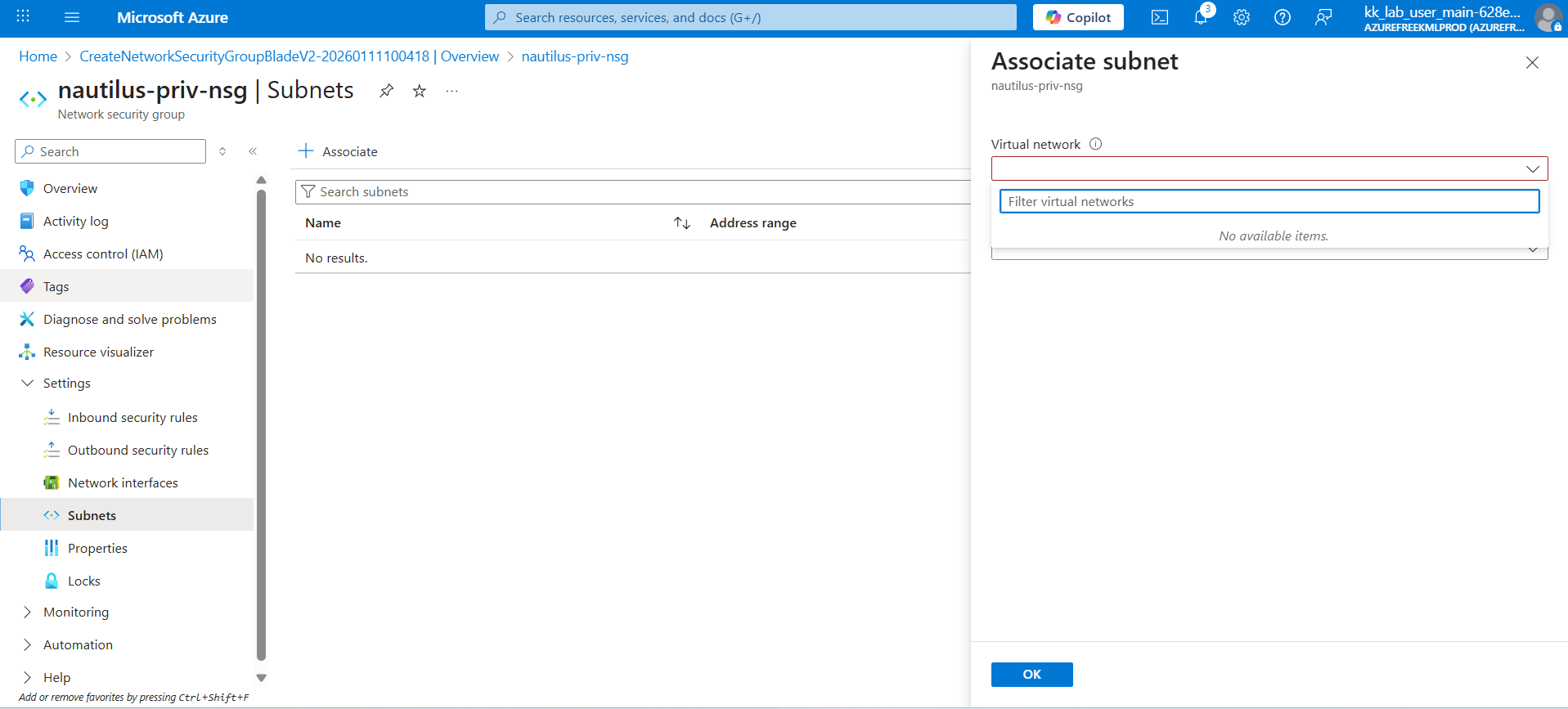
according to image I gonna associate subnet to nsg but it doesn’t appear I stuck in here for 3 days help me to complete this task and also I tried azure-client for executing command then I used this command " az network nsg rule create
–resource-group $RG
–nsg-name $NSG_NAME
–name Allow-SSH-From-VNet-CIDR
–priority 110
–direction Inbound
–access Allow
–protocol Tcp
–source-address-prefix 10.0.0.0/16
–source-port-range “"
–destination-address-prefix "”
–destination-port-range 22
" i couldn’t complete this lab session I tried it for 3-4 days. Please someone guide me to complete this
Hi @chathura
You can complete this task on the Azure console by first creating the Virtual network with a private subnet with the required CIDR, and then creating a Virtual machine and attaching it to the Virtual network and subnet created.
kindly need your help i do every thing
Name ResourceGroup Location Type Status
nautilus-priv-vnet kml_rg_main-770b2a382afe4b14 eastus Microsoft.Network/virtualNetworks
nautilus-priv-nsg kml_rg_main-770b2a382afe4b14 eastus Microsoft.Network/networkSecurityGroups
nautilus-priv-vm_key kml_rg_main-770b2a382afe4b14 eastus Microsoft.Compute/sshPublicKeys
nautilus-priv-vm214_z2 kml_rg_main-770b2a382afe4b14 eastus Microsoft.Network/networkInterfaces
nautilus-priv-vm kml_rg_main-770b2a382afe4b14 eastus Microsoft.Compute/virtualMachines
nautilus-priv-vm_disk1_706706ef703843099d22c71a154378c8 KML_RG_MAIN-770B2A382AFE4B14 eastus Microsoft.Compute/disks
but can’t verify lab
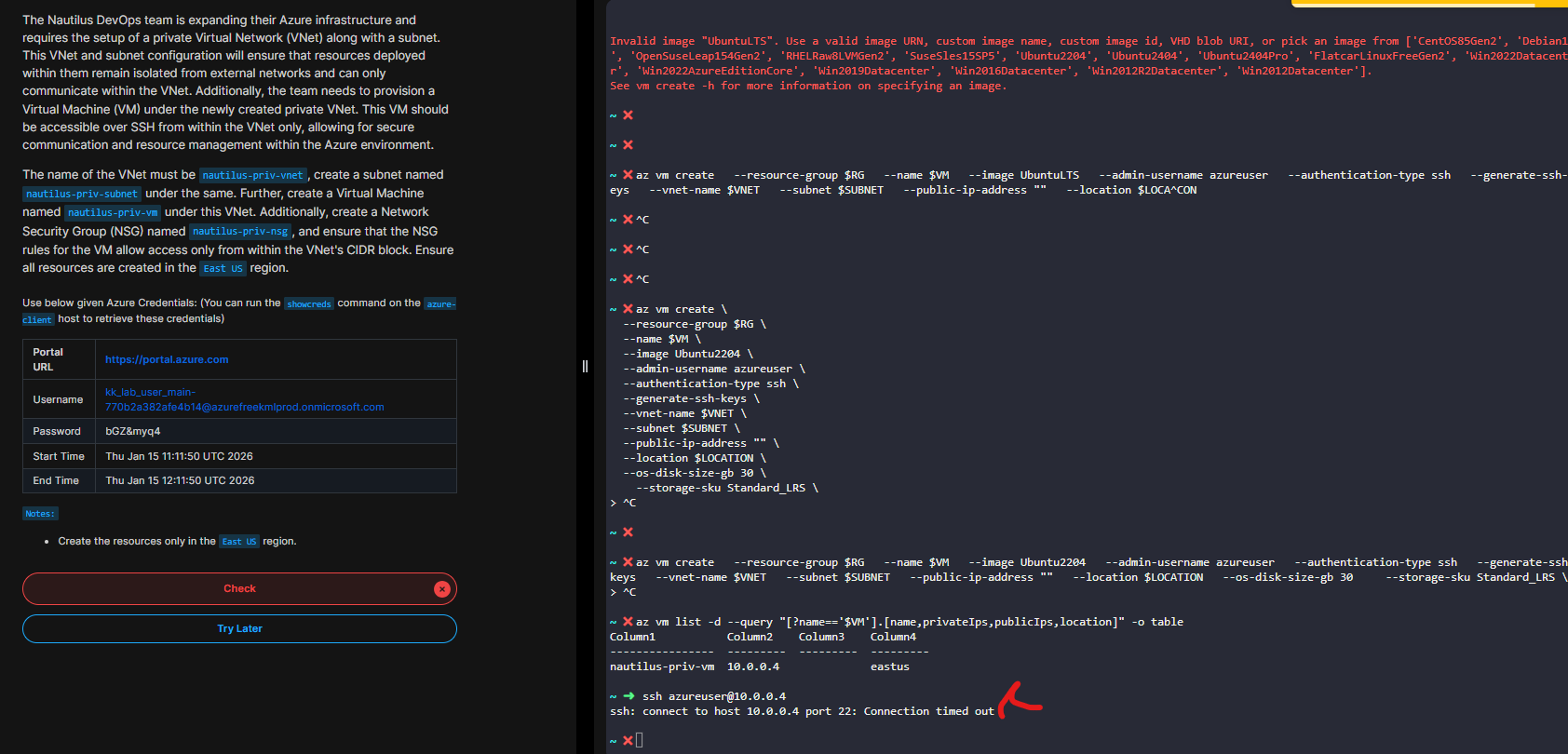
@Santosh_KodeKloud Thank you very much for your kindly corporation I successfully completed the lab with your guidance.
If still u have error follow my this execution code to create the vm " az vm create
–resource-group $RG
–name $VM_NAME
–location $LOCATION
–image Ubuntu2204
–size Standard_B1s
–admin-username azureuser
–generate-ssh-keys
–vnet-name $VNET_NAME
–subnet $SUBNET_NAME
–public-ip-address “”
–os-disk-size-gb 30
–storage-sku Standard_LRS
"
hope u make it fine