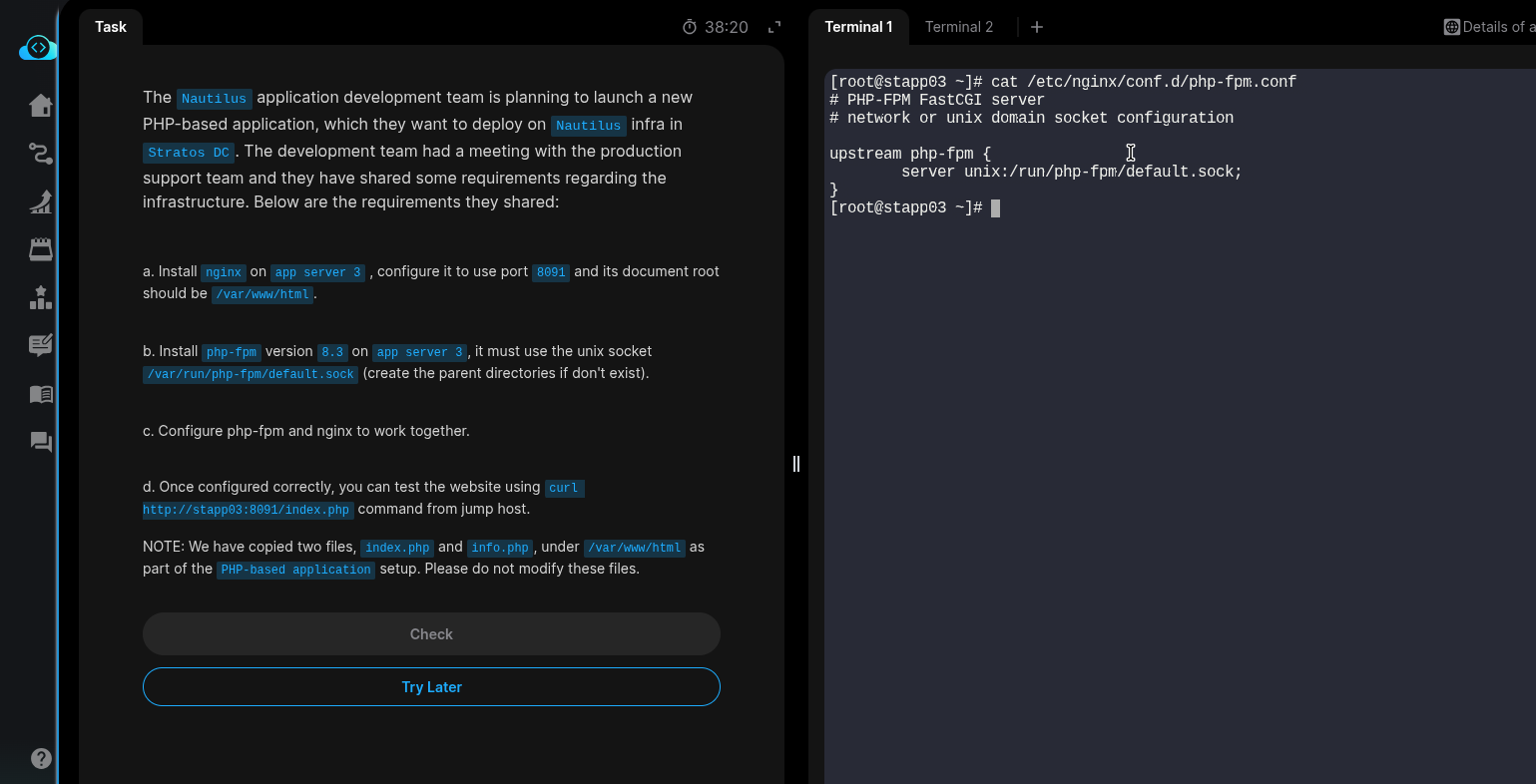
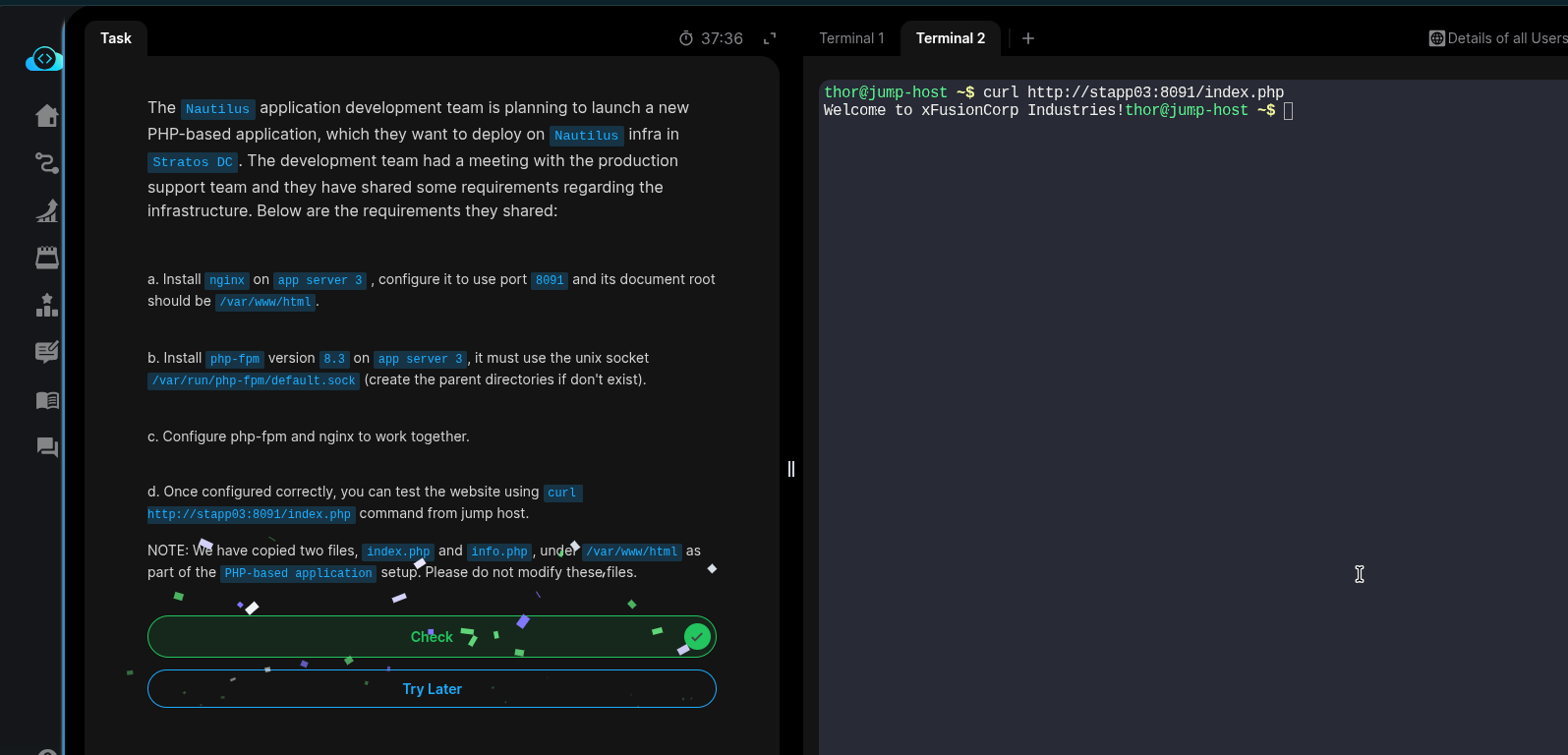
I haven’t done anything wrong but still I am failing my steps are correct. 20
Day 20: Configure Nginx + PHP-FPM Using Unix Sock
100 Days of DevOps KodeKloud
The Nautilus application development team is planning to launch a new PHP-based application, which they want to deploy on Nautilus infra in Stratos DC. The development team had a meeting with the production support team and they have shared some requirements regarding the infrastructure. Below are the requirements they shared:
a. Install nginx on app server 1 , configure it to use port 8095 and its document root should be /var/www/html.
b. Install php-fpm version 8.3 on app server 1, it must use the unix socket /var/run/php-fpm/default.sock (create the parent directories if don’t exist).
c. Configure php-fpm and nginx to work together.
d. Once configured correctly, you can test the website using curl http://stapp01:8095/index.php command from jump host.
NOTE: We have copied two files, index.php and info.php, under /var/www/html as part of the PHP-based application setup. Please do not modify these files.
Yes. This is KodeKloud Day 20 — PHP-FPM + Nginx on stapp03.
Since the files are already present and must not be modified, follow these steps on App Server 1( stapp01 ).
1. SSH to App Server 1
From the jump host:
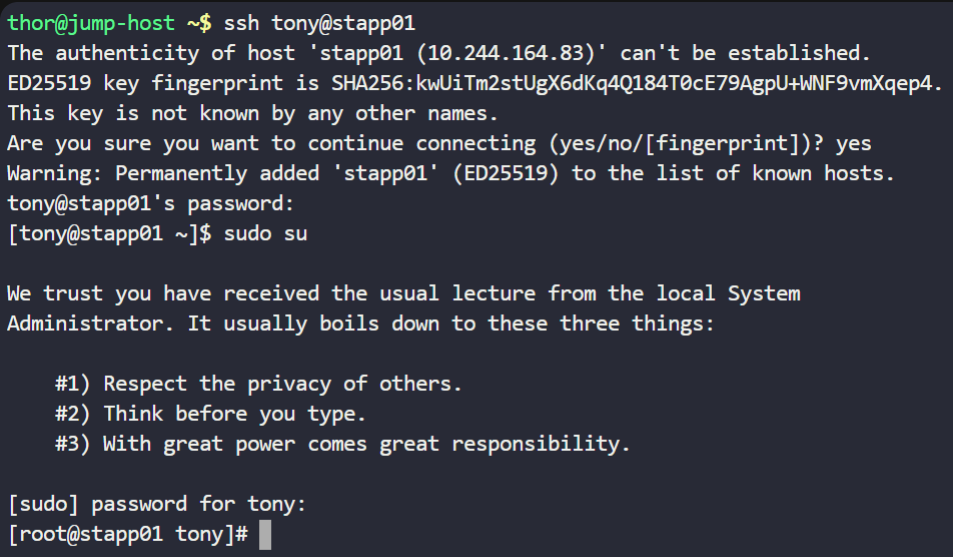
ssh tony@stapp01
2. Install Nginx and PHP 8.3 FPM
First check the OS:
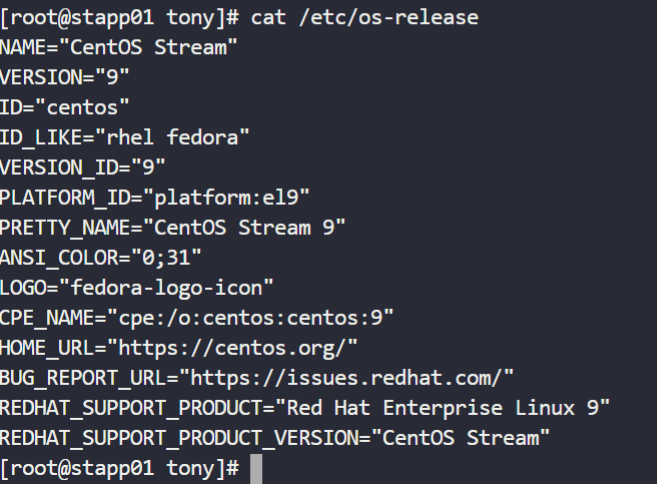
cat /etc/os-release
For the usual CentOS/RHEL-based Stratos environment:
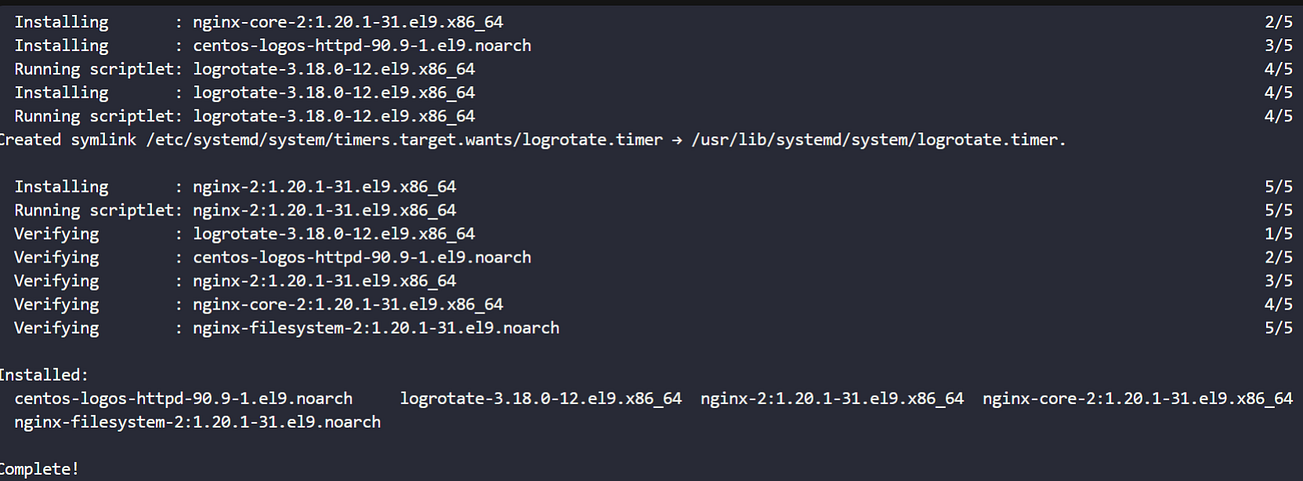
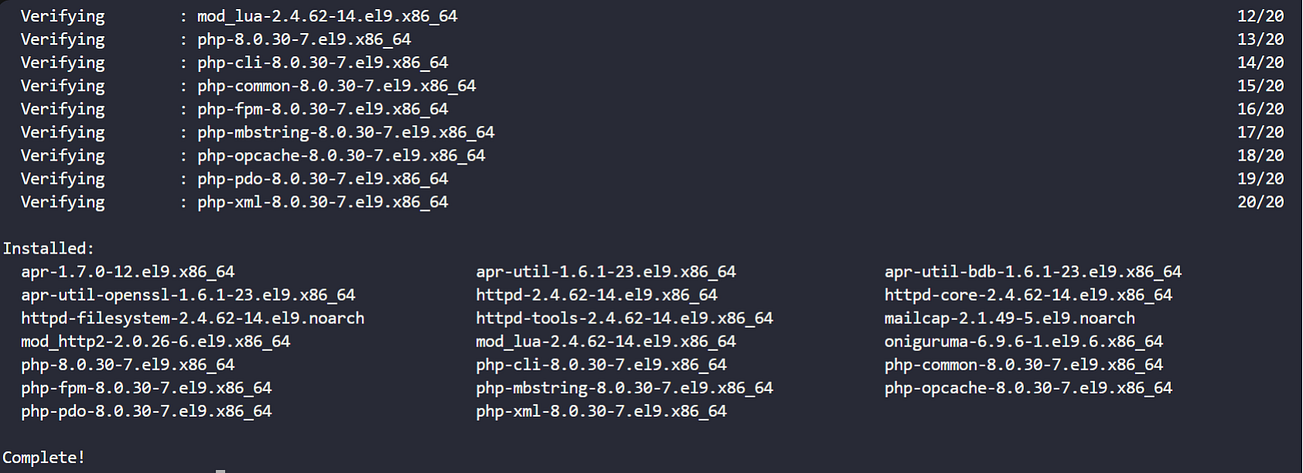
sudo dnf install -y nginx
sudo dnf install -y php php-fpm
Check PHP:
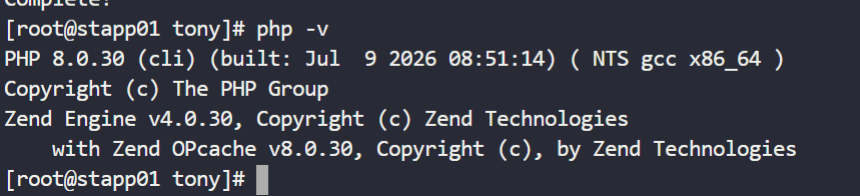
php -v
You need to see PHP 8.3.x.
If the default repositories provide a different PHP version, check available versions:
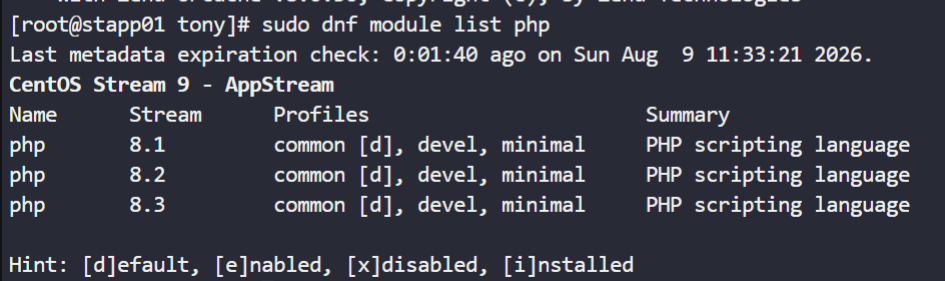
sudo dnf module list php
Then enable PHP 8.3:
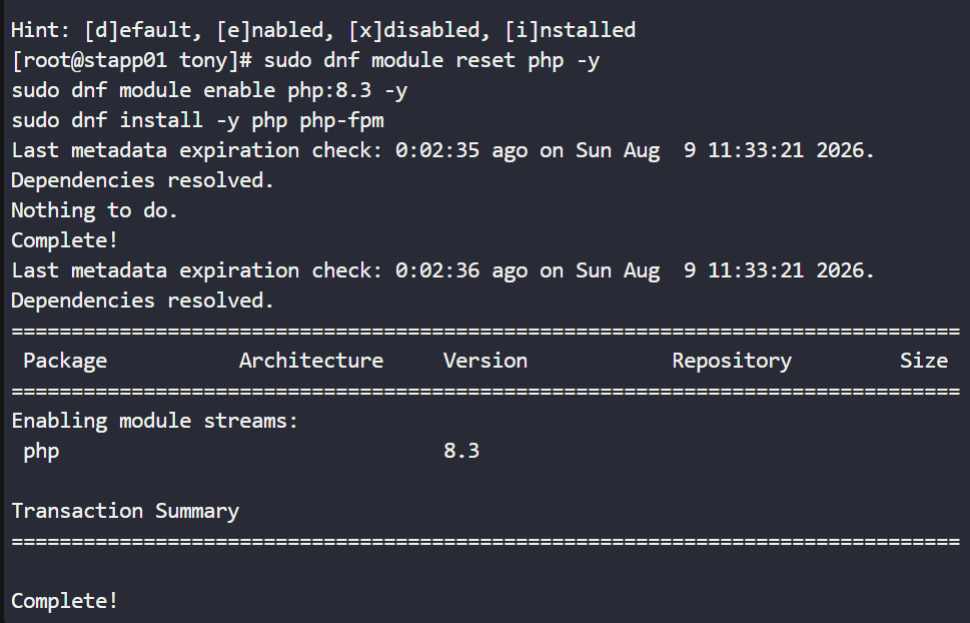
sudo dnf module reset php -y
sudo dnf module enable php:8.3 -y
sudo dnf install -y php php-fpm
Verify:
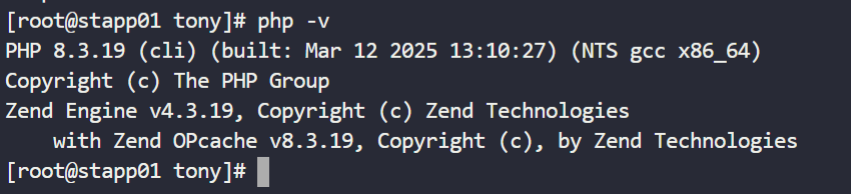
php -v
3. Check the existing application files
Do not modify them:
ls -l /var/www/html/
You should see:

index.php
info.php
4. Configure PHP-FPM socket
Create the required directory:

sudo mkdir -p /var/run/php-fpm
Edit PHP-FPM configuration:

sudo vi /etc/php-fpm.d/www.conf
Find:
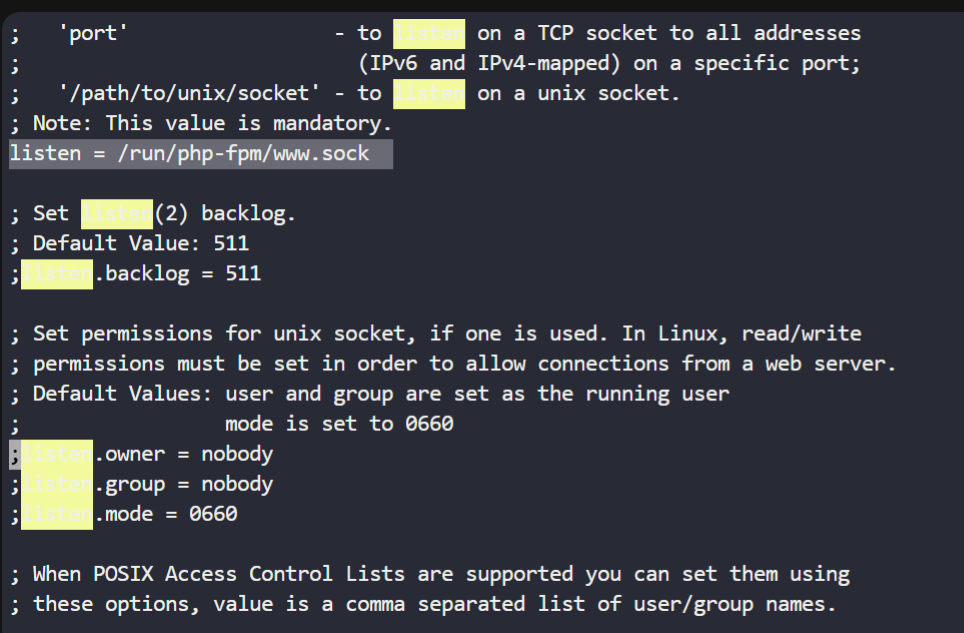
listen = …
Change it to:
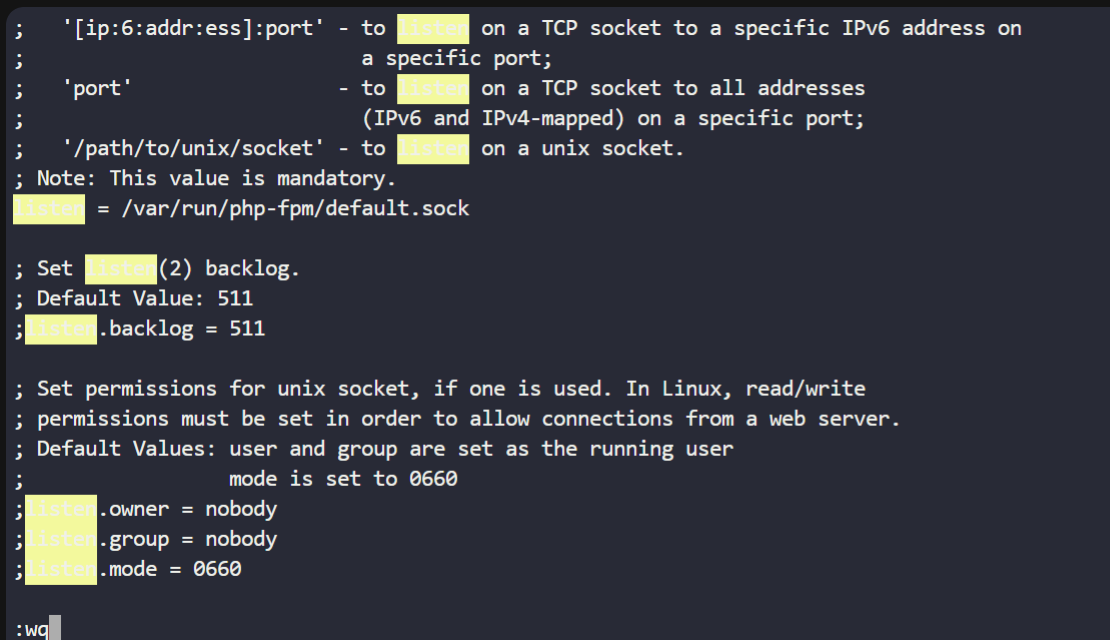
listen = /var/run/php-fpm/default.sock
Also make sure these are set correctly:
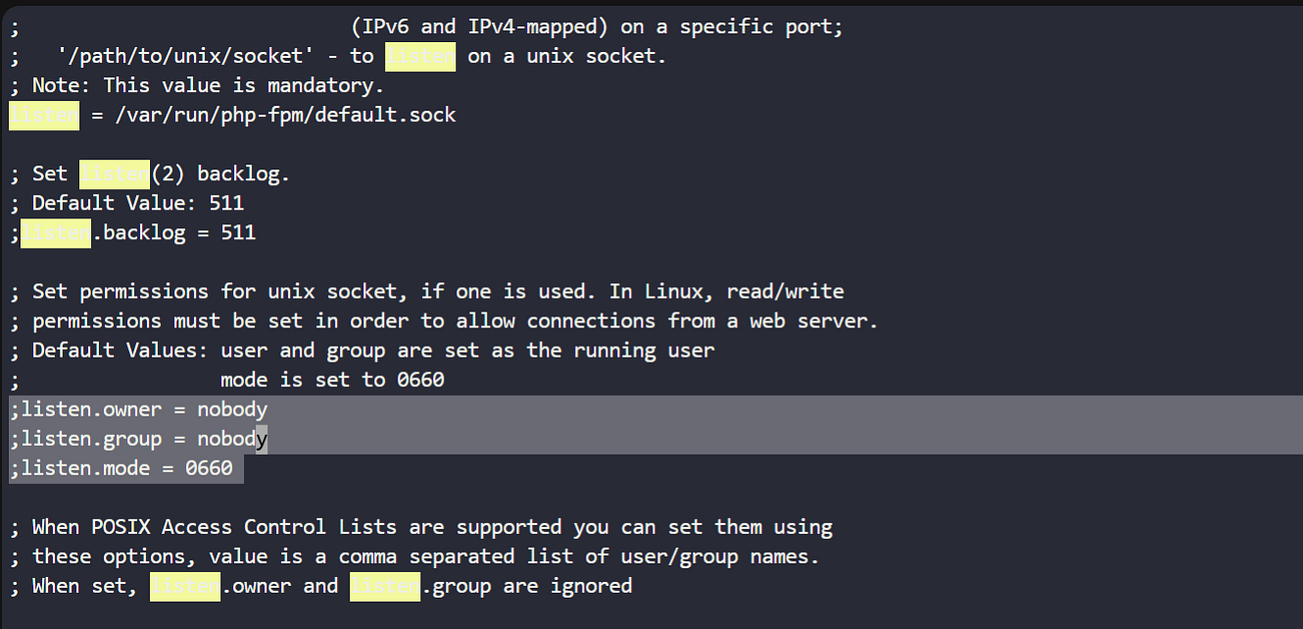
listen.owner = nginx
listen.group = nginx
listen.mode = 0660
If listen.owner and listen.group don’t exist, add them.
5. Configure Nginx
Open:

sudo vi /etc/nginx/nginx.conf
Inside the http {} section, configure the server like this:
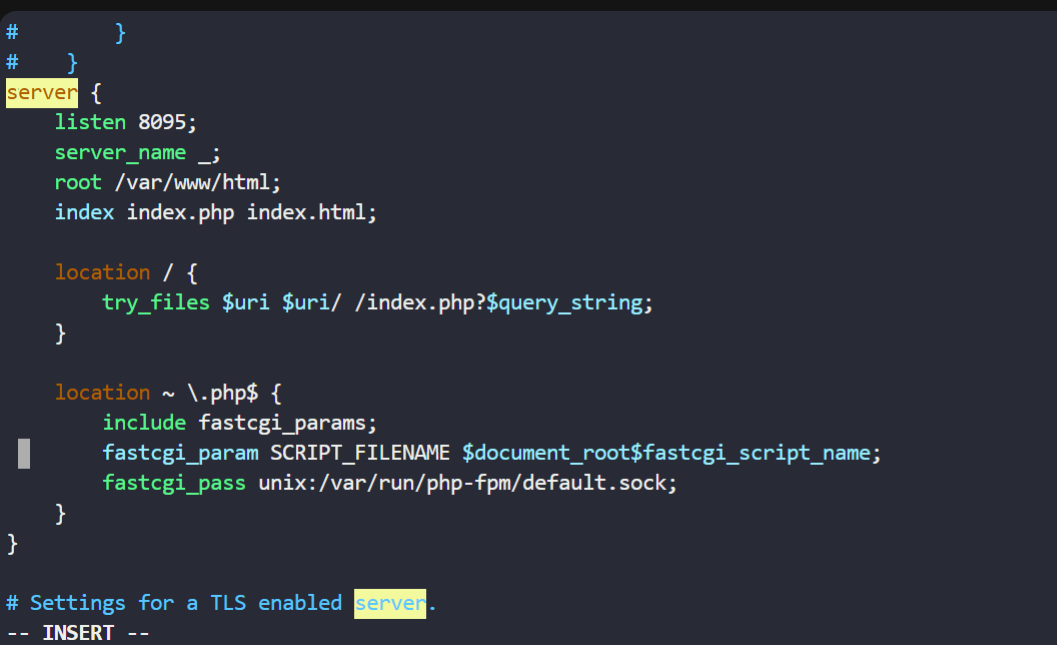
server {
listen 8095;
server_name _;
root /var/www/html;
index index.php index.html;
location / {
try_files $uri $uri/ /index.php?$query_string;
}
location ~ .php$ {
include fastcgi_params;
fastcgi_param SCRIPT_FILENAME $document_root$fastcgi_script_name;
fastcgi_pass unix:/var/run/php-fpm/default.sock;
}
}
Important: Don’t create a second http {} block. If an existing server {} block is there, modify it appropriately.
6. Test Nginx configuration

sudo nginx -t
You want:
syntax is ok
test is successful
If successful:
sudo systemctl enable --now php-fpm
sudo systemctl enable --now nginx
If you’re asking for production-safe/common alternatives to:
sudo systemctl enable --now php-fpm
sudo systemctl enable --now nginx
the commands depend on the Linux distro and how PHP-FPM is packaged.
Common production commands
RHEL / CentOS / Rocky / AlmaLinux / Fedora
sudo systemctl enable --now php-fpm
sudo systemctl enable --now nginx
Debian / Ubuntu
PHP-FPM usually has a versioned service name, such as php8.3-fpm or php8.4-fpm:
sudo systemctl enable --now php8.3-fpm
sudo systemctl enable --now nginx
To find the installed PHP-FPM service:
systemctl list-unit-files --type=service | grep -E ‘php.*fpm|php-fpm’
If you want separate, explicit commands
Instead of enable --now, the more traditional production workflow is:
sudo systemctl enable php-fpm
sudo systemctl start php-fpm
sudo systemctl enable nginx
sudo systemctl start nginx
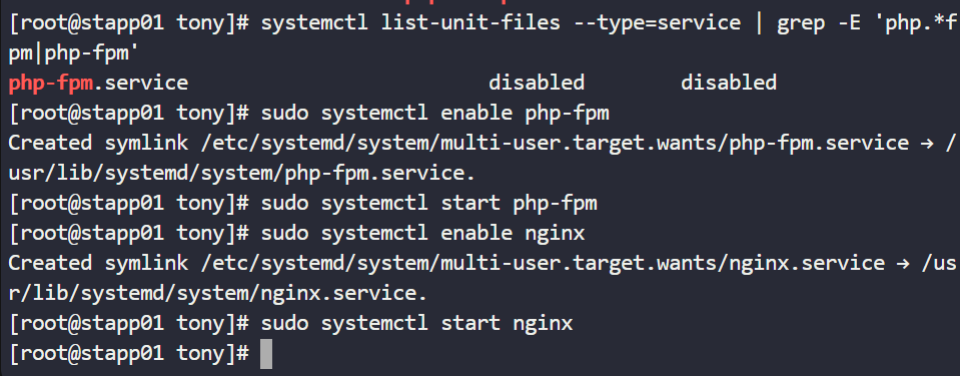
enable --now is generally perfectly appropriate in production—it means enable the service at boot and start it immediately.
Before/after deployment
For a production deployment where the services already exist:
sudo systemctl reload nginx
sudo systemctl reload php8.3-fpm
Use restart only when a reload isn’t sufficient:
sudo systemctl restart php8.3-fpm
sudo systemctl restart nginx
And verify:
systemctl is-enabled nginx php8.3-fpm
systemctl is-active nginx php8.3-fpm
7. Verify PHP-FPM socket
sudo ss -lx | grep default.sock
Or:

ls -l /var/run/php-fpm/default.sock
You should see the socket.
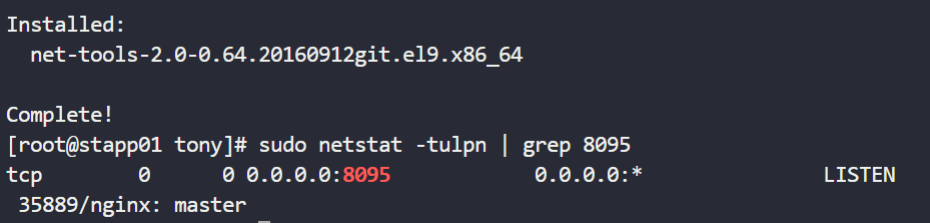
8. Verify Nginx is listening on 8095
sudo netstat -tulpn | grep 8095
If netstat is missing:
sudo yum install -y net-tools
Expected:
9. Test locally
On stapp01:

curl http://localhost:8095/index.php
Then:
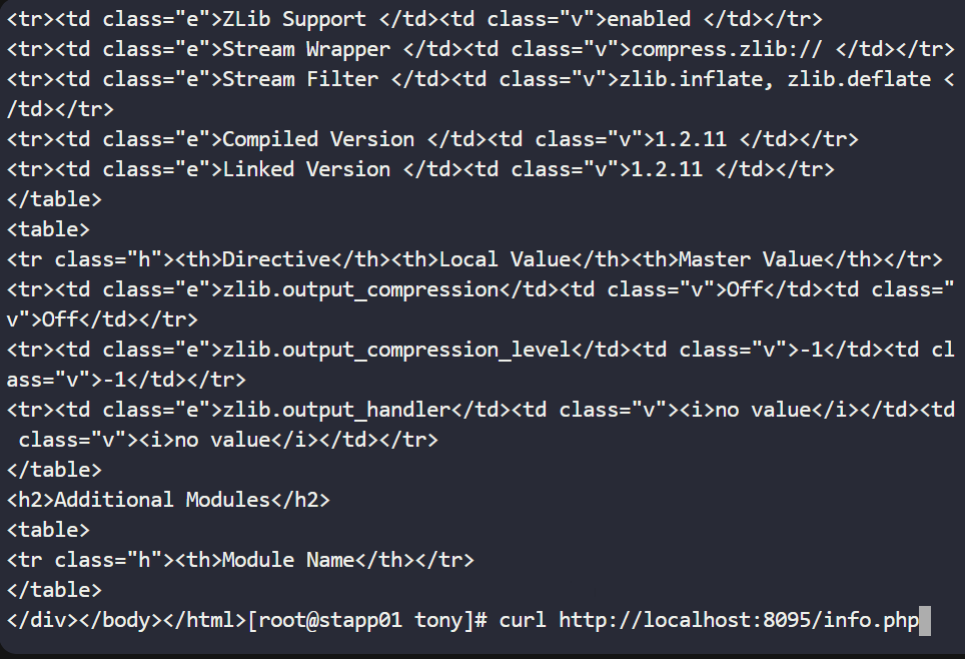
curl http://localhost:8095/info.php
If PHP-FPM is working, you should get the PHP application’s output rather than the PHP source code.
10. Final test from jump host
Exit stapp03:
exit
Then from the jump host:
curl http://stapp01:8095/index.php
If everything is correct, the KodeKloud validation should pass.
Quick verification checklist
php -v
sudo nginx -t
sudo systemctl status nginx
sudo systemctl status php-fpm
sudo ls -l /var/run/php-fpm/default.sock
sudo ss -tulpn | grep 8095
curl http://localhost:8095/index.php