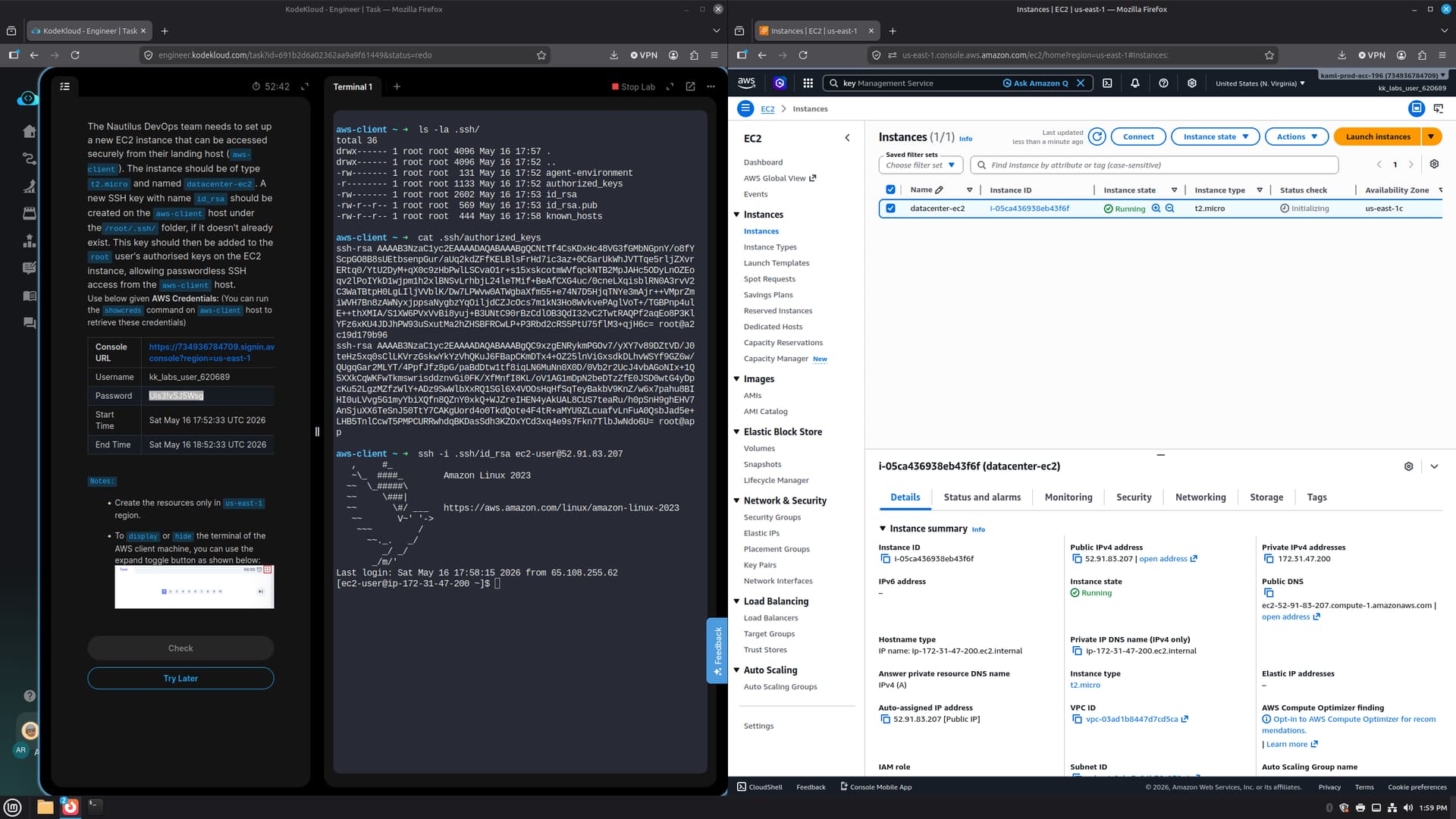
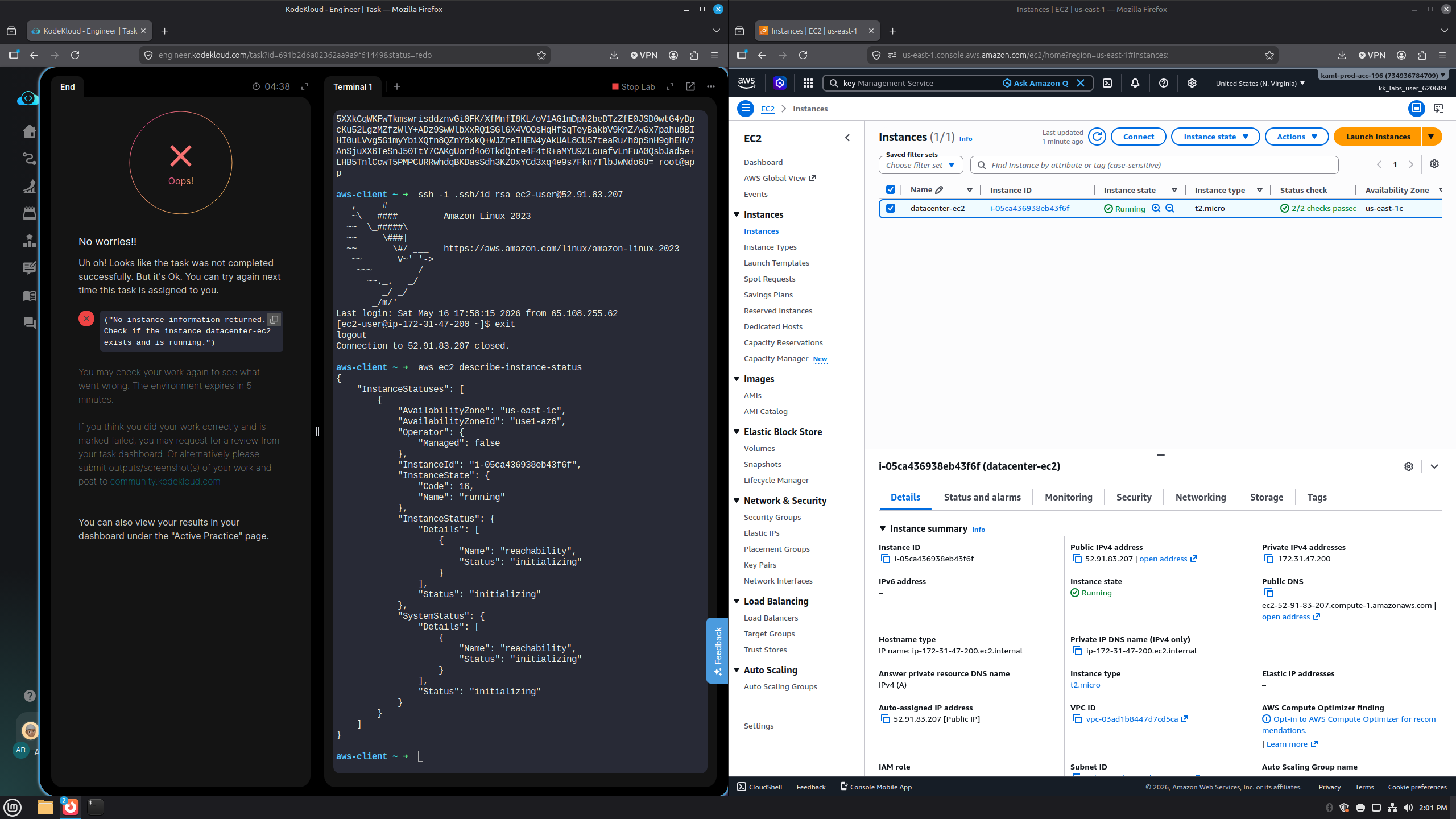
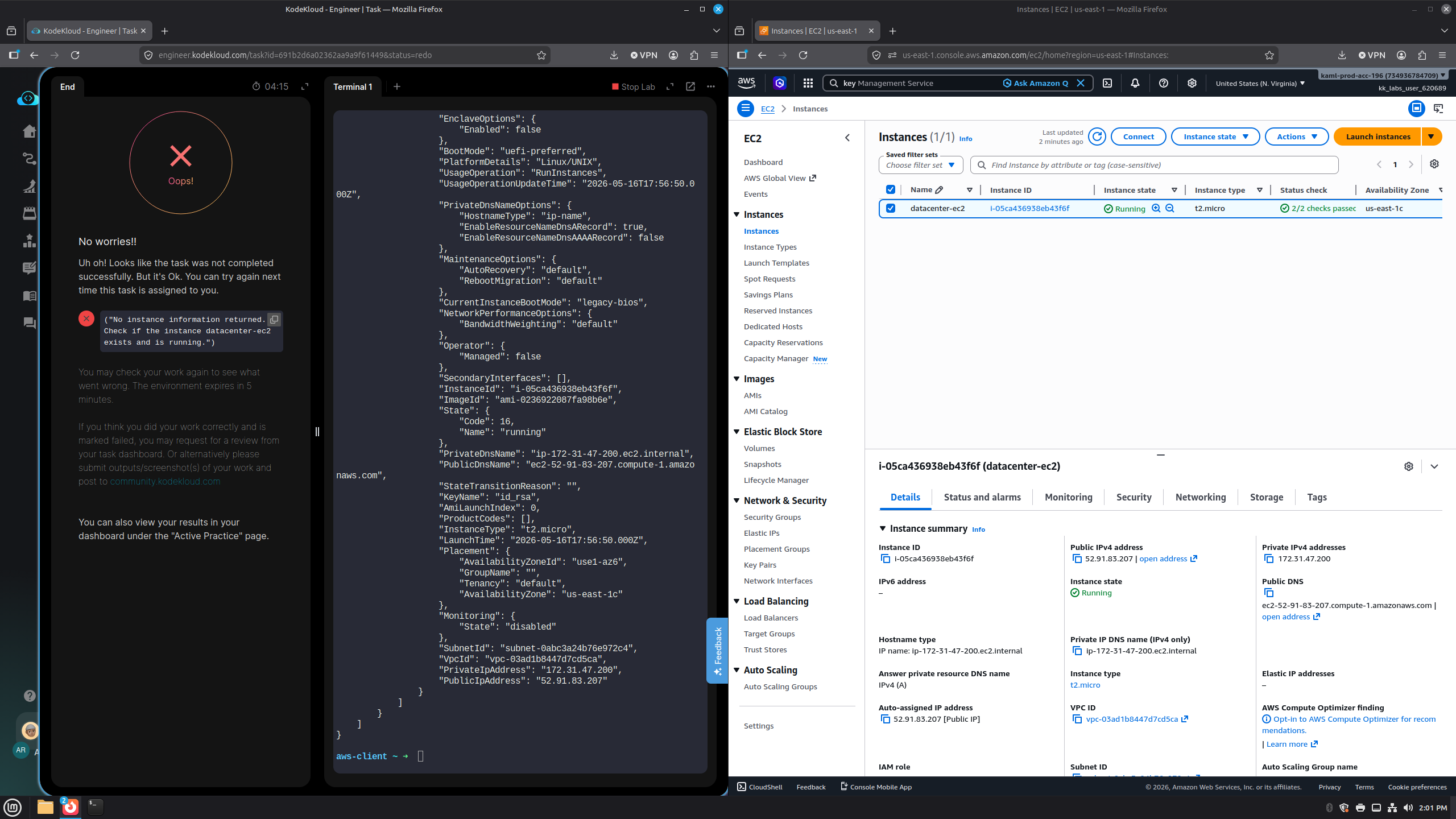
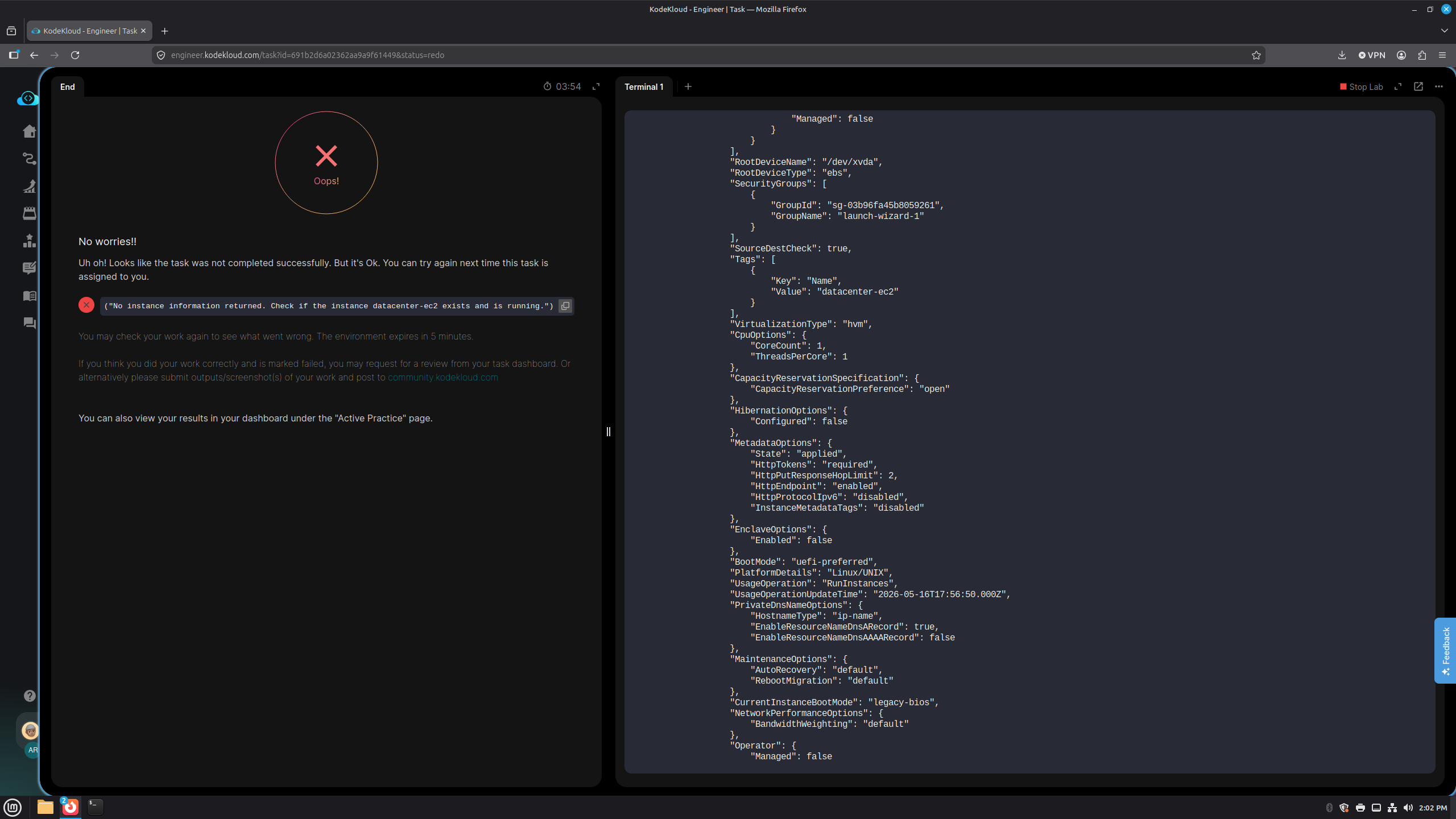
I’ve done this task a half dozen times, both on the CLI and in the console. Steps taken:
- I’ve made the EC2 instance with the t2.micro image-type and with the correct name.
- I waited for the image to be up and running in the Console.
- Then I used ssh-keygen to make the id_rsa key pair and stored it in ~/.ssh/, making sure it was added to authorized keys.
- Then I imported the keypair into AWS using aws ec2 import-key-pair.
- I added a security group rule that allows SSH access from the lab environment’s public IP, found using curl ifconfig.me.
- I proved the instance was up and running by SSHing into it using, in the latest attempt, ssh -i ~/.ssh/id_rsa ec2-user@<instance’s public IP address>.
I also attached screenshots proving the instance was made using the correct name, instance-type, and ability to connect over SSH. What’s going on with this exercise? Each time I try it, I wind up with “No instance information returned”