I am unable to complete Day 13: SSH into an Azure Virtual Machine. Can you please guide me with the steps required to complete it. I tried multiple times trying to copy the SSH public key to the “authorized file” but I am facing a permission issue.
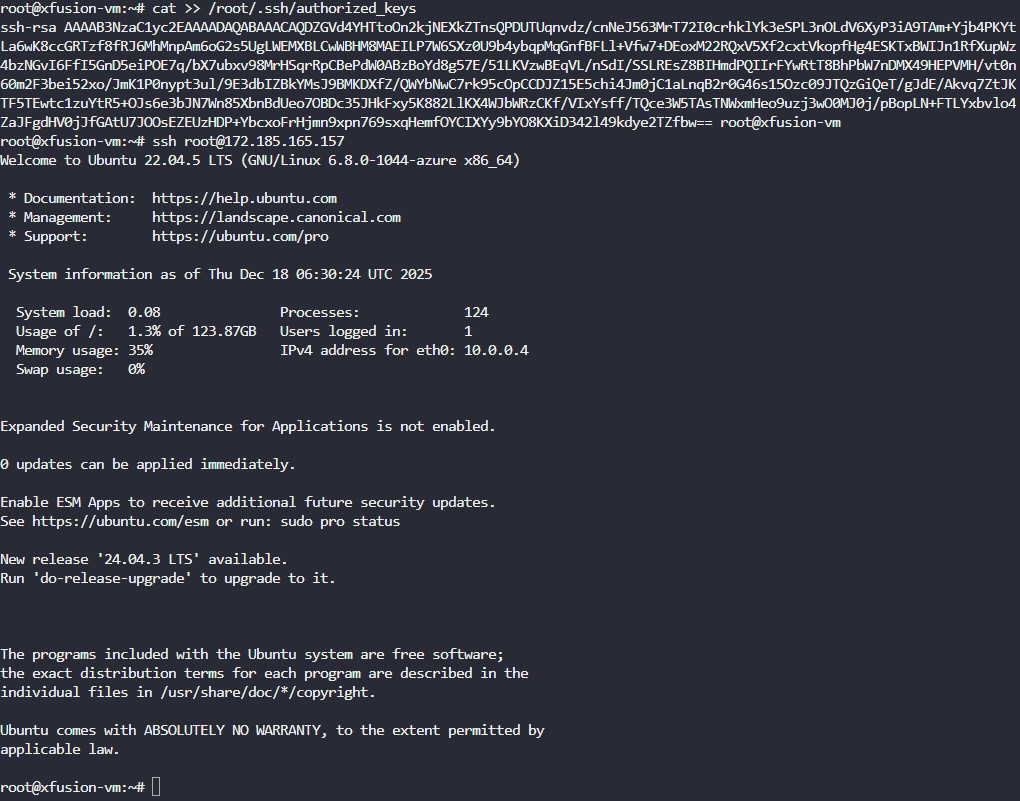
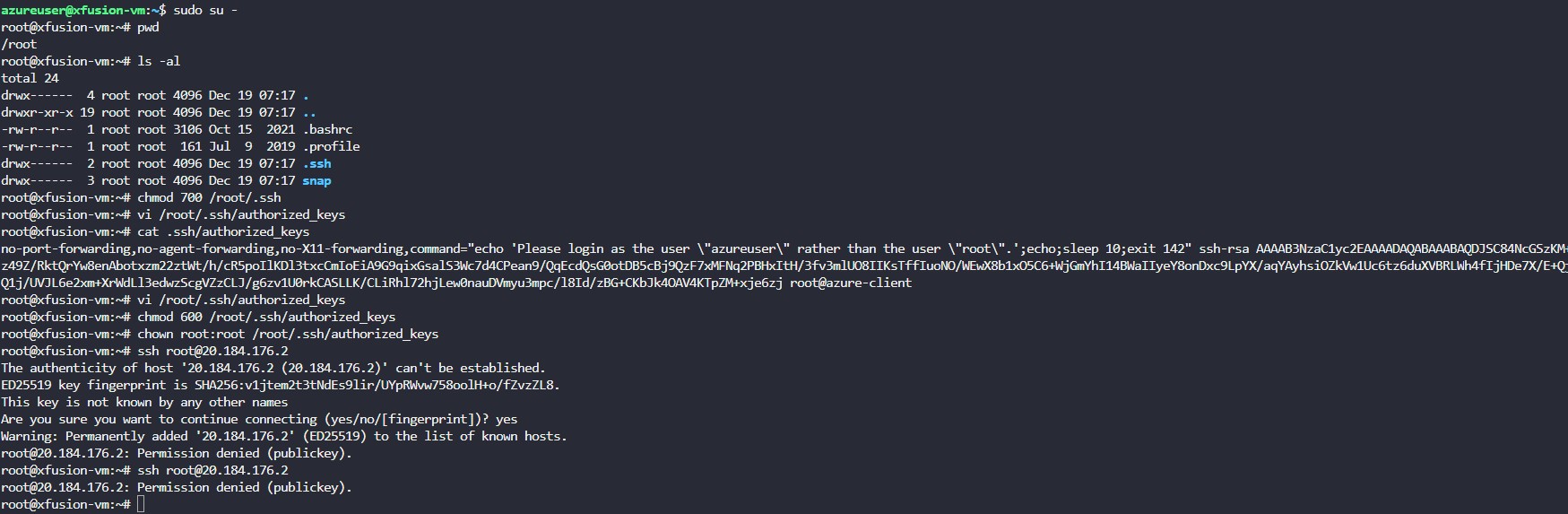
I have also facing the same issue, I have completed the task and able to ssh with root user without password. But task given error on submission.
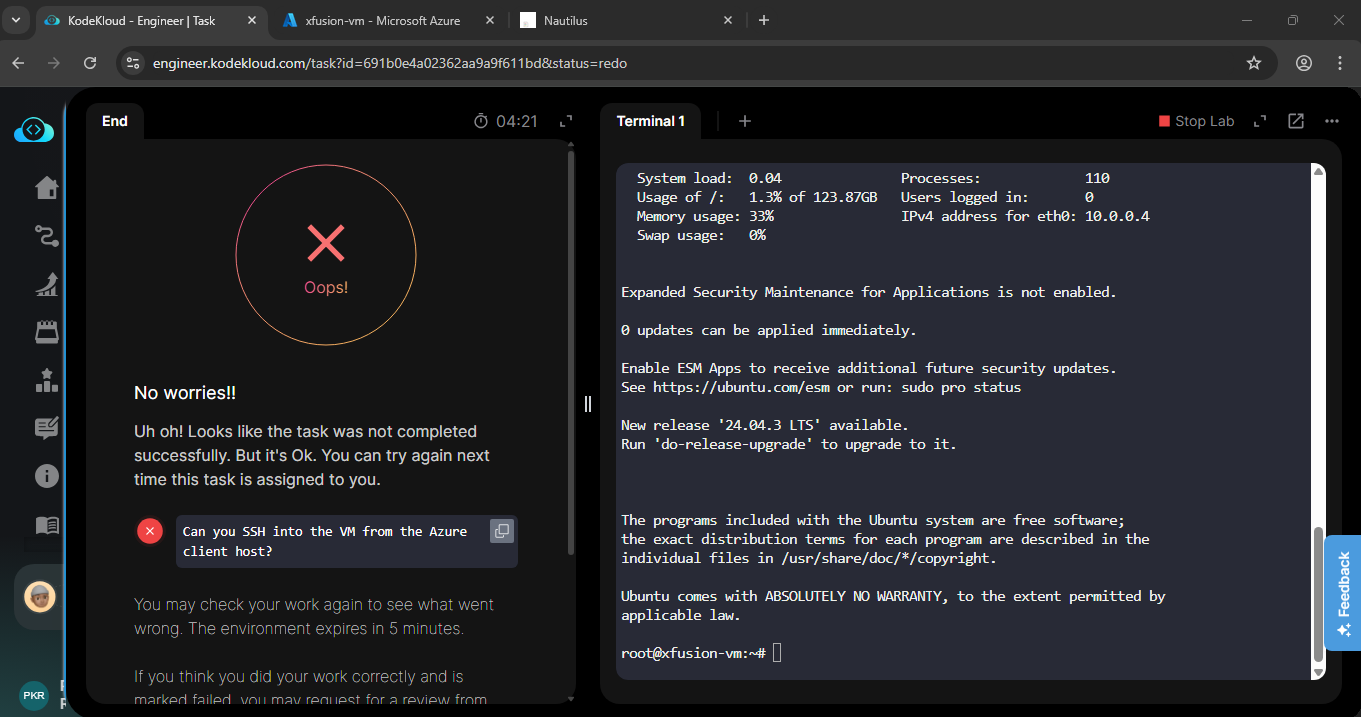
This one’s actually quite quick and easy:
- Get a resource group for the azure-client’s account:
az group list - Now use this command to get a public IP for our vm (say, xfusion-vm):
az vm list-ip-addresses -g kml_rg_main-FROM-1 -n xfusion-vm - Get the public key for our azure-client:
cat ~/.ssh/id_rsa.pub - ssh as azureuser to vm:
ssh -i ~/.ssh/id_rsa azureuser@PUBLIC-IP - Become root:
sudo -i - The /root/.ssh/authorized_keys` file has previous content – remove that and paste in the public key from the azure-client terminal from (3).
- exit the vm.
- test the vm by doing
ssh -i ~/.ssh/id_rsa root@PUBLIC-IP.
That will pass the grader.
2 Likes
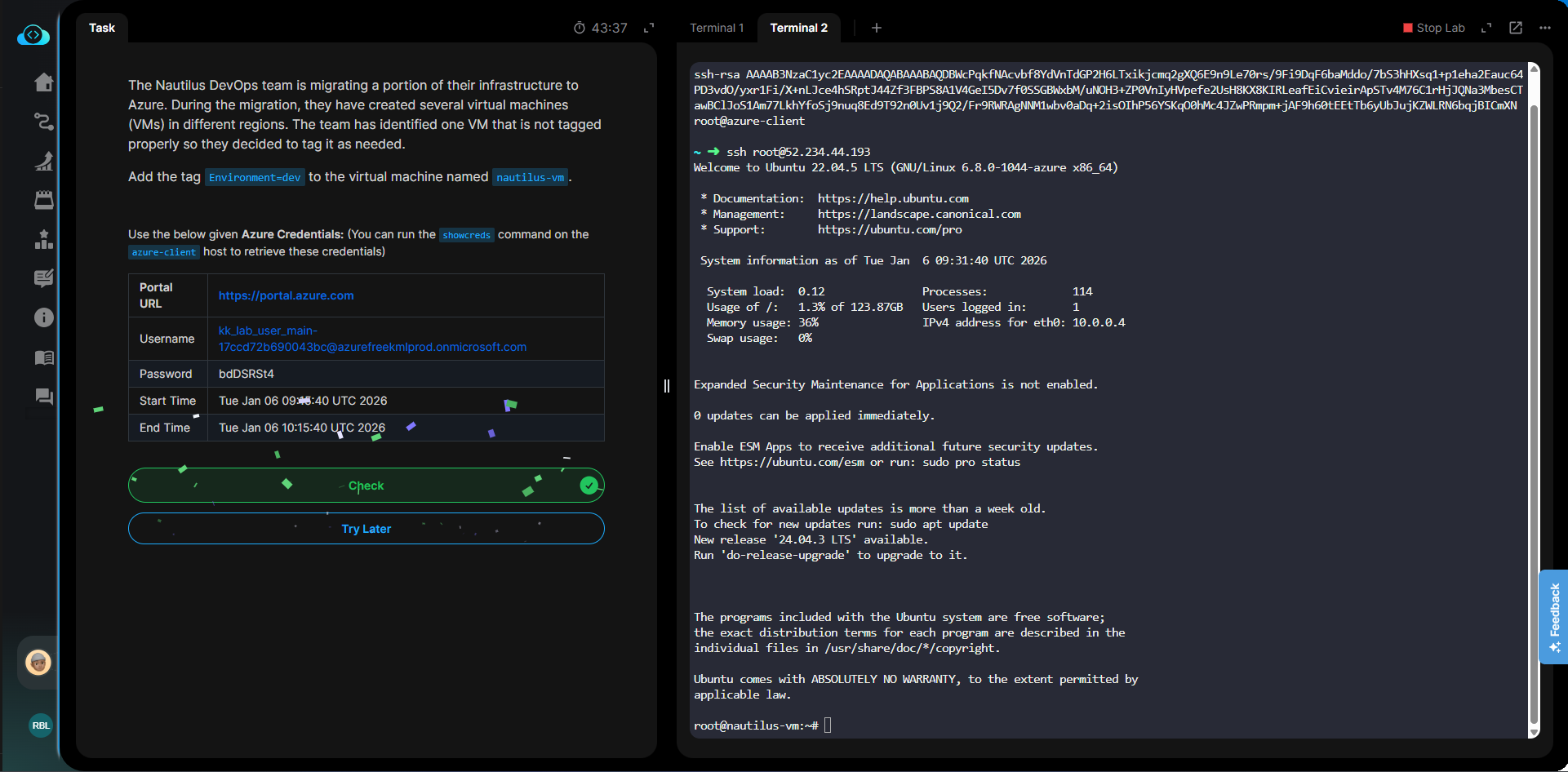
Hi @raymond.baoly @rob_kodekloud
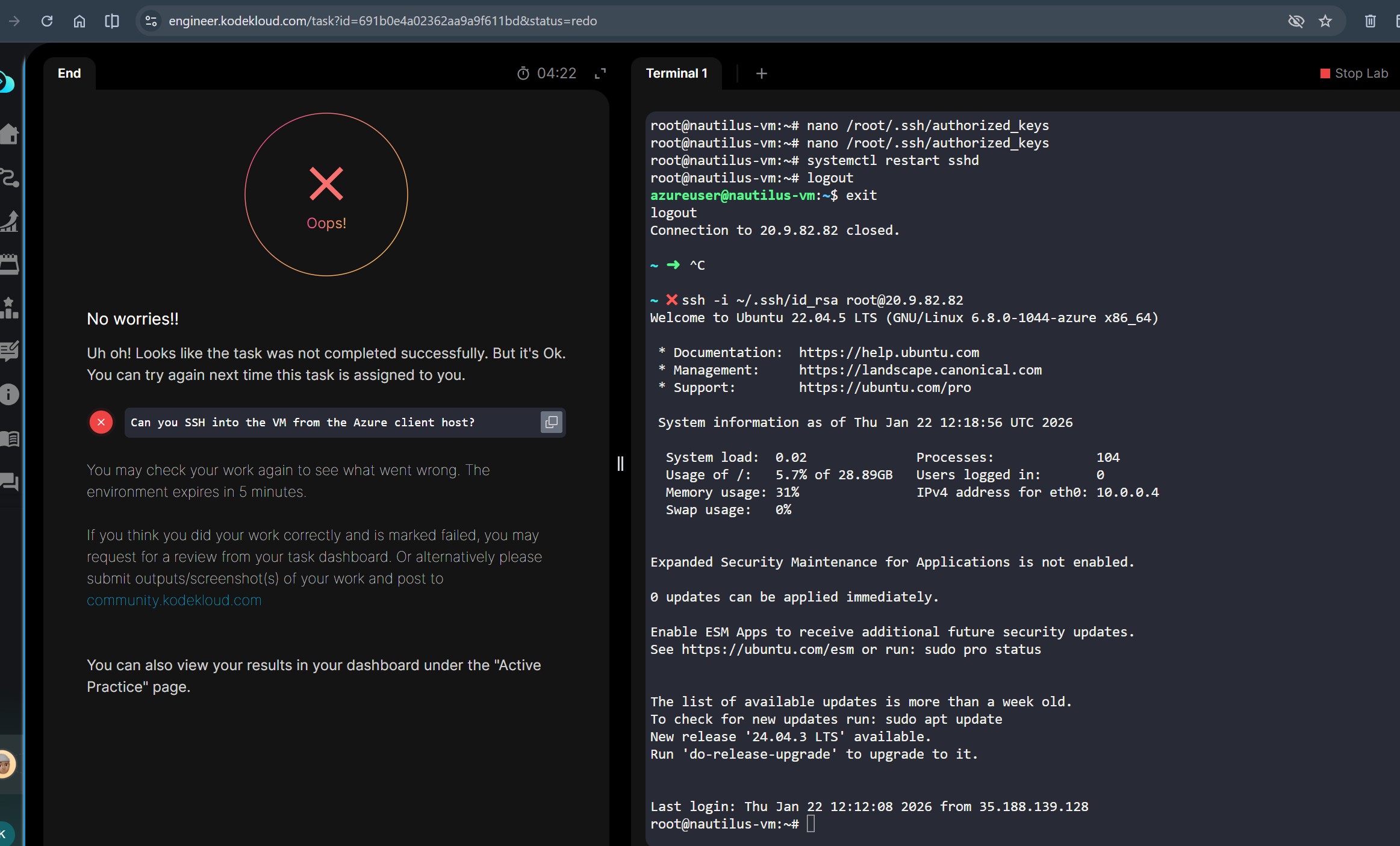
I tried the day 13 problem again today. Although I completed the task, still it shows that “task didnot completed successfully”. Attached is the screenshot.
Hi @MrSampath
I couldn’t replicate the issue. Please share your exact steps so I can see what went wrong.
I followed the steps mentioned by rob_kodekloud (Dec '25 post).
If you see in the screenshot, I am able to login to the VM using the ssh -i ~/.ssh/id_rsa root@PUBLIC-IP code.(step8)
Because of which I have logged into VM and the cursor is at root@nautilus-vm.
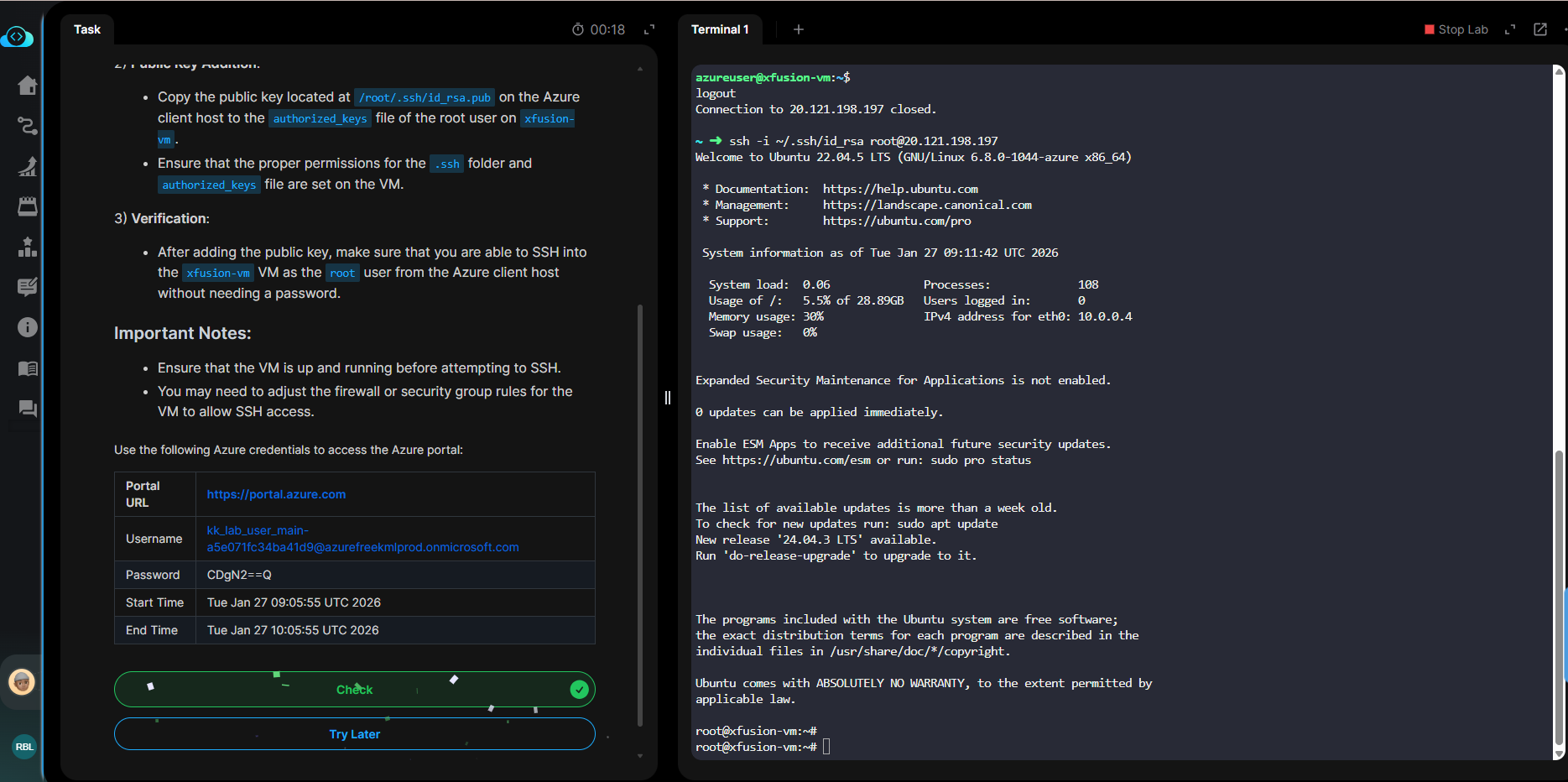
hey @rob_kodekloud thanks i also stack from some of days for complete this task but get fail just because doing some extra staff but when i performed the task according to your steps that magic works so thank you!!!
@MrSampath bro follow the @rob_kodekloud steps the task will cleared
Hi, rob_kodekloud!
Really enjoying the 100 days of Cloud Azure.
I’m currently stuck on day 13. I tried your method and raymond.baoly’s, but I’m still getting the permission denied error.
Here’s a screenshot. Can you please show me what I’m doing wrong?
Thank you!

Where are you trying to log in from? That looks like that might be cloudshell terminal; you will want to run ssh from the azure-client lab terminal. If you do that, the key pair already in the lab terminal will work to do this lab.
I’ll try that. Thank you!

