



Say you're logged in as a user called john. And you want to temporarily switch to another user called jane. Or the administrative user called root. You have two main ways of doing that:
- With the
sucommand. - Or with the
sudocommand.
Here's how you would switch to another user in different situations:
# Situation 1: You know the password for jane
su -l jane
# Type jane's password to log in

# Situation 2: You don't know the password for jane
# But your current user has sudo privileges
sudo -iu jane
# Type *john's* password (current user) to log in (not jane's)

# Situation 3: You don't know the password for jane
# But you know the password for the root user
su -lc "su -l jane"
# Type root's password and you'll be switched to jane
Want to switch to the root user instead?
# If you know the password for the root user, run:
su -l
# Type root's password

# If you don't know the password for root,
# but have sudo privileges, run:
sudo -i
# Type your current user's password (for john in this example)
So, why two commands to do (apparently) the same thing?
sudo vs. su Command
Normally, the su (substitute user) command is designed to help you "become" another user. Begin a new command-line session as that other user.
sudo (superuser do; or substitute user, then do) is designed to temporarily run a (single) command as another user, and then immediately return to your own user's environment.
For example, to run a command as another user, you would type something like this:
sudo -iu jane whoamiReplacing the whoami command with anything you want to run as jane.
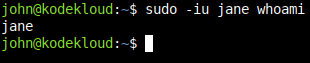
To run a command like cp myfile.txt /tmp as jane, you would type:
sudo -iu jane cp myfile.txt /tmpBut Linux commands can be used in a million different ways. So you can use sudo to switch to another user for a longer-term session too, not just for a single command.
How to Decide Which to Use, su or sudo
If you want to switch to another user on the Linux command line, first ask yourself one question:
Do I know the other user's password?
So let's say you're currently logged in as john. And you want to switch to the user called jane. Do you know the password for jane?
- Yes: Then use
su. - No: Then use
sudo.
Whether you use sudo or su, they both ask for a user password. But the key difference is that:
suwill ask for the other user's password (the user you want to "become").- And
sudowill ask for your own password (the user you currently are).
So, if you're john and want to switch to jane:
suwill ask the password forjane.sudowill ask the password forjohn.
sudo, your user must be in a privileged group on the system (or configured to have "sudo access"). See more here if you need to add your user to sudoers.How to Use su To Switch User If You Don’t Know That User’s Password
What if you're in a pickle like this?
- That other user's password? You don't know it. Can't use
su. - Sudo access? You don't have it. Can't use
sudo.
At first glance, you can't use su or sudo. So how do you solve this? Well, if you know the password for the user called root, there's a trick you can use.
This command will switch you to another user called jane. Replace jane with whatever you need.
su -l -c "su -l jane"
Instead of asking for jane's password, this will ask for root's password. Enter it, and you're in. Running a command-line session as jane. You bypassed the problem of not knowing jane's password. But how did it work?
Here's the explanation:
su -lprepares to log in as the root user. Whyroot? Because with no username specified after-l, by default,suwill switch to the root user.-cspecifies a command to run. Essentially, it tellssu: "Look, after you become root, don't start a shell / login session. Just run this command.""su -l jane"is the command that will be run, as the root user.
And that's the important part. That it runs as root.
Normally, a command like su -l jane would still ask for jane's password.
But this runs as root. And root is the superuser, able to access everything. That's why su will make an exception here. It won't ask for jane's password anymore. It "trusts" root, so to speak.
And that's how you can bypass not knowing janes password, but still switch to that user with the su command.
Only the user that knows that password, or has administrative root / sudo access should be able to switch to that user. Anyone else is denied access.
Now back to the normal use-cases.
How to Use the su Command to Switch User on Linux
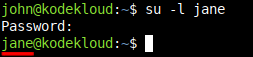
Let's say you're logged in as john. And you want to switch to another user called jane. Run this command:
su -l jane-l tells su to start a login shell.
You then type the password for that user (jane in this case, NOT john):

And that's it. You're now running commands as jane:
When you're done with this new user session, to return to your previous user session, just type:
exit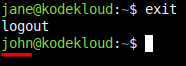
What Does -l Do in the su Command?
In the su -l jane command, -l tells su to start a login shell. So that you're dropped into an environment similar to what that user gets when logging in. You're switched to their home directory, their login scripts run, and so on.
Without -l, you will still be switched to that user. But you won't get the "full login experience," so to speak.
You will be jane but still in john's old directory. The environment won't be like jane has it configured. Which can potentially lead to some unexpected results.
Directly from the manual of the su command, here's what -l is described to do:
-, -l, --login
           Start the shell as a login shell with an environment similar to a real login:
           •   clears all the environment variables except TERM and variables specified by --whitelist-environment
           •   initializes the environment variables HOME, SHELL, USER, LOGNAME, and PATH
           •   changes to the target user’s home directory
           •   sets argv[0] of the shell to '-' in order to make the shell a login shell
How to Use the sudo Command to Switch User on Linux
As mentioned earlier, for this to work, your current user has to have sudo privileges. See more here if you need to add your user to sudoers.
If that's covered...
Let's say you are logged in as john. And you want to switch to a user called jane. To do that with the sudo command, run:
sudo -iu jane-i -u was shortened to -iu
-i tells sudo to transition to a login shell. And -u jane selects jane as the user to login as.

Here, type the password of your CURRENT user (in this case, john, NOT jane).
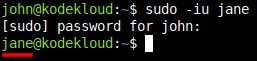
And that's it, you're now running commands as that other user.
When you're done with the new user session, to return to your previous user, just type:
exit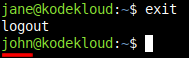
Conclusion
We hope you enjoyed this tutorial. See you in the next blog!





Discussion