



You're in the terminal. And you have this shell script file:

But when you try to run myscript.sh, you get the "command not found" error:
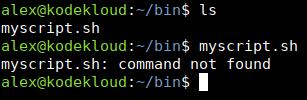
The file is there, yet the command line behaves as if it doesn't exist.
Even weirder, maybe you know the "secret fix" to this: Add a leading ./ (period, slash) before your script filename. But it fails again:

Why do you get a "Permission denied" error?
This blog explores the answers, and solutions to these problems.
Quick Fix
If you're in a hurry, just want to fix this, and don't have time to read the details, here's what you can do.
Scenario 1 — Your Current User Is the Owner of the Script File
If you run the ls -l command, and you see your user here:

Here's what you can do to fix this.
myscript.sh with the actual name of your file.First, make the script executable for your user:
chmod u+x myscript.shAnd then run it by adding a ./ (dot, slash) before the name of the script file.
./myscript.sh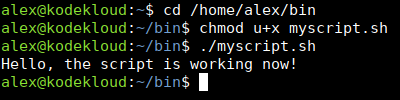
Now it works.
Scenario 2 — Another User Owns the Script File
If the file is not in your personal directory (/home/username), but some other location, like /usr/local/bin/, then another user probably owns that file.

/usr/local/bin/script.sh in the next commands with the actual full path to your script file.To make the script executable, run this:
sudo chmod a+rx /usr/local/bin/script.shNow run it by providing the full path to it:
/usr/local/bin/script.sh
Or, if you're already in the directory where your script is, just add ./ before your script name to run it.
./script.sh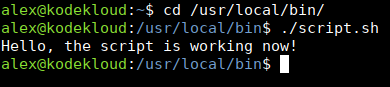
If you want to learn why the commands were required, and how they work, read the rest of the blog.
Why You Get "command not found" Error When Trying to Run an .sh Shell Script
So, you have a file called myscript.sh. You try to run it, and you get this:
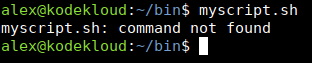
It's there, yet Linux acts as if it's not there. Why?
PATH environment variable for commands.Files in the current directory are ignored, by default, for security reasons; unless you explicitly reference them using
./.Essentially, your command interpreter will only run programs from trusted locations. Which is a good idea.
Imagine that, for some reason, you have a program called apt in your personal directory. Maybe a malicious user placed it there. Maybe someone exploited a bug on your server, and placed it there.
Whatever the reason, now, if you run a command like apt upgrade to update system packages, a rogue program would run.
- Instead of the intended package manager application from
/usr/bin/apt, - Some malicious program from
/home/alex/aptwould run.
And you might not even be aware.
So that's why typing myscript.sh won't work. Linux will simply look at that PATH variable. Which contains these values, usually:
# Command you can run to see contents of PATH variable
echo $PATH

# Output:
/usr/local/sbin:/usr/local/bin:/usr/sbin:/usr/bin:/sbin:/bin:/usr/games:/usr/local/games:/snap/bin
: is a separator.
So your Linux shell will only look for myscript.sh in these directories:
- /usr/local/sbin
- /usr/local/bin
- /usr/sbin
- /usr/bin
- /sbin
- /bin
- /usr/games
- /usr/local/games
- /snap/bin
Won't find it there, and will throw that "command not found" error, as expected.
Linux won't run programs from your current directory, if it's not in that list.
But, you can tell it to make an exception, when you need it.
How to Fix "command not found" Error When Running an .sh Shell Script
You know how when you want to move one directory up, you enter a command like this?
cd ..That's because .. is a sort of "shortcut" to the parent directory. There's another "shortcut" that symbolizes the current directory. And that is:
.Yes, a simple . dot / period character.
So you can tell Linux:
Look, I know thismyscript.shfile does not exist in thePATHvariable. It exists in my current directory, and I want you to run it from here.
To do that you simply precede your script file name with ./ (dot, and forward slash).
.for current directory./is a separator, so you can follow up with your filename, after the current directory.
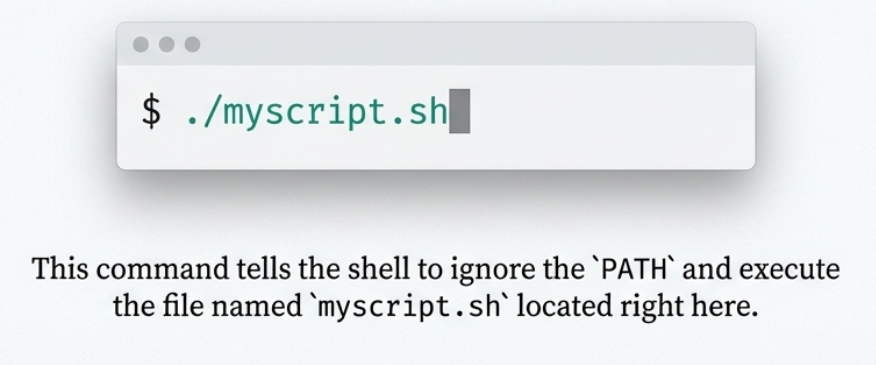
Instead of a command like myscript.sh, you add ./ in front of it, and you run this:
./myscript.shEssentially, . + / + myscript.sh = /home/alex/bin/myscript.sh.
And that's it. If the file has the necessary permissions, the script will execute correctly:
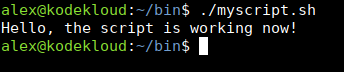
But if the permissions from the file are missing, you get this:

So let's see why this happens, and how to fix it.
Why You Get "Permission denied" Error When Trying to Run an .sh Shell Script
By default, Linux has three kinds of permissions for files: read, write, and execute rwx. If a file does not have the execute permission enabled, then you are not allowed to execute that file.
If you run this command, you can see the current permissions enabled for this file:
ls -l myscript.sh

# Or, if you want to see permissions for ALL files in this directory:
ls -l
See that rw-rw-r--in the permission bits? The first rw- tells you that the user that owns this file (alex in this case) can read it, and write to it. But there's no x, just a - as the third character. Which means the execute permission is disabled.
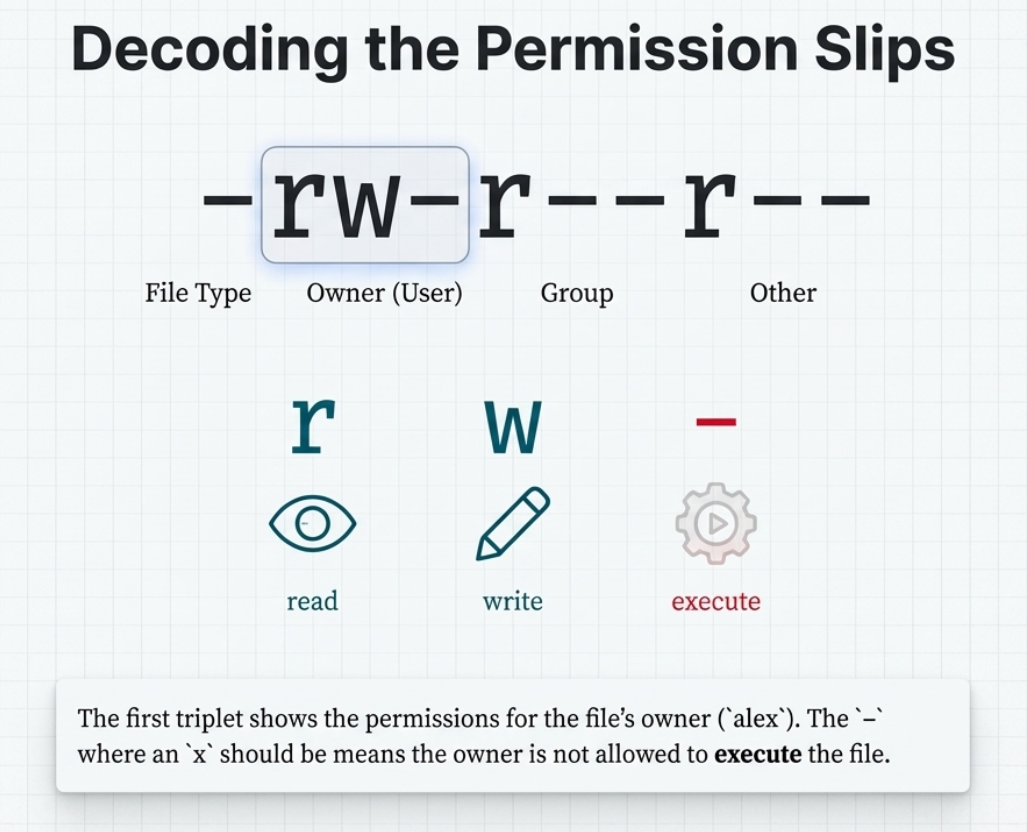
So this explains why you aren't allowed to run this file, and you get the "permission denied" error.

Now, how do you fix it?
How to Fix "Permission Denied" Error When Running an .sh Shell Script
If your file is called myscript.sh, first take a closer look at its details with:
ls -l myscript.shAnd check this name here:

That tells you the user that owns this file. If you're logged in as that same user, then you own it, basically. So you'll be allowed to change permissions on it. Only the owner can change permissions, or the administrative user root.
Option 1 — If You Are the Owner of the .sh Script File
If you're in this scenario (your user owns the file) then make that file executable with this command:
chmod u+x myscript.shIn this command:
uis for user.+is to tell chmod to add a permission.xis for executable.

It's like telling chmod:
For the user owner permission set, add a new permission, make it executable.
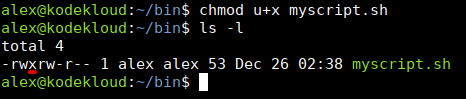
And the result:
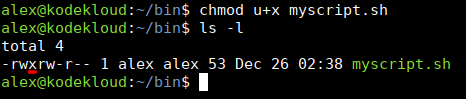
The x permission appears in that spot. Because the first three letters are permissions that apply to the user that owns the file. The next three letters are for the group, and the next three are for the rest of the users on this system.
- You're now logged in as
alex. - This script file's owner is also
alex. - The file owner permissions (first set of letters) have
x/ execute enabled.
All of this means you are now allowed to execute it:
./myscript.sh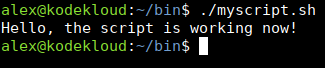
Think of x in this spot (first group of letters):
As saying "Only the user that owns this file can execute it."
Look at this example to see the difference:

Here, the file is owned by jane. And execute is enabled just for that user, jane. However, if another user like alex tries to run it:
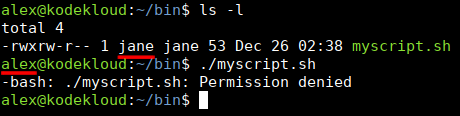
They'll get an error, as expected. With the current permissions, only jane can run that.
What do you do in this scenario? If there's a file that you don't own, and you want to make it executable?
Option 2 - If a Different User Owns the .sh Script File
Typically, this happens if you try to make a file executable in some directory that your regular user does not control. A directory like /usr/local/bin/, or something similar. Usually, the file owner will be a user called root.
If the file is owned by root, or another user, here's what you can do to make it executable.
First, you need administrative privileges to change permissions of a file your user does not own. You can get those if you log in as the root user, or you can simply add the sudo command in front of chmod.
With these permission bits:

The current user cannot execute this script:

To make this script executable, you would run a command like this:
sudo chmod a+rx /usr/local/bin/script.shOr, if you're already inside that directory:
sudo chmod a+rx script.shNotice there's a slight difference (compared to Option 1 in the previous section). Instead of:
u+x, you havea+rx
Remember this picture?
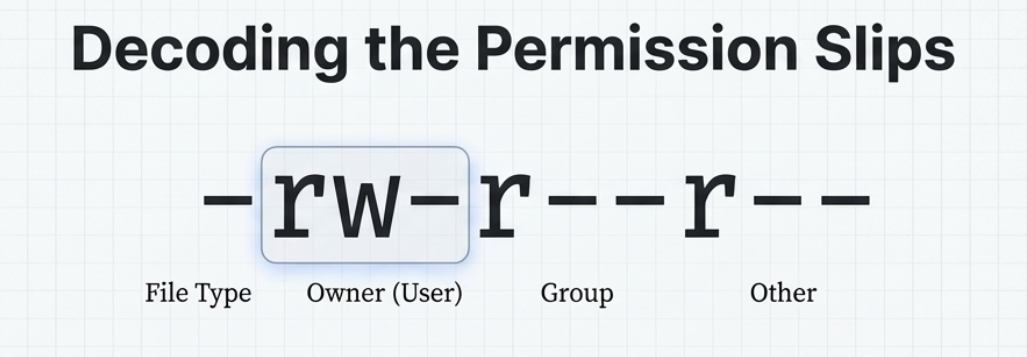
There are three sets of permissions (owner, group, other).
Here's what the letters symbolize in chmod a+rx:
ais for all. Meaning, change the permissions in all three spots: for the user owner, group of the file, and also the last section, others. You can think of it as changing permissions that will apply to everyone on this system; no matter if they are the owner of that file, or part of the group that owns the file, or they are "other" users (that don't own it, and aren't part of the group).+is to add permissions.ris for the read permission. This time, you don't own the file. And non-owners usually have read permissions disabled. So you need to ensure that "other" users on this system can also read that file. If they can't read it, they can't execute it either.xis for execute permission.
After running sudo chmod a+rx /usr/local/bin/script.sh the file permissions look like this:

r and x added in all three sections.
Every user on the system should now be able to run this script; either by typing the full path to it:
/usr/local/bin/script.sh
Or, if you're already in the directory that contains the file, you can use the ./ trick to call it there:
./script.sh
Common Questions
Why Doesn’t Linux Just Run Scripts from the Current Directory Automatically?
Primary reason: Security.
If Linux searched the current directory first, a malicious script named, let's say apt, or ls could execute instead of the real system-default command. Requiring ./ forces you to be explicit about running files from the current directory.
It helps you avoid running unintended programs. A normal command will run only from normal, trusted directories. But if you need to run one from your current directory, you can do it intentionally with a simple ./.
It makes you aware of what you are executing.
What Does ./ Actually Mean?
The . represents the current directory. And / separates it from the filename. So ./script.sh literally means "the file called script.sh in the current directory."
Can I Add My Current Directory to PATH So I Don’t Need ./?
You might encounter this advice on the Internet, but don't do it. Adding . to PATH is a security risk for the same reason Linux doesn't search there by default. Malicious scripts could masquerade as common commands.
It doesn't even need to be a malicious script. Maybe you downloaded a newer version of some program. Compiled it locally. But it's a new, buggy version. You forget that you have it in your current directory so you run:
sudo name_of_programEssentially, you think you are running the stable version from your Linux OS, free of bugs. But you are accidentally running the unstable, buggy version you have in your current directory.
You forgot about it, and now you ran a buggy program with root privileges! And messed up your system.
But, with the default behavior, (Linux only running programs from trusted directories) you avoid this.
When you run:
sudo name_of_programIt will always execute the stable version, provided by your operating system.
And when you want to test your newer, unstable version, you can simply run:
./name_of_programYou know what you are running, and from where. And you can't accidentally run the wrong application with root privileges this way.
Now you know exactly why Linux refuses to run scripts from the current directory.
Thank you for reading, and see you in the next blog!


Discussion