



In this guide you’ll learn:
- What hostnames are, and why they matter.
- How to change a hostname:
- With the
hostnamectlcommand on systemd-enabled operating systems. - With the
hostnamecommand on non-systemd operating systems.
- With the
- When and why to update the
/etc/hostsfile. - How FQDNs (Fully Qualified Domain Names) work.
- How to set up FQDN for a Linux server (as a hostname).
Quick Answer — Changing Hostname on Linux
First, run this command to see if your Linux OS uses systemd:
systemd --versionIf you have systemd, you'll get output like this:

If you don't have systemd, you'll see a "command not found" error.
Option A — If Your Linux OS Uses systemd
This applies to most popular Linux distributions, like Ubuntu, Debian, CentOS, RHEL, Fedora, Arch, and similar.
You can change the hostname with one of these commands:
sudo hostnamectl set-hostname enter_hostname_here
sudo hostnamectl hostname enter_hostname_here
They both work the same.
Example of real commands to set the hostname to dbserver, or an FQDN like dbserver.kodekloud.com:
sudo hostnamectl set-hostname dbserver
sudo hostnamectl set-hostname dbserver.kodekloud.com
Option B — If Your Linux OS Does NOT Use systemd
You'll rarely find server-oriented Linux operating systems not using systemd nowadays. But if you're on one of those, run these commands to change your hostname:
sudo hostname enter_hostname_here
echo "enter_hostname_here" | sudo tee /etc/hostname
Example of real commands to set hostname to something like dbserver:
sudo hostname dbserver
echo "dbserver" | sudo tee /etc/hostname

# Or, if you need to use an FQDN like "dbserver.kodekloud.com":
sudo hostname dbserver.kodekloud.com
echo "dbserver.kodekloud.com" | sudo tee /etc/hostname
At this point, the hostname is changed. Log out, and log back in to see the change reflected in your command prompt.
But no matter if you had to go with Option A, or B, the next step is to edit the /etc/hosts file to associate your hostname with an IP address. Instructions are included later in this tutorial.
What Is a Hostname on Linux?
A hostname is just a text label you can assign to a Linux machine. It helps you more easily identify it among hundreds of other machines (real, or virtual). And it also helps you identify which machine generated what.
Here are just a few examples.
You log in through SSH, and you see this:

The part after @ is the hostname. It immediately tells you which server you’re logged into.
Imagine having two SSH sessions open at the same time. In one window you see alex@database, and in the other alex@webserver. Just by glancing at the prompt, you always know where you are, and you avoid running commands on the wrong server, by mistake.
With no hostnames in the command prompt it would be hard to remember which window belongs to which server login.
An alternate explanation is that a hostname is what the operating system calls itself. When it boots up it says:
My name is kodekloud. Because that's what the human administrator decided I should be called.Hostnames are also extremely useful in logs; especially when logs from multiple servers are collected (and mixed) in a central location.
For example, imagine 20 different servers sending logs to a single logging system. You scroll to a specific time — say 12:55 PM — to investigate an error. And you see multiple log entries from different machines.
Without hostnames, it would be difficult to tell which server produced which log entry. But with hostnames included, a line like this:
Dec 18 12:55:36 kodekloud systemd[1]: Stopped ssh.service - OpenBSD Secure Shell server.Immediately tells you that the event happened on the server named kodekloud.
This is why choosing clear, descriptive hostnames is important. When they pop up in places like this, you want to easily remember what the purpose of that Linux server is.
dbserver you choose a hostname like dbserver.kodekloud.com, that's called an FQDN (fully-qualified domain name).Essentially,
dbserver.kodekloud.com is still a hostname. But it's made out of "more components," so to speak.What Is a Fully Qualified Domain Name (FQDN) on Linux?
Some setups might require you to pick a fully-qualified domain name, FQDN for short. For example, if you set up an email server, or want to generate a TLS certificate to encrypt your website's traffic, you might need an FQDN.
An FQDN can look something like www.kodekloud.com, or dbserver.kodekloud.com. Think of it as "a more detailed hostname." That other machines from the Internet can reach (if you also add the proper DNS entries on a separate DNS server, or on the website where you bought your domain name).
It’s hard for computers on the Internet to know where dbserver is (you can’t register a single word as a global DNS entry). But dbserver.kodekloud.com is a complete "address" that can be added to public DNS records so the world can find it.
With an FQDN like dbserver.kodekloud.com you get two important components:
- A (short) host (name) that is considered to be just the first part,
dbserver. Sometimes it's simply called the host. - And a long, or full hostname: The complete FQDN you just set,
dbserver.kodekloud.com.
Try to avoid FQDNs like kodekloud.com. These essentially miss the host part. You want something like:
host.domain.tldWhere domain.tld is the kodekloud.com part (or whatever the domain you control might be). And tld is short for top-level domain (the .com part, .io, .biz, and similar).
Why use host.domain.tld instead of domain.tld? Why add that host part in front of your domain? Think of it like the Internet wanting to know:
Ok, this organization controls thekodekloud.comdomain name. But what PART of this domain does this server represent? Is it thewwwpart that deals with web requests? Is it the database server? Is it the server that deals with images? Is it the caching server?
You get the idea. You want a specific "identity" when you use an FQDN-type hostname for your servers. kodekloud.com alone is technically allowed, but it's too generic. Could even work incorrectly in some setups.
It's important to note that when you set up an FQDN as a hostname, some programs will just show you the host part (first "word" of your FQDN). And other programs will show you the full FQDN. Here are some examples.
Let's say you set the hostname to an FQDN like webserver1.kodekloud.com. The command prompt will show you just the first part, the host of your FQDN:

But if you run the hostnamectl command, it will show you the full hostname (entire FQDN):
hostnamectl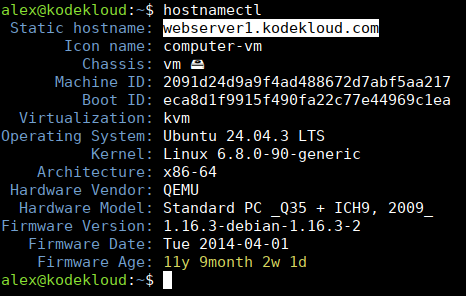
webserver1.kodekloud.com, computers on the Internet won't automatically know how to find it. If you want to make it "findable," you need to configure DNS entries, separately. Either by going to a web-based control panel somewhere (where you bought your domain name), or configuring a separate DNS server.Essentially, you need to add to the "phonebook" of the Internet: "This is the IP address for my server called
webserver1.kodekloud.com."Now that you know the difference between a simple hostname like dbserver, and an FQDN-type hostname like dbserver.kodekloud.com, here's how you can set these up.
Step 1 — Change the Hostname on Linux (systemd Distributions)
These instructions are for operating systems like Ubuntu, Debian, RHEL, Rocky Linux, and other Linux distributions that use systemd. Think of systemd as a collection of tools that boot up, monitor, and manage your system.
Uncertain if your Linux distro uses systemd, or not? Check with this command:
systemd --versionIf you see something like this, you're good to go.

If you see something like "Command not found," then your distribution is NOT using systemd, so skip to the other section, where we deal with non-systemd distributions.
With systemd tools running, things are easy. To change the hostname, run this command:
sudo hostnamectl set-hostname choose_hostname_hereReplace choose_hostname_here with your desired hostname. For example, to call it dbserver, you'd run this command:
sudo hostnamectl set-hostname dbserverAn equivalent command is:
sudo hostnamectl hostname dbserverEssentially, hostname is an alias for set-hostname. Two subcommands that do the same thing: Tell hostnamectl to change the hostname to a user-provided value.
kodekloud, you want to use an FQDN (fully-qualified domain name) like dbserver.kodekloud.com, you would run a command like this:sudo hostnamectl hostname dbserver.kodekloud.comDepending on what shell you are using, you might still see the old hostname on the command line:
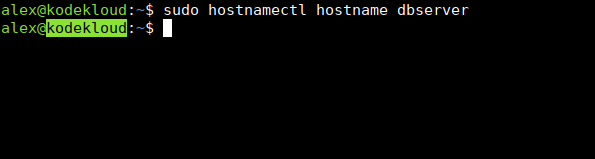
That's normal in a default shell like Bash. Because Bash sets this prompt at the beginning of your session.
Let's say it sets it to kodekloud when you log in. Even though the hostname has now changed, you will still see the old hostname here. Think of it like a "cache" that is outdated, and needs a refresh.
You can log out and log back in, and you'll see that the hostname is indeed different:

But even if you don't log out, and the prompt still shows the old (incorrect) hostname, you can check if your previous hostnamectl set-hostname command did its job.
To check the current hostname of your machine, run this:
hostnamectl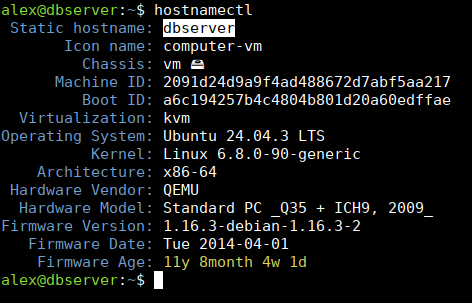
Look at Static hostname. If it's updated to what you wanted, you can continue to the next step, editing the /etc/hosts file.
But before you jump to that, what if your operating system doesn't use systemd?
Change the Hostname on Linux (NON-systemd Distributions)
If you use a Linux operating system without systemd, this is how you change the hostname.
First, run this command, replacing enter_hostname_here with the hostname you want:
sudo hostname enter_hostname_hereNext, edit the /etc/hostname file with nano, or vim:
sudo nano /etc/hostname

# Or, if the nano editor is not available:
sudo vim /etc/hostname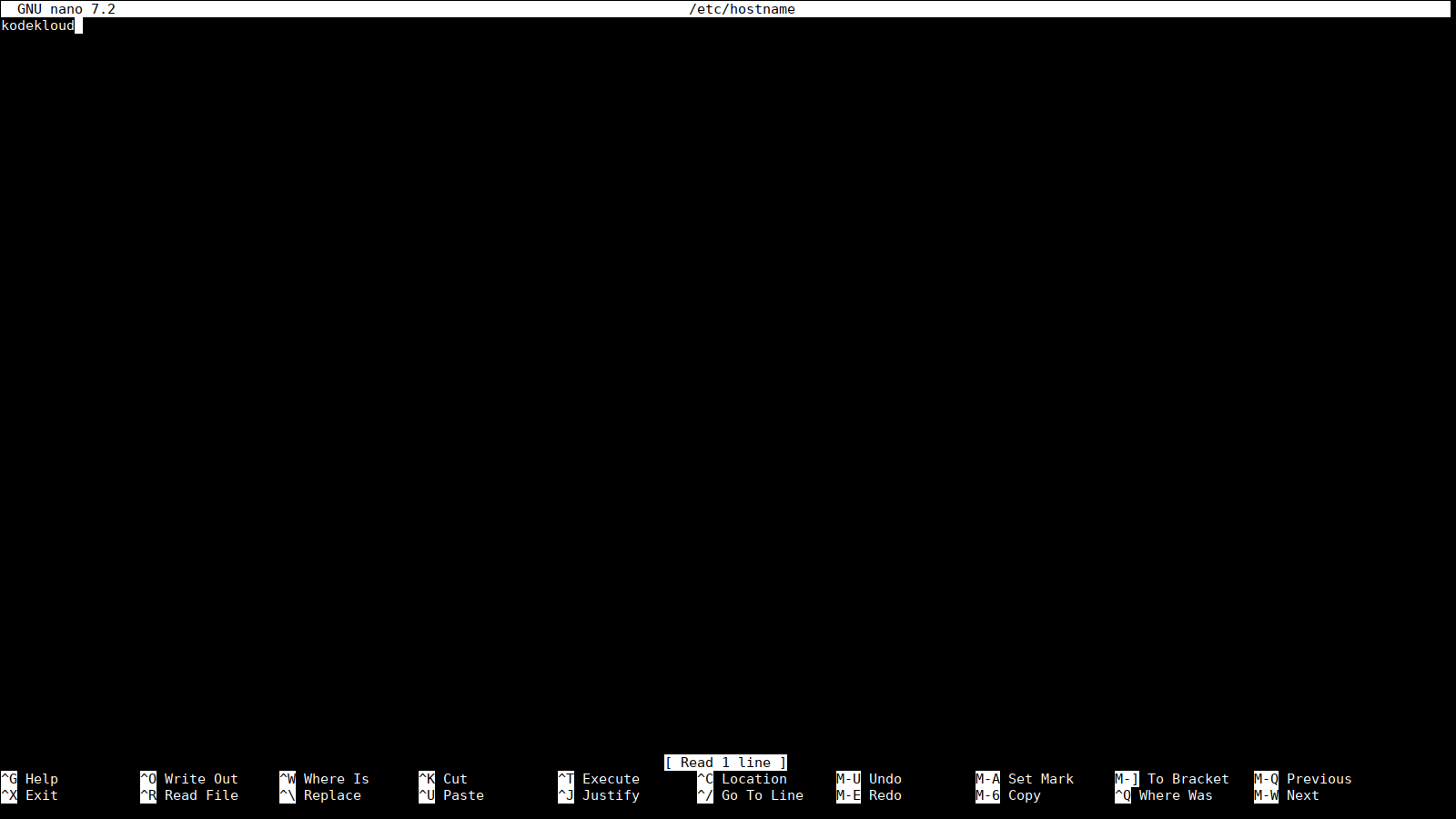
Change the line of text to the hostname you want. Save the file, then jump to the next step, editing the /etc/hosts file.
Step 2 — Update /etc/hosts File
Now, the hostname is set. Some programs will ask for this hostname, and they will get it from the system. The problem, though? Some programs also require an IP address.
Let's say the hostname is set to dbserver. When a program asks:
What is the IP address of dbserver? I need to connect to it.The system will have no answer. It just doesn't know.
So you need to tell it:
dbserver has this IP address.And you can do that by editing the /etc/hosts file with the nano, or vim editor:
sudo nano /etc/hosts

# If nano is not available, run this instead:
sudo vim /etc/hosts
Here, just look for the line where your old / previous hostname is mentioned:
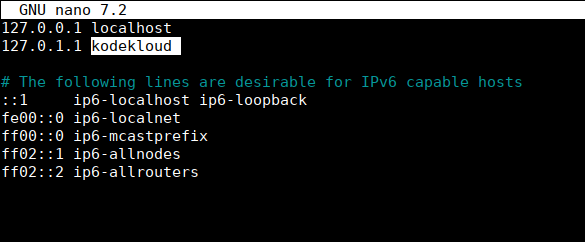
In my case, the line on an Ubuntu system was:
127.0.1.1 kodekloudReplace this with your new hostname.
For example, if the new hostname is dbserver, then you would change kodekloud to dbserver here. And you'd end up with this line:
127.0.1.1 dbserver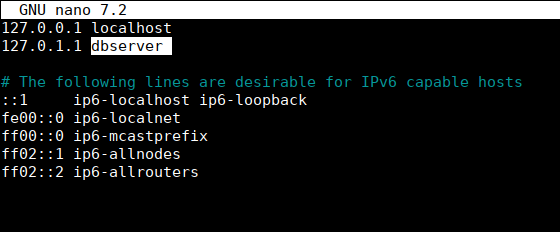
If instead of a simple hostname like dbserver, you need to use an FQDN like dbserver.kodekloud.com, then modify the line this way:
127.0.1.1 dbserver.kodekloud.com dbserver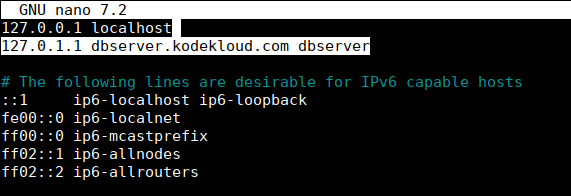
- Essentially, you add the FQDN first:
dbserver.kodekloud.com, in this case. - Then you add the host (first word of the FQDN),
dbserver, at the end.
The order is important (FQDN, then short host name).
On RHEL-based systems (and similar) you might see a different default content in the /etc/hosts file. Something like this:
127.0.0.1   localhost localhost.localdomain localhost4 localhost4.localdomain4
::1         localhost localhost.localdomain localhost6 localhost6.localdomain6
If that's your case, take a different approach. Don't modify the existing lines. Just add a new line under your first line. For a simple hostname like dbserver, you would add:
127.0.0.1 dbserverYou would end up with this as your second line:

For an FQDN like dbserver.kodekloud.com you would add:
127.0.0.1 dbserver.kodekloud.com dbserverSame idea, FQDN first, and then the short host part at the end.
You'd end up with this as your second line:

Note the slightly different IP address here:
- On RHEL it's
127.0.0.1 - On Debian / Ubuntu:
127.0.1.1
Even if the default IPs they use are different, their function is similar. They are called loopback addresses. Because they point back (loop back) to the same machine.
It's like calling your own phone number.
So with these edits, you essentially told your system:
Hey, this hostnamedbserver(ordbserver.kodekloud.com) is associated with this same machine.
Now if a program from this machine wants to connect to the hostname called dbserver or dbserver.kodekloud.com it will be directed to 127.0.0.1 (or 127.0.1.1). So it will end up connecting back to the same server it's running from.
Conclusion
We hope this demystifies everything related to hostnames, and the /etc/hosts file. If you're having trouble with the follow-up, setting up DNS entries on your domain, to point to your Linux machine, drop a comment. We will add an extra tutorial for that.
Thank you for reading, and see you in the next blog!





Discussion